Introduction
Welcome to the DOSBox Staging 0.83 Getting Started guide!
This guide will gently introduce you to the wonderful world of DOSBox Staging by walking you through setting up a few example games from scratch. Although it’s primarily intended for newcomers unfamiliar with DOSBox Staging and DOS emulation, it’s a recommended read for people already comfortable with other DOSBox variants — we have many unique features that none of the other variants provide. And even if you’re a long-time Staging user, we’re quite certain you will learn a few new useful things and techniques by reading this guide.
The guide has been written in the spirit of “teaching a man how to fish” — the games are only vehicles to teach you the basics that you can apply to any DOS game you want to play. Consequently, the choice of games doesn’t matter that much (although we tried to pick from the classics).
To get the most out of this guide, don’t just read the instructions, but perform all the steps yourself! Later chapters build on concepts introduced in previous ones, so do not skip a chapter just because you’re not interested in a particular game! You don’t have to play it if you don’t want to; going through the setup procedure and learning how to troubleshoot various issues is what this is all about. The best way to learn that is by practice. All necessary files will be provided, and no familiarity with IBM PCs and the MS-DOS environment is required — everything you need to know will be explained as we go. The only assumption is that you can perform basic everyday computer tasks, such as copying files, unpacking ZIP archives, and editing text files.
The guide has been written so that everyone can follow it with ease, regardless of their operating system of choice. For example, Windows users probably know what the “C: drive” is, and most Linux people are comfortable using the command line, but these things need to be explained to the Mac folks.
We wish you a pleasant journey and we hope DOSBox Staging will bring you as much joy as we had in developing it!
Installing DOSBox Staging
You must use the version of DOSBox Staging this guide was written for (you can check the version in the navigation bar at the top of the page; it’s the number to the right of the DOSBox Staging logo, e.g. 0.83). A banner at the top of the page warns you if you’re not viewing the latest version of the guide. We recommend using the latest stable version of our software; we just make the guide and the manual available for earlier versions too for people who haven’t upgraded yet.
If you’re a beginner and have previously installed DOSBox Staging on your machine, we highly recommend uninstalling it first, then installing the appropriate version to avoid confusion. Please make sure to follow the instructions in this section as well.
GOG and Steam DOS games
If you already play DOS games through GOG.com or Steam, installing DOSBox Staging is completely safe and won’t interfere with them. Each of those games ships with its own private copy of DOSBox inside the game’s folder and launches that copy directly.
DOSBox Staging installs separately in its own location and never touches or overrides those bundled copies, so your existing GOG and Steam games will keep working exactly as before. Of course, you can point a game at DOSBox Staging later for better compatibility, but that’s a deliberate opt-in — nothing about the installation does it for you.
Windows
Download the DOSBox Staging installer version appropriate for this guide from our Windows releases page, then proceed with the installation. Just accept the default options; don’t change anything.
Make sure to read the section about dealing with Microsoft Defender SmartScreen.
macOS
Download the DOSBox Staging universal binary version appropriate for this guide from our macOS releases page, then simply drag the DOSBox Staging icon into your Applications folder. Both Intel and Apple silicon Macs are supported.
Don’t delete the .dmg installer disk image just yet — we’ll need it later.
Linux
Download the DOSBox Staging version appropriate for this guide from our Linux releases page. Our official Linux build is statically linked and runs on most desktop Linux distributions (x86_64 only for now).
Warning
We highly recommend our official Linux build over distro-provided packages or self-compiled builds, especially if you’re a beginner. Builds not tested by the core development team can contain any number of obvious or subtle bugs.
Other stuff we’ll need
As you follow along, you’ll need to create and edit DOSBox configuration files, which are plain text files. While Notepad on Windows or TextEdit on macOS could do the job, it’s preferable to use a text editor better suited to the task.
Windows
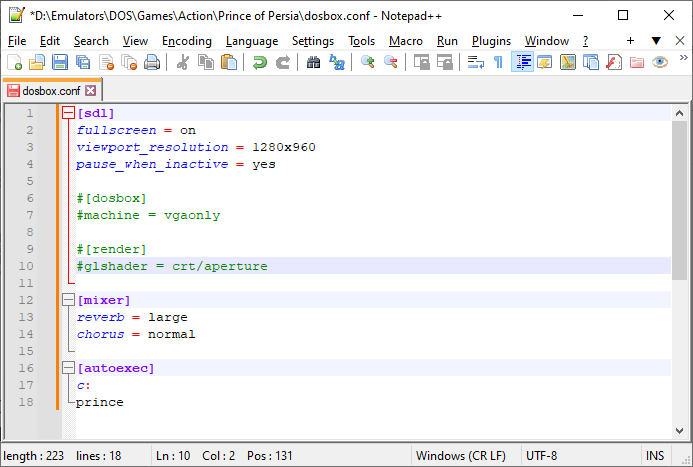
We recommend Windows users install the free and open-source Notepad++ editor.
Accept the default installer options; this will give you a handy Open with Notepad++ right-click context menu entry in Windows Explorer.
macOS
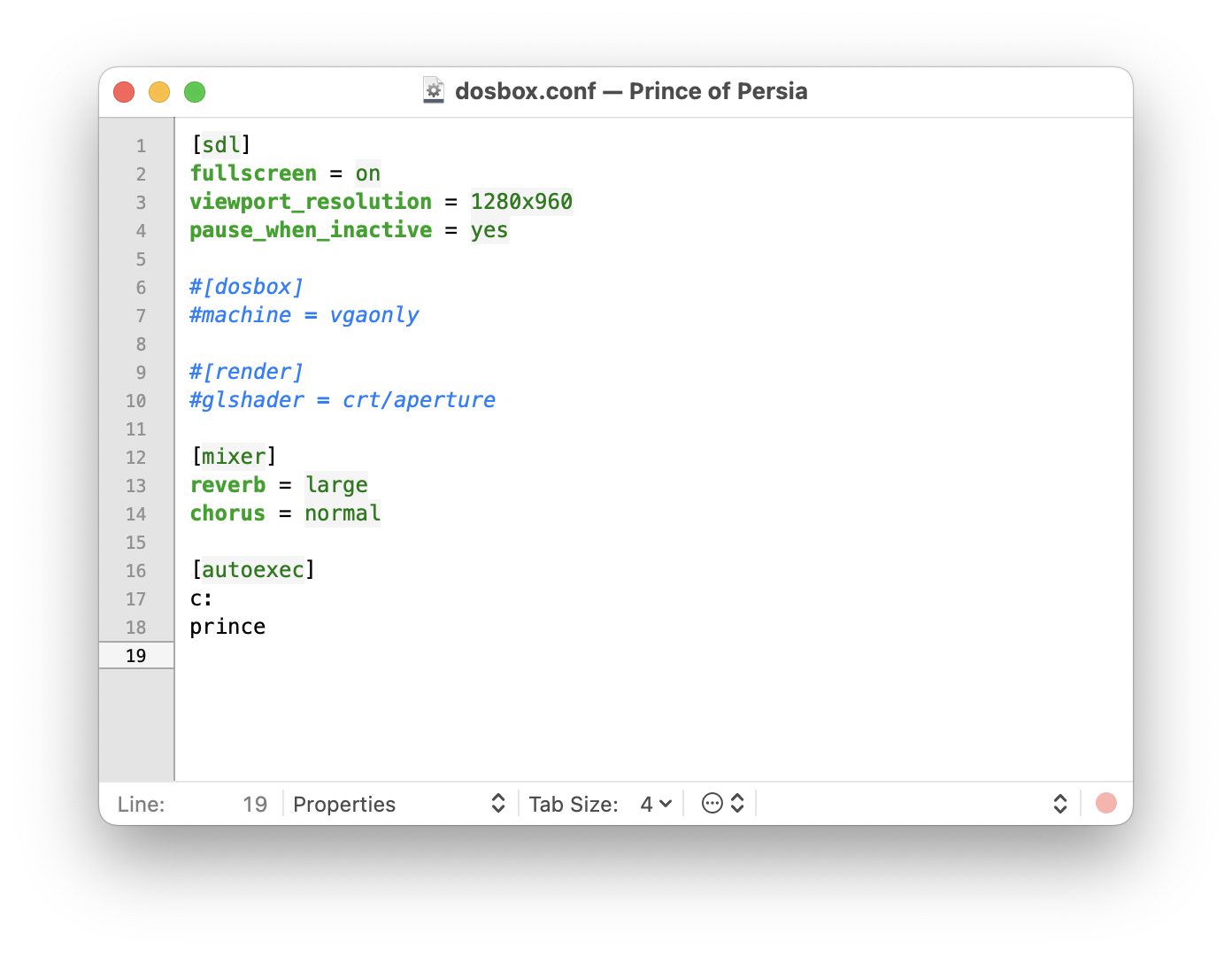
TextMate is a free and open-source text editor for macOS, which is perfect for the job.
Tip
When editing DOSBox configuration files in TextMate, it’s best to set syntax highlighting to the Properties file format as shown in the screenshot below (it’s the combo-box to the left of the Tab Size combo-box in the status bar).
Linux
We’re pretty sure Linux users don’t need any help and have their favourite
text editors at hand already. And, of course, everybody knows Vim is the
best! 
A note for existing DOSBox Staging users
If you already have DOSBox Staging installed on your computer, or if you have
used it in the past but have uninstalled it, you most likely have a primary
configuration file named dosbox-staging.conf somewhere on your drive (this
is sometimes also referred to as the default or global configuration).
The guide assumes the default settings of the DOSBox Staging version it is written for, so we highly recommend removing any existing primary configuration files first (but make sure to back them up). If the primary configuration file does not exist in a platform-specific location, DOSBox Staging will create it on the first launch (that’s what we want). If it exists, it will be used, but the defaults of some settings might have changed between releases, or you might have tweaked some settings yourself. Since the guide assumes the default settings, these differences may render some of the instructions invalid.
This is where the primary configuration is located per platform:
| Windows | C:\Users\%USERNAME%\AppData\Local\DOSBox\dosbox-staging.conf |
| macOS | /Users/<USERNAME>/Library/Preferences/DOSBox/dosbox-staging.conf |
| Linux | $HOME/.config/dosbox/dosbox-staging.conf |
You can also execute DOSBox Staging with the --printconf option from the
command line to have the location of the primary config printed out.
To back up your existing primary config, you can simply change the extension
of dosbox-staging.conf from .conf to .bak. DOSBox Staging will write a
brand new primary config containing the current defaults the next time you
start it.
Portable mode notes
If you’ve already been using DOSBox Staging in portable mode,
dosbox-staging.conf is located in the same folder as your DOSBox Staging
executable. In that case, we recommended backing up your existing primary
configuration and then creating a new empty dosbox-staging.conf file in the
executable folder. DOSBox Staging will write the new defaults to the empty
dosbox-staging.conf file on the first launch.
Important
Having this empty configuration file there is important before you start up Staging — this instructs it to operate in portable mode. Otherwise, it would create the new primary configuration in the platform-specific home folder location.