Advanced graphics options
Aspect ratios, square pixels & black borders
Okay, let’s tackle the pressing question every second person wants an answer for: why doesn’t the image fill the screen completely? And why are there black borders around it? (Well, those are two questions, but never mind.)
Computer monitors were originally not widescreen but had a 4:3 display aspect ratio, just like old television sets. The complete switch to 16:9 in computer monitors and laptops happened only by the early 2010s. The low-resolution 320×200 VGA mode was designed to completely fill a 4:3 CRT screen. When displaying such 4:3 aspect ratio content on a 16:9 modern flat panel, you’ll get black bars on the sides of the image. This is called pillarboxing.
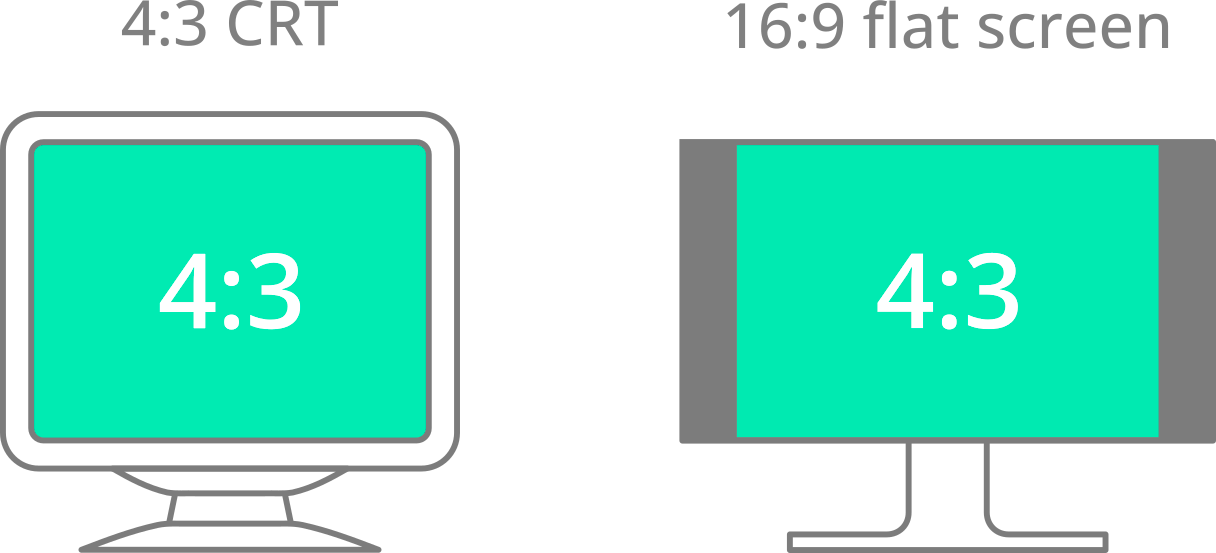
Pillarboxing in action: black bars fill the extra space
when the aspect ratio of the screen and the image do not match
Hang on a second; something is not right here! 320:200 can be simplified to 16:10, which is quite close to 16:9, which means 320×200 resolution content should fill a 16:9 screen almost completely with only very minor pillarboxing! Sure, that would be true if the pixels of the 320×200 VGA mode were perfect little squares, but they are not. How so?
As mentioned, 320×200 graphics completely fill the screen on a 4:3 aspect ratio CRT—but that’s only possible if the pixels are not perfect squares but slightly tall rectangles. With square pixels, you’d get some letterboxing below the image (the horizontal version of pillarboxing), as shown in the image below. If you do the maths, it turns out the pixels need to be exactly 20% taller than wide.
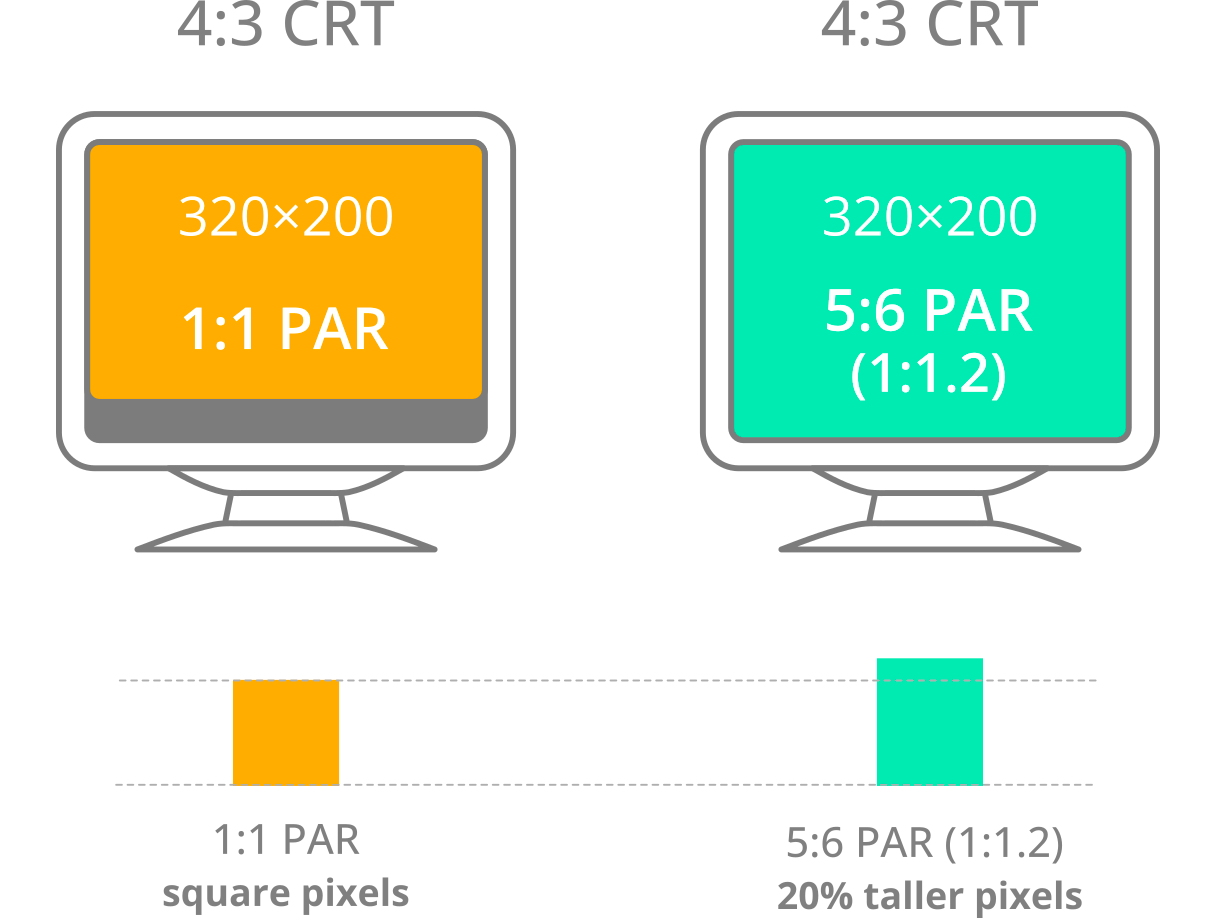
Left: 320×200 pixel image with square pixels on a 4:3 monitor—there is some letterboxing below the image; Right: the same image with 20% taller pixels on the same monitor—the image fills the screen completely.
Here’s how to derive it: 4:3 can be rewritten as 320:240 if you multiply both the numerator and denominator by 80. Then 240 divided by 200 is 1.2, so the pixel aspect ratio is 1:1.2, which can be rewritten as 5:6. (Pixel aspect ratio, or PAR in short, is the mathematical ratio that describes how the width of a pixel compares to its height.)
But hey, not everybody likes maths, especially not in the middle of a gaming session! Most of the time, you won’t need to worry about aspect ratio correctness because DOSBox Staging handles that automatically for you. There is a small but significant number of games, though, where forcing square pixels yields better results, as we’ve seen in our Beneath the Steel Sky example.
When pixels are not squares
Sadly, this very important fact of computing history that monitors were not widescreen until about 2010 tends to be forgotten nowadays. Older DOSBox versions did not perform aspect ratio correction by default, which certainly did not help matters either. The unfortunate situation is that you’re much more likely to encounter videos and screenshots of DOS games in the wrong aspect ratio (using square pixels) on the Internet today. Well, that’s only true for more recently created content—if you check out any old computer magazine from the 1980s and the ’90s, most screenshots are shown in the correct aspect ratio (but rarely the magazines got it wrong too…)
In case you’re wondering, pixels are completely square in 640×480 and higher resolutions (1:1 pixel aspect ratio), but there exist a few more weird video modes with non-square pixels, e.g., the 640×350 EGA mode with 1:1.3714 PAR, the 640×200 EGA mode (1:2.4 PAR), and the 720×348 Hercules graphics mode (1:1.5517 PAR).
Integer scaling
That explains the black bars on the sides, but what about the letterboxing we sometimes see above and below the image? Why doesn’t the graphics fill the screen vertically, and why does it change size depending on the DOS video mode?
Again, we need a little history lesson to understand what’s going on. CRT monitors did not have a fixed pixel grid-like modern flat panels; they were a lot more flexible and could display any resolution within the physical limits of the monitor. They did not even have discrete “pixels” in the sense that modern flat panels do—the image was literally projected onto the screen, similarly to how a movie projector works.
Modern flat screens, however, do have a fixed native resolution. The scanlines of the emulated CRT image need to “line up” with this fixed pixel grid vertically; otherwise, we might get interference artifacts. These usually manifest as wavy vertical patterns and look rather unpleasant. When DOSBox Staging enlarges the emulated image to fill the screen; by default, it constrains the vertical scaling factor to integer values. This ensures perfect alignment with the display’s native pixel grid. The horizontal direction is rarely a problem, so non-integer horizontal scaling factors are generally fine.
Assuming a 4K monitor with 3840×2160 native resolution, the 320×200 VGA mode double-scanned to 640×400 will be enlarged by a factor of 5 vertically. The horizontal scaling factor will be 5 × 4/3 = 6.6667 to maintain the correct 4:3 aspect ratio of the upscaled image. This results in a final output of 2667×2000 pixels. Those 160 unused pixels in the vertical direction account for the slight letterboxing above and below the image.
Now, the higher your monitor resolution, the more you can get away with using non-integer vertical scaling ratios. It’s just that enabling vertical integer scaling by default is the only surefire way to completely avoid ugly interference artifacts on everybody’s monitors out-of-the-box. If you play games in fullscreen on a 4K screen, you can safely disable integer scaling without any adverse effects up to the 640×480 VGA resolution. Just put the following into your config:
If you don’t have a 4K monitor or you like to play your games in windowed mode, you’ll need to experiment a bit—some monitor resolution, window size, and DOS video mode combinations look fine without integer scaling, some will result in interference patterns.
Sharp pixels
“Okay, enough blabbering about all those near-extinct, mythical cathode-ray tube contraptions, grandpa. Can’t you just give us sharp pixels and be done with it?”
Sure thing, kiddo. Just put this into your config:
By default, integer scaling is disabled when the sharp shader is selected,
so if you want to re-enable it, you’ll need to add another line:
This will yield 100% sharp pixels vertically, no matter what. Horizontally, there might be a 1-pixel-wide interpolation band at the sides of some pixels, depending on the DOS video mode and the upscale factor. This is the best possible compromise between maintaining the correct aspect ratio, even horizontal pixel widths, and good overall sharpness.
The resulting image has quite acceptable horizontal sharpness at 1080p, and
from 1440p upwards, you’ll be hard-pressed to notice the occasional 1-pixel
interpolation band… unless you’re literally pressing your nose against the
monitor to give those pixels a deep inspection (well, how about not doing
that then?  )
)
Custom viewport resolution
That’s very nice and all, but now the graphics look as if it was constructed from brightly coloured little bricks at fullscreen on a 24” or larger modern display!
Well, 14” VGA monitors were still the most affordable and thus most popular option until the mid-1990s, close to the end of the DOS era. Before that, CGA and EGA monitors were typically 12” or 14”, and monochrome Hercules monitors only 10” or 12”. And these are just the “nominal” diagonal screen sizes—the actual visible area was about 1.5 to 2 inches smaller!
To emulate the physical image size you’d get on a typical 14” VGA monitor, you’d need to restrict the output to about 960×720 on a modern 24” widescreen display with a 16:9 aspect ratio (assuming the same normal viewing distance). You want the resulting image to measure about 12 inches (30 cm) diagonally for the most authentic results. But alas, that would be a tad too small for most people. 960×720 would result in a non-integer vertical scale factor, anyway, which is to be avoided. It’s best to bump it up to 1067×800 then:
The viewport size is specified in logical units (more on that below). You can also specify the viewport size restriction as a percentage of the size of your desktop:
The video output will be sized to fit within the bounds of this rectangle while keeping the correct aspect ratio. If integer scaling is also enabled, the resulting image might become smaller than the specified viewport size.
Why 89% in this example? Because that’s a magic number that will result in optimal image sizes for DOS resolutions between 320×200 and 640×480 on most common modern displays. With integer scaling enabled, 320×200 content will have the physical image size you’d get on a 15” CRT, and 640x480 what you’d get on a big 19” beast. These are reasonable upper maximums that can be considered “big screen mode” for DOS-era standards, yielding the best overall compromise between “modern sensibilities” and the authentic original experience. If you go higher than this, the graphics will start looking overly blocky from a normal viewing distance.
No, DOS games did not look like Roman mosaics…
Running DOS games in fullscreen on a modern 24” widescreen display is equivalent to playing them on a 21” CRT monitor! Those huge beasts were used by (and most importantly, priced for) professionals, so extremely few gamers and enthusiasts saw low-resolution art blown up to look like Roman mosaics back in the day. Even yours truly performed all the tricks in the book to shrink 320×200 DOS games as much as possible on his 19” CRT in the early 2000s…
Logical units vs pixels
Most operating systems operate in high DPI mode using a 200% scaling
factor on 4K displays and use “unscaled” logical units for specifying
window dimensions. The viewport setting adopts the same approach; the
viewport size must always be specified in logical units.
For example, on a 4K display, a viewport resolution specified as
1280x960 logical units will translate to 2560×1920 physical
pixels (assuming a typical 200% scaling factor). Then, on 1080p with a
100% scaling factor, it will simply translate to 1280×960 pixels.
The magic of 89% explained
This is hardcore mode—only the brave and the mathematically inclined shall prevail! 🤓 🧠 📚
-
Assuming a 1920×1080 desktop resolution,
viewport = 89%will restrict the maximum viewport size to 1709×961 logical units. -
The viewport size is a potential. With integer scaling disabled and aspect ratio correction enabled, for a 4:3 aspect ratio DOS image, you’d get a 1281×961 image in logical units (because 1281 / 961 ≈ 4/3).
-
This would result in 1281×961 pixels on 1080p monitors; then on 4K monitors with 200% DPI scaling, the resulting image would be 2562×1922 pixels.
-
With integer scaling enabled and assuming a 320×200 VGA resolution double-scanned to 640×400, dividing 961 by 400 gives us 2.4025, so a 2x vertical integer scaling factor will be used. The resulting image will be 1067×800 on 1080p and 2133×1600 on 4K. The image should measure about 14.4” diagonally (about 35 cm) on your monitor, which is a little bit above the viewable size of a typical 15” CRT.
-
For the 640×480 VGA mode, 961 / 480 ≈ 2.0021, so a 2x vertical integer scaling factor will be used again. The resulting image will be 1280×960 on 1080p and 2560×1920 on 4K. The resulting image should measure about 17.3” diagonally (about 42 cm) on your monitor, which is almost spot on the viewable size of a typical 19” CRT.
Q.E.D. 
Custom aspect ratios
Psssst… Don’t tell anyone, but DOSBox Staging features a hidden “screw the developer’s intent” switch as well (also known as “LOL, what aspect ratio?” mode). To unleash its formidable powers, put this casually into your config when no one’s looking:
DOSBox Staging will now happily trample over any authentic aspect ratios and stretch the image to the full extent of the viewport. Keep resizing the window and see what happens. Whoopee! Now you can play Prince of Persia completely stretched to a widescreen monitor like a barbarian!
Jokes aside, this mode might come in handy when playing text adventures in fullscreen; it’s hard to argue the correct aspect ratio matters much for those games. The same reasoning can also be applied to more abstract graphical games (although opinions on that are somewhat divisive…)
You can also specify custom aspect ratios in the form of horizontal and vertical “stretch factors”. This emulates the horizontal and vertical stretch controls of CRT monitors. For example, we can correct the squashed look of the Hercules graphics in Prince of Persia with the following magic incantations:
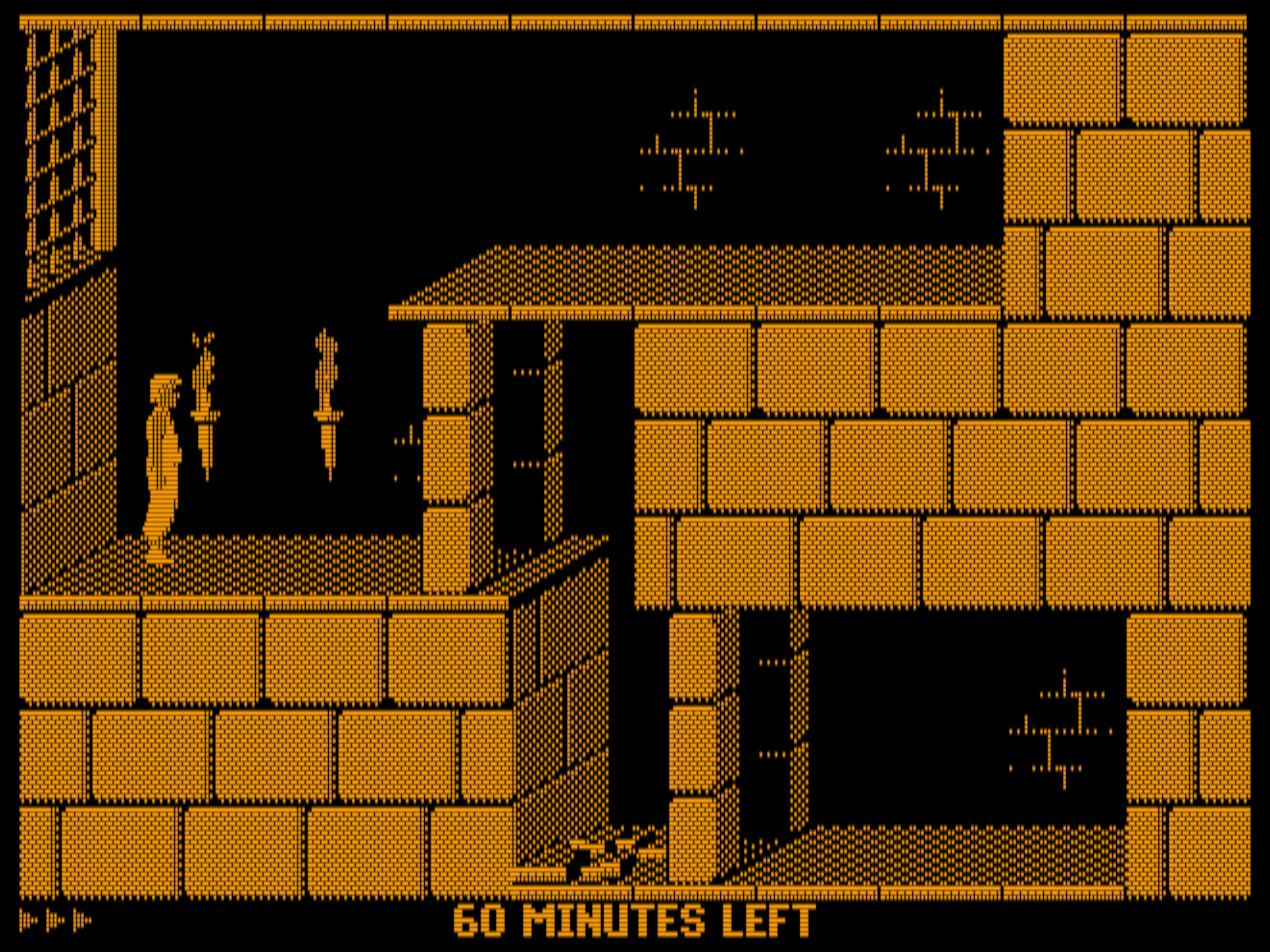
Prince of Persia in Hercules mode with custom stretch factors
to make the image fill our 4:3 “emulated CRT screen”.