Aspect ratios & scaling
Computer monitors were traditionally 4:3 displays, much like old television sets. However, modern flat-screen monitors are usually 16:9 or even wider, so stretching DOS era graphics to fullscreen on a modern monitor would result in a distorted image. There is a further complication: modern screens use square pixels, but the most common DOS graphics modes use slighly elongated “tall pixels”.
DOSBox Staging displays all graphics with the correct proportions out-of-the box, but this often results in the image not completely filling the screen. Read on to understand why authentic video emulation and filling the screen are mutually exclusive goals, and to learn about the available options if you want to diverge from authentic emulation.
Why is there a black border?
Most DOS games were designed for 4:3 CRT displays and used non-square pixels. For example, the standard 320×200 VGA mode was intended to fill a 4:3 screen, so its pixels are slightly taller than they are wide (20% taller, to be exact, so with a pixel aspect ratio (PAR) of 1:1.2 or 5:6).
Therefore, when DOSBox Staging displays a 4:3 aspect ratio image while preserving its original proportions, the unused space appears as black bars on the sides. This is called pillarboxing.
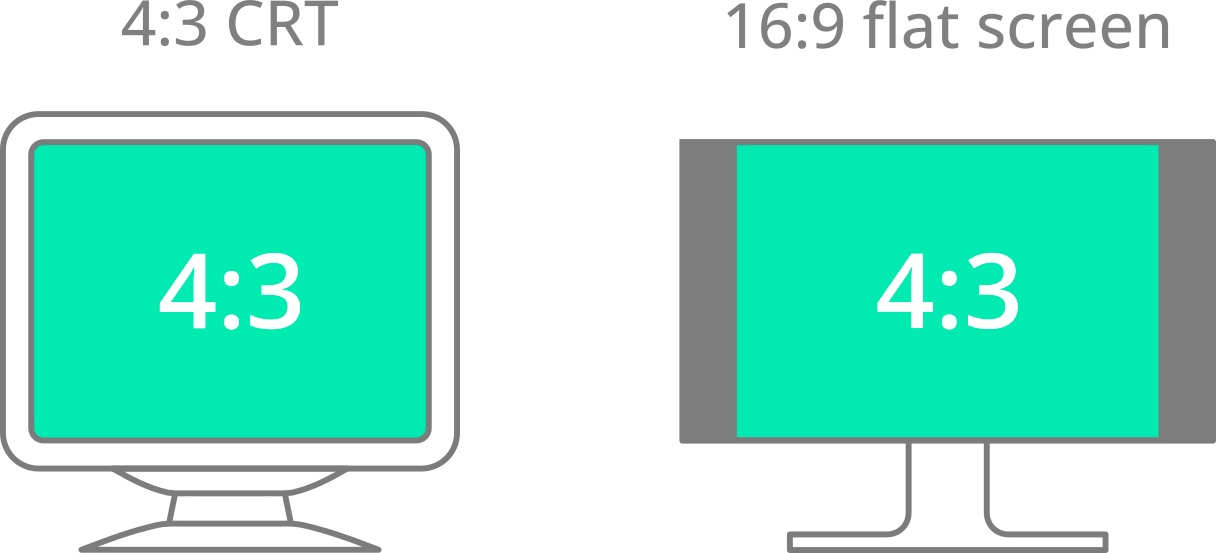
Pillarboxing in action: black bars fill the extra space
when the aspect ratio of the screen and the image do not match
This might look odd at first — 320:200 simplifies to 16:10, which is already close to 16:9. But that math assumes square pixels, and VGA’s weren’t square. Stretch each pixel 20% taller, and the same 320×200 image fills the full 4:3 frame instead of leaving a gap below it.
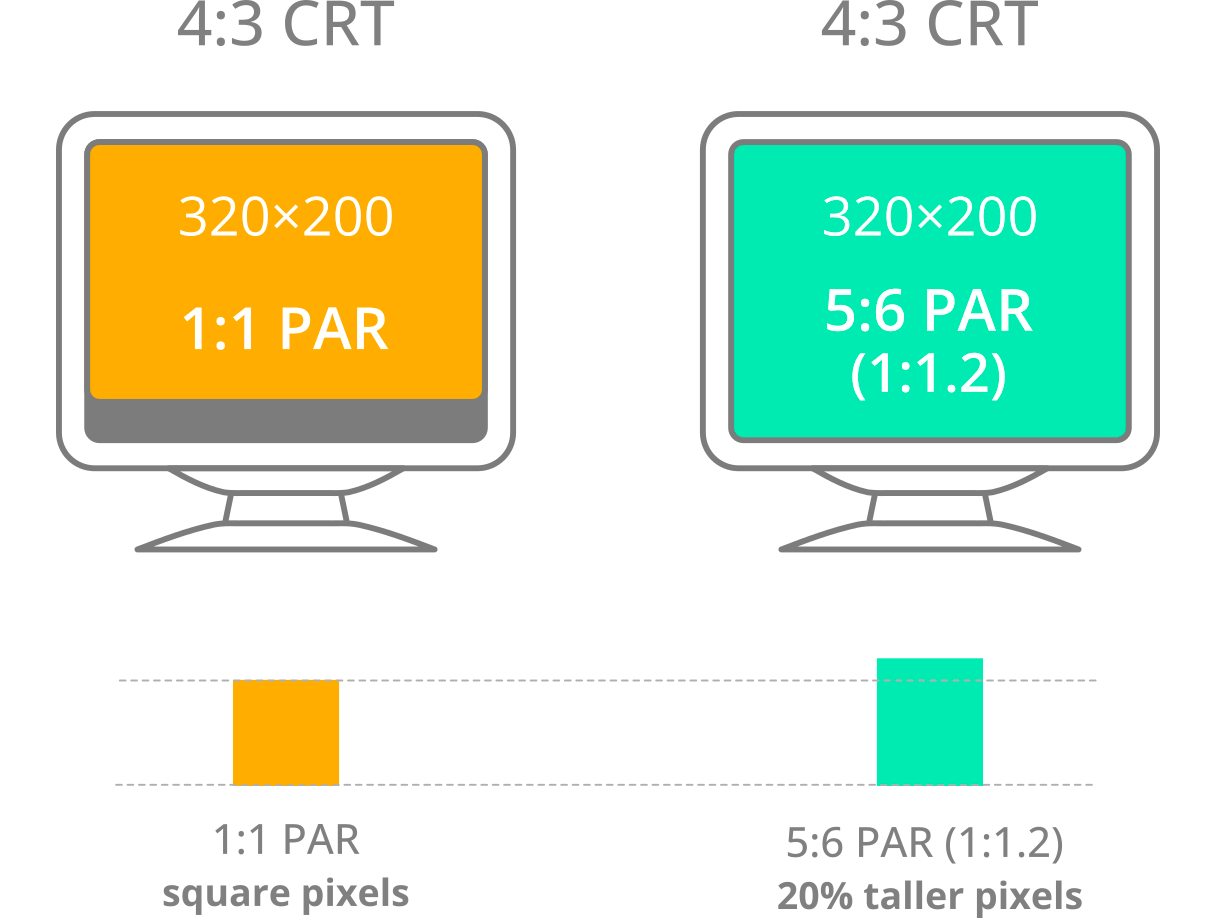
Left: 320×200 pixel image with square pixels on a 4:3 monitor — there is some letterboxing below the image; Right: the same image with 20% taller pixels on the same monitor — the image fills the screen completely.
Aspect ratio correction
DOS games were designed around non-square pixels, but modern screens display
everything in square pixels. Aspect ratio correction — controlled by the
aspect setting — corrects for this mismatch, so most games look
exactly as intended out-of-the-box. It’s enabled by default.
A small number of games are better displayed with square pixels (aspect =
square-pixels). These are typically DOS ports of European games originally
developed for PAL Commodore Amiga home computers, where the original artwork
was designed for square pixels at 320×256. Examples include Beneath a Steel
Sky, Lure of the
Temptress,
Another World,
Flashback,
and the Gobliiins series. A
tell-tale sign is artwork that looks vertically stretched with aspect ratio
correction enabled. See Beneath a Steel
Sky
in the Getting Started guide for an
example.
When pixels are not squares
The fact that older monitors were not widescreen is easy to forget, and older DOSBox versions did not enable aspect ratio correction by default. As a result, many modern screenshots and videos of DOS games are shown with the wrong proportions, particularly for 320×200 modes. Well, at least on today’s internet — if you check out any old computer magazine from the 1980s or 90s, most screenshots are shown in the correct aspect ratio (though occasionally the magazines got it wrong too).
Other non-square pixel modes
Pixels are perfectly square in 640×480 and most higher resolutions
(1:1 pixel aspect ratio), but a few other DOS video modes also use
non-square pixels: 640×350 EGA (1:1.3714 PAR), 640×200 EGA (1:2.4
PAR), and 720×348 Hercules (1:1.5517 PAR). DOSBox Staging handles
these modes automatically. See the aspect setting reference
below for the full list of square-pixel modes that aren’t affected.
Custom aspect ratios
DOSBox Staging also provides a “stretch everything” mode for cases where aspect ratio authenticity isn’t the priority.
The stretch aspect mode calculates the aspect ratio from the
viewport dimensions, allowing you to force arbitrary aspect ratios. For
example, to stretch a game to fill the entire screen:
This can make sense for text adventures or abstract games where the exact shape of the graphics is less important. For games with carefully drawn artwork, however, stretching will distort the image.
The relative viewport mode starts with a 4:3 rectangle and scales it
independently in the horizontal and vertical directions. This effectively
emulates the horizontal and vertical stretch controls found on CRT monitors.
It can also be useful for correcting games with the wrong pixel aspect ratio
baked into their artwork, such as some Hercules conversions that reused EGA
or VGA graphics with only a minimal colour conversion applied.
For example, to correct the squashed look of Hercules graphics in Prince of Persia:
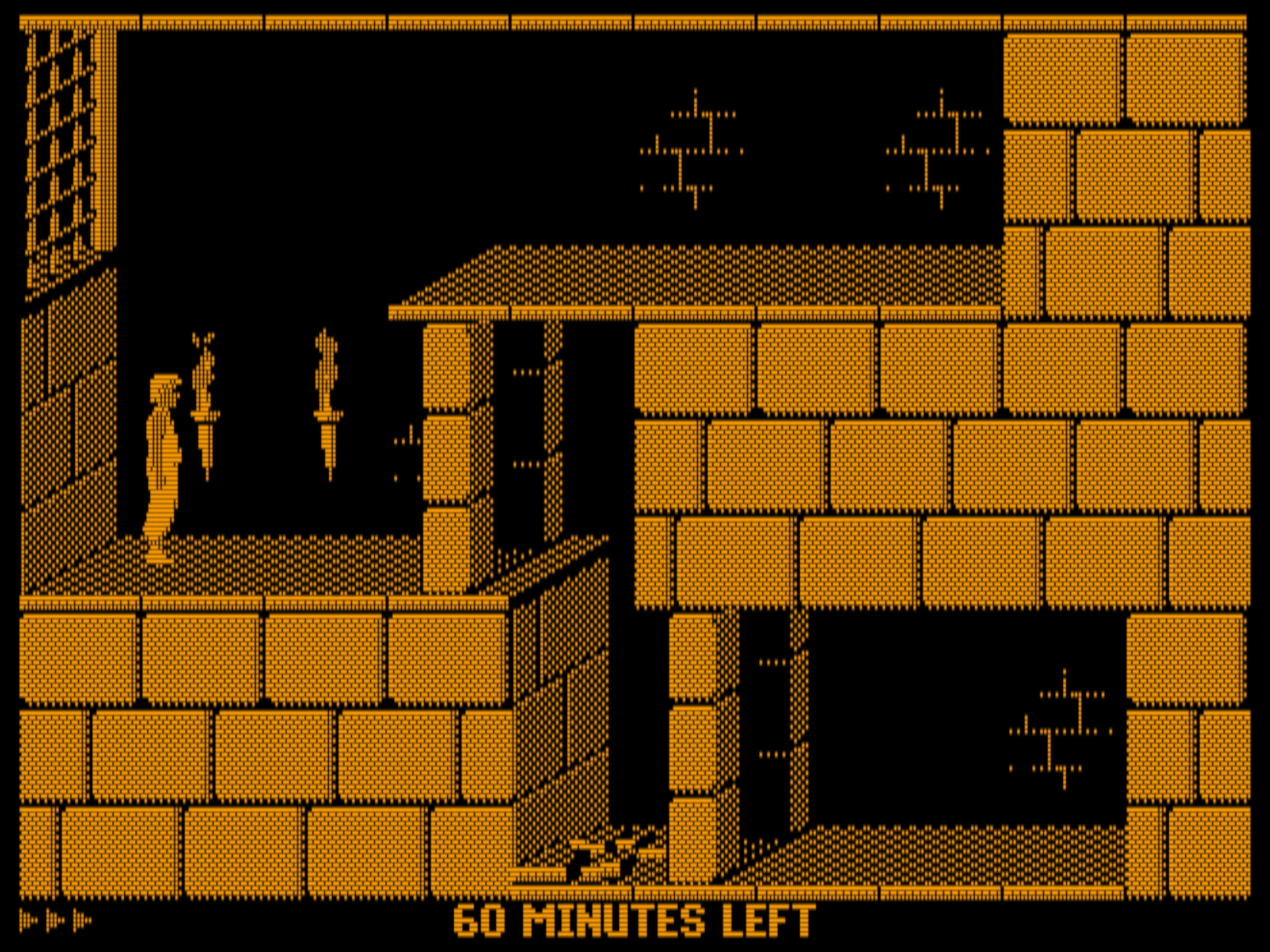
Prince of Persia in Hercules mode with custom stretch factors
to make the image fill our 4:3 “emulated CRT screen”.
You can adjust the stretch in real time with the Stretch Axis, Inc Stretch, and Dec Stretch hotkey actions. Map these actions in the key mapper, adjust the image until it looks right, then copy the resulting viewport setting from the log into your config.
Integer scaling
When the emulated image is enlarged to fill your screen, the vertical scaling factor is rarely a whole number — e.g., stretching a 200-pixel-tall image to fill a 1200-pixel-tall screen is a factor of 6×, but most window sizes and resolutions don’t divide evenly like that. This matters specifically for the vertical direction because CRT shaders simulate scanlines as horizontal bands, one per emulated row. With a fractional vertical scaling factor, some source rows end up mapped to more host pixels than others, so the simulated scanlines come out uneven heights instead of a regular repeating pattern, and that’s what can produce the wavy interference (moiré). Horizontal scaling doesn’t have this problem, since there are no vertical lines to fall out of alignment. Integer scaling avoids the issue by only ever scaling the vertical direction by whole-number factors.
The integer_scaling setting controls this:
-
auto(default) — what you want for the built-in CRT shaders in most cases. Enables vertical integer scaling only when a CRT shader is active, allows a few extra scaling ratios (e.g., 3.5x, 4.5x) to make better use of the screen, and turns integer scaling off when it’s safe to do so (e.g., low-resolution games in fullscreen on a 4K display, or 320×200 games on a 1080p display; see theinteger_scalingsetting reference below for the exact scaling-factor thresholds). -
vertical— always constrains vertical scaling to integers; the horizontal factor may end up fractional to maintain the correct aspect ratio. Recommended for 3rd-party CRT shaders with scanline emulation, or for deinterlacing without a CRT shader active. For the built-in CRT shaders, useautoinstead. -
horizontal— mainly included for completeness; can help maximise horizontal text sharpness in text-heavy games on low-resolution displays. -
off— disables integer scaling entirely. Safe to use on higher-resolution displays (e.g. 4K in fullscreen), where fractional scaling with CRT shaders is barely noticeable. Not recommended on 1080p displays for VGA games where the effect is much more visible. If you don’t mind occasional moiré, this gets you a larger image with less unused screen space.
Integer scaling and black borders
Integer scaling is the other thing (besides aspect ratio correction) that can leave black borders around the image. Where aspect ratio correction pillarboxes (black bars on the sides) because the source and screen aspect ratios don’t match, integer scaling can also letterbox (black bars on top and bottom) or pillarbox, because the image can’t always be enlarged by a whole-number factor while also filling the available space. With integer scaling off, 4:3 content on a widescreen monitor would only ever pillarbox, never letterbox.
This is what to expect in fullscreen with the default settings on the most common screen resolutions:
-
1080p — 320×200 VGA games and most CGA and EGA games fill the screen vertically. 640×480 games are scaled 2×, leaving a 60-pixel border at the top and bottom.
-
1440p — 640×480 games fill the screen vertically at exactly 3×, and most CGA and EGA games fill it too. 320×200 VGA games are scaled 3.5×, leaving a 20-pixel border at the top and bottom.
-
4K — All video modes up to 640×480 fill the screen vertically.
Because the adaptive CRT shaders take the viewport size into account, resizing the window or switching between windowed and fullscreen can change the selected shader and “snap” the image between scaling ratios (reported in the log window). See Adaptive CRT shaders for the underlying mechanics, including the 1080p special cases and how fractional horizontal scaling is handled.
Sharp pixels
If you prefer to disable the CRT emulation altogether to make the pixels look like sharp little rectangles, put this into your config:
Integer scaling is disabled by default when the sharp shader is selected. To
re-enable it:
This gives you perfectly sharp pixels vertically. Horizontally, there may be a 1-pixel-wide interpolation band at the edges of some pixels, depending on the DOS video mode and scaling factor. This is an unavoidable consequence of maintaining the correct aspect ratio while keeping the image as sharp as possible.
At 1080p, the result is generally quite acceptable. At 1440p and 4K, the minor horizontal interpolation is difficult to notice at normal viewing distances.
Custom viewport size
Aspect ratio correction and integer scaling decide the shape of the displayed image; viewport size decides how large it appears. At fullscreen on a large modern display, low-resolution DOS graphics can look much larger than they did on the monitors they were designed for.
14” VGA monitors were the most popular option until the mid-1990s. Before that, CGA and EGA monitors were typically 12–14”, while monochrome Hercules monitors were usually 10–12”. These are nominal sizes; the actual visible area was roughly 1.5 to 2 inches smaller.
To approximate the physical image size of a typical 14” VGA monitor on a modern 24” or larger widescreen display, you could restrict the output to around 960×720. However, this gives a non-integer vertical scaling factor, so 1067×800 is a better choice:
The viewport size is specified in logical units (see the note below). You can also specify it as a percentage of your desktop:
The video output is fitted inside the viewport while maintaining the correct aspect ratio. 89% is a useful general-purpose value for DOS resolutions between 320×200 and 640×480 on modern displays. With integer scaling enabled, it gives the graphics a physical size roughly comparable to the CRTs they were commonly displayed on. If you need independent horizontal and vertical stretching instead of a single overall percentage, see Custom aspect ratios above.
Running DOS games fullscreen on a modern 24” widescreen display is roughly equivalent to playing them on a 21” CRT — a large professional monitor that very few gamers owned. Low-resolution artwork was not designed to be viewed at that size, the pixels would look too blocky.
Logical units vs pixels
Most operating systems support high-DPI scaling, where window dimensions are specified in logical units rather than physical pixels. The viewport setting uses the same approach.
For example, on a 4K display with a typical 200% scaling factor, a viewport of 1280×960 logical units corresponds to 2560×1920 physical pixels. On a 1080p display with 100% scaling, it corresponds to 1280×960 physical pixels.
Why 89%?
viewport = 89% is based on the amount of vertical space available on a
typical 1920×1080 desktop. It gives a maximum viewport of about 961
logical pixels vertically.
With integer scaling enabled, this is enough for a 2× vertical scale
of both 320×200 content after VGA double-scanning (resulting in a
640×400 image) and 640×480 content. The resulting image sizes
are approximately 1067×800 and 1280×960 logical pixels
respectively in fullscreen mode — around 15” and 19” physical CRT
equivalents. This makes 89% a useful general-purpose starting point.
Configuration settings
You can set these in the [render] configuration section.
aspect
-
Set the aspect ratio correction mode.
Possible values:
-
autodefault,on– Apply aspect ratio correction for modern square-pixel flat-screen displays, so DOS video modes with non-square pixels appear as they would on a 4:3 display aspect ratio CRT monitor the majority of DOS games were designed for. This setting only affects video modes that use non-square pixels, such as 320x200 or 640x400; square pixel modes (e.g., 320x240, 640x480, and 800x600) are displayed as-is. -
square-pixels,off– Don’t apply aspect ratio correction; all DOS video modes will be displayed with square pixels. Most 320x200 games will appear squashed, but a minority of titles (e.g., DOS ports of PAL Amiga games) need square pixels to appear as the artists intended. -
stretch– Calculate the aspect ratio from the viewport’s dimensions. Combined with theviewportsetting, this mode is useful to force arbitrary aspect ratios (e.g., stretching DOS games to fullscreen on 16:9 displays) and to emulate the horizontal and vertical stretch controls of CRT monitors.
-
integer_scaling
-
Constrain the horizontal or vertical scaling factor to the largest integer value so the image still fits into the viewport. The configured aspect ratio is always maintained according to the
aspectandviewportsettings, which may result in a non-integer scaling factor in the other dimension. If the image is larger than the viewport, the integer scaling constraint is auto-disabled (same asoff).Possible values:
-
autodefault – A special vertical mode auto-enabled only for the CRT shaders (seeshader). This mode has refinements over standard vertical integer scaling: 3.5x and 4.5x scaling factors are also allowed, and integer scaling is disabled above 5.0x scaling. -
vertical– Constrain the vertical scaling factor to integer values. This is the recommended setting for 3rd party CRT shaders with scanline emulation to avoid uneven scanlines and interference artifacts. For the built-in CRT shaders, useauto. This mode is also recommended on low-resolution displays withdeinterlacingenabled. -
horizontal– Constrain the horizontal scaling factor to integer values. Might be useful on low-resolution displays to optimise for horizontal text sharpness. -
off– Apply no integer scaling constraint; the image fills the viewport while maintaining the configured aspect ratio.
-
viewport
-
Set the viewport size. This is the maximum drawable area; the video output is always contained within the viewport while taking the configured aspect ratio into account (see
aspect).Possible values:
-
fitdefault – Fit the viewport into the available window/screen. There might be padding (black areas) around the image withinteger_scalingenabled. -
WxH– Set a fixed viewport size in WxH format in logical units (e.g.,960x720). The specified size must not be larger than the desktop. If it’s larger than the window size, it will be scaled to fit within the window. -
N%– Similar toWxH, but the size is specified as a percentage of the desktop size. -
relative H% V%– The viewport is set to a 4:3 aspect ratio rectangle fit into the available window or screen, then is scaled by the H and V horizontal and vertical scaling factors (valid range is from 20% to 300%). The resulting viewport is allowed to extend beyond the bounds of the window or screen. Useful to force arbitrary display aspect ratios withaspectset tostretchand to “zoom” into the image. This effectively emulates the horizontal and vertical stretch controls of CRT monitors.
Note
-
Using
relativemode withinteger_scalingenabled could lead to surprising (but correct) results. -
Use the
Stretch Axis,Inc Stretch, andDec Stretchhotkey actions to adjust the image size inrelativemode in real-time, then copy the new settings from the logs into your config.
-