FluidSynth
New to MIDI in DOS games?
If you’re not familiar with how MIDI works in DOS games, read the overview in the MIDI section first — it explains how DOS games use MIDI and the difference between the Roland MT-32 family of devices and Roland Sound Canvas / General MIDI.
FluidSynth is a built-in software MIDI synthesiser that uses SoundFont
(.sf2) sample banks to generate audio. It can play General MIDI (GM)
music, but it does not emulate any particular MIDI sound module.
This distinction is important: General MIDI is a standard, not a sound module. The Roland Sound Canvas, for example, is a specific MIDI sound module that supports General MIDI. Its particular samples, synthesis, and effects give it a characteristic sound. FluidSynth instead generates its sounds from whichever SoundFont you select, so two SoundFonts can produce noticeably different results when playing back the same General MIDI music.
This makes FluidSynth very flexible, but it also means that it does not reproduce the sound of a particular DOS-era MIDI module. If you want the authentic sound of the Roland SC-55 (the MIDI module most game composers used), use Sound Canvas emulation instead.
FluidSynth is lighter on CPU than Sound Canvas emulation and is a good option when you don’t have SC-55 ROMs or when you prefer a particular SoundFont’s character.
For more background on MIDI and General MIDI, and for help deciding which MIDI device to use for a particular game, see the MIDI section.
Roland MT-32 is not General MIDI
Don’t confuse the Sound Canvas with the Roland MT-32. Although both are MIDI sound modules, the MT-32 is a programmable synthesiser with a very different sound engine, while the Sound Canvas supports General MIDI. Music written for one often sounds completely wrong on the other. See MT-32 vs General MIDI for details.
SoundFont setup
Download a SoundFont file and place it in the soundfonts folder inside
your DOSBox configuration folder:
| Platform | SoundFont folder |
|---|---|
| Windows | C:\Users\<USERNAME>\AppData\Local\DOSBox\soundfonts\ |
| macOS | /Users/<USERNAME>/Library/Preferences/DOSBox/soundfonts/ |
| Linux | $HOME/.config/dosbox/soundfonts/ |
Then set the soundfont option to the filename (the .sf2
extension can be omitted):
Listing the available SoundFonts
Run the MIXER /LISTMIDI command to see the list of available SoundFonts:
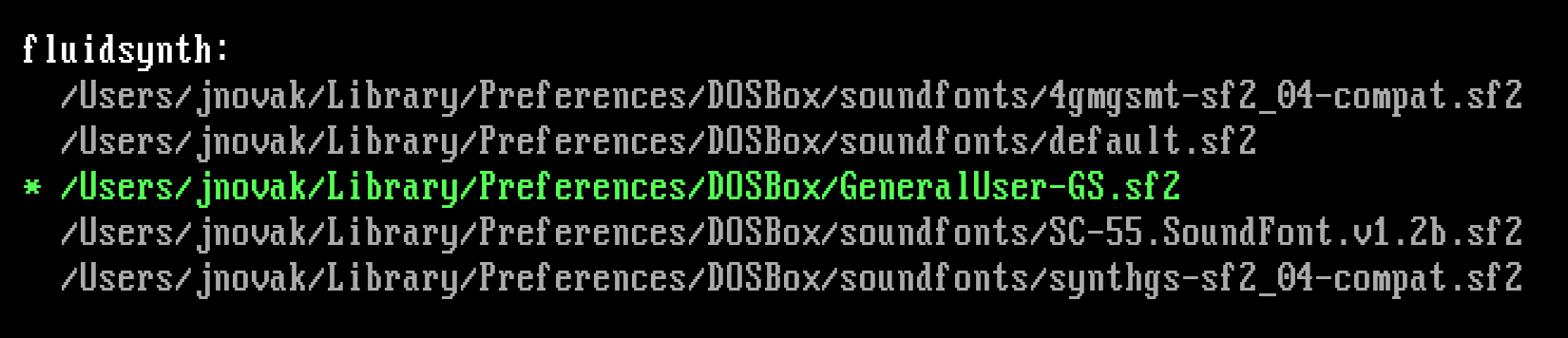
If FluidSynth is active, the selected SoundFont is highlighted.
Recommended SoundFonts
GeneralUser GS is the best all-round choice for DOS gaming. It offers well-balanced instruments, good General MIDI and GS compatibility, and consistently pleasant results across a wide range of games. This is what we recommend for most users.
Other options worth trying:
- FluidR3_GM_GS — Comes bundled with MuseScore. Fairly close to SC-55 character on many titles, though some instruments can sound thin.
- Creative 4MB GM/GS/MT (
4GMGSMT.SF2) — The SoundFont shipped with Creative Labs AWE32/AWE64 sound cards. A nostalgic choice that approximates SC-55 characteristics, though at a lower sample quality.
Tip
Some SoundFonts are louder or quieter than others. Use the
soundfont_volume setting to normalise the volume,
or append a percentage to the soundfont value (e.g.,
soundfont = Arachno 40 to reduce it to 40%).
Tip
You can switch SoundFonts on the fly by changing the
soundfont setting while FluidSynth is active — no restart
needed. Changing any [fluidsynth] setting takes effect immediately and
triggers a SoundFont reload.
For a hands-on walkthrough of setting up FluidSynth with a specific game, see the Star Wars: Dark Forces chapter of the Getting Started guide.
SoundFont locations
If soundfont_dir is set, DOSBox Staging searches that
folder first. Otherwise, it searches the following folders for SoundFont files
(in order):
Windows
C:\Users\<USERNAME>\AppData\Local\DOSBox\soundfonts\C:\soundfonts\
macOS
/Users/<USERNAME>/Library/Preferences/DOSBox/soundfonts//Users/<USERNAME>/Library/Audio/Sounds/Banks/
Linux
$XDG_DATA_HOME/dosbox/soundfonts/(defaults to$HOME/.local/share/dosbox/soundfonts/)$XDG_DATA_HOME/soundfonts/(defaults to$HOME/.local/share/soundfonts/)$XDG_DATA_HOME/sounds/sf2/(defaults to$HOME/.local/share/sounds/sf2/)$XDG_DATA_DIRS/soundfonts/(defaults to/usr/local/share/soundfonts/and/usr/share/soundfonts/)$XDG_DATA_DIRS/sounds/sf2/(defaults to/usr/local/share/sounds/sf2/and/usr/share/sounds/sf2/)$XDG_CONFIG_HOME/dosbox/soundfonts/(defaults to$HOME/.config/dosbox/soundfonts/)
Reverb and chorus
The fsynth_reverb and fsynth_chorus
settings apply reverb and chorus effects within the FluidSynth synthesiser
engine, before the audio reaches the DOSBox mixer. This is separate from the
mixer-level reverb and
chorus effects, which are applied to the
output of the emulated sound devices. So these effects only affect MIDI
playback through FluidSynth.
The default auto mode applies optimised reverb and chorus settings for the
following SoundFonts (detected by filename or embedded metadata):
- GeneralUser GS — custom reverb and chorus
- AWE32 SynthGS — custom reverb and chorus
- SB Live! 4GMGSMT — custom reverb and chorus
- FluidR3 — chorus disabled (the SoundFont has its own)
- SC-55 SoundFont (Trevor0402) — custom reverb and chorus
All other SoundFonts get sensible default reverb and chorus settings. You can disable the FluidSynth effects and rely on the mixer-level effects instead, use both together, or fine-tune with custom parameters.
Mixer channel
FluidSynth outputs to the FSYNTH mixer channel.
Configuration settings
FluidSynth settings are to be configured in the [fluidsynth] section.
soundfont
-
Name or path of SoundFont file to use (
default.sf2by default). The SoundFont will be looked up in the following locations in order:- The user-defined SoundFont folder (see
soundfont_dir) - The
soundfontsfolder in your DOSBox configuration folder - Other common system locations
The
.sf2extension can be omitted. You can use paths relative to the above locations or absolute paths as well.Note
Run
MIXER /LISTMIDIto see the list of available SoundFonts. - The user-defined SoundFont folder (see
soundfont_dir
- Extra user-defined SoundFont folder (unset by default). If set, SoundFonts are looked up in this folder first, then in the standard system locations.
soundfont_volume
- Set the SoundFont’s volume as a percentage (
100by default). This is useful for normalising the volume of different SoundFonts. Valid range is 1 to 800.
fsynth_reverb
-
Configure the FluidSynth reverb.
Possible values:
autodefault – Automatically apply optimised settings for common SoundFonts, or enable reverb with the default settings for all other SoundFonts.on– Enable reverb.off– Disable reverb.<custom>– Custom setting via four space-separated values: room-size (0.0–1.0), damping (0.0–1.0), width (0.0–100.0), and level (0.0–1.0). For example:0.61 0.23 0.76 0.56
Note
You can disable the FluidSynth reverb and enable the mixer-level reverb on the FluidSynth channel instead, or enable both reverb effects at the same time.
fsynth_chorus
-
Configure the FluidSynth chorus.
Possible values:
autodefault – Automatically apply optimised settings for common SoundFonts, or enable chorus with the default settings for all other SoundFonts.on– Always enable chorus.off– Disable chorus.<custom>– Custom setting via five space-separated values: voice-count (0–99), level (0.0–10.0), speed in Hz (0.1–5.0), depth (0.0–21.0), and modulation-wave (sineortriangle). For example:3 1.2 0.3 8.0 sine
Note
You can disable the FluidSynth chorus and enable the mixer-level chorus on the FluidSynth channel instead, or enable both chorus effects at the same time.
fsynth_filter
-
Filter for the FluidSynth audio output.
Possible values:
offdefault – Don’t filter the output.<custom>– Custom filter definition; see Custom filter settings for details.