0.83.0-RC1 release notes
Release date: 2026-05-11
Release candidate notes
Welcome to DOSBox Staging 0.83.0 Release Candidate 1 (RC1)!
What is a “release candidate”? You can think of it as a “sneak preview” of our upcoming release before we complete our full round of internal testing. As such, it might contain occasional bugs or regressions, but it should be free of major problems.
Community feedback is crucial to discovering issues in any complex software. The release candidate is intended for experienced early adopters willing to help us stabilise DOSBox Staging for the final release. If you’ve found any issue in the RC, please report it to us!
Regular users who prefer a straight-line progression from one release to the next should wait for the stable release, which should come up to two months after the release candidate.
Summary
After a rather long wait, the DOSBox Staging team is proud to present our new major 0.83.0 release! I think we’ve managed to outdo ourselves again as this has gotten even bigger than our monstrous 0.81.0 release. Instead of coming up with excuses why it took so long, let’s take a look at our new killer features:
-
100% authentic Roland Sound Canvas SC-55 emulation via Nuked-SC55. Yes, ladies and gentlemen, we’ve bagged this long-coveted trophy of DOS gaming! I really couldn’t tell the difference between our emulation and the hardware SC-55 unit sitting on my desk during extensive A/B tests!
-
Authentic CRT colour emulation to take another big step towards faithfully emulating those miniature particle accelerators, also known as CRT monitors, on our modern flat screens! 😎
-
Image adjustment controls to tweak the brightness, contrast, saturation, colour temperature, etc. settings, just like on a real CRT monitor.
-
Totally overhauled frame presentation that achieves better out-of-the-box results with proper VRR and vsync support in most circumstances. The new system is much simpler — the old presentation settings seemed to give everyone a headache.
-
Wide-gamut monitor support to achieve even better CRT-like results, and playing DOS games with radioactive colours on DCI-P3 displays is just not fun.
-
FMV deinterlacer to do those campy full-motion video 90s adventure games justice on modern screens. Yes, you can combine deinterlacing with any shader, including the CRT shaders.
-
Checkerboard dedither to remove de-dithering not just from those old EGA Sierra adventures, but from any DOS game on any graphics adapter (we just had to one-up ScummVM, hadn’t we?

 ). Again, you can combine dedithering with any shader.
 -
A comprehensive user manual that goes beyond a reference guide: it covers basic concepts through detailed device configuration, and offers a historical overview of the DOS era for users who didn’t live through it.
-
HTTP API to muck around with the emulated memory and DOS internals to write modding and cheat tools as simple single-page web applications. The first one to reimplement Gold Box Companion using this API gets a prize!


-
Floppy and CD-ROM automounting to make setting up games even easier.
-
Disk noise emulation as there’s something oddly satisfying about listening to HDD and floppy drive chatter while a game loads.
-
Improved mouse emulation, including proper 2-button mouse emulation support, and added several game-specific hacks, such as a fix for the jerky/uneven mouse pointer movement issue in Ultima Underworld I & II.
-
Clipboard support to allow copy/pasting text between the DOS prompt and the host operating system.
-
A large number of DOS command improvements, such as merging the
IMGOUNTandMOUNTcommands, a newMAKEIMGcommand for creating disk images, a new superchargedMEMcommand, and many other small enhancements. -
DOSBox Staging now uses a
gettextcompatible*.potranslation file format. This makes translation work a lot easier, and allows the use of specialised translation-aiding software, such as the well-known Poedit. -
Several locale handling improvements, in particular, making the locale autodetection work more reliably with less surprises.
Read on to learn more! 
Downloads
Start by downloading the latest version:
If upgrading from an earlier DOSBox Staging version, please follow the upgrade instructions below.
If you’re a first-time user (i.e., you’ve never used DOSBox Staging before, or you’re migrating from some other DOSBox variant), please follow the Getting started guide.
How to upgrade
Start by backing up your existing primary config. These are the standard non-portable mode locations for each platform:
| Windows | C:\Users\%USERNAME%\AppData\Local\DOSBox\dosbox-staging.conf |
| macOS | ~/Library/Preferences/DOSBox/dosbox-staging.conf |
| Linux | ~/.config/dosbox/dosbox-staging.conf |
In portable mode, dosbox-staging.conf resides in the same folder as your
DOSBox Staging executable.
Alternatively, run DOSBox Staging with the --printconf option, which will
print the location of the primary config to your console.
The easy way
Once you’ve backed up your primary config, start the new version, then run
config -wcd to update the primary config. That’s it!
This method will work 90% of the time, but certain setting changes cannot be automatically migrated. Look for deprecation warnings in the logs (in yellow or orange colour), then compare your current and old configs and update your settings accordingly.
Check out the new config descriptions for guidance, and also make sure to read the release notes carefully—everything you need to know about upgrading your settings is described there.
The correct way
The 100% correct (but more cumbersome) way is to let DOSBox Staging write the new default primary config on the first launch, then reapply your old settings manually. This is very simple: after backing up your existing primary config, delete it, then start the new version.
For portable installations, put an empty dosbox-staging.conf file in the
installation folder to enable portable mode (otherwise DOSBox Staging would
create the new default primary config in the standard non-portable location).
Game compatibility fixes
-
Fix CD audio tracks not playing for the correct duration in Alone in the Dark 2.
-
Fix CD audio hanging after about 2 minutes of play in the GOG version of Tomb Raider.
-
Fix MT-32 music not playing in the intro of Best of the Best Championship Karate.
-
Fix King’s Quest IV Enhanced freezing on a black screen at startup (GUS regression introduced in 0.82.0)
-
Fix inventory screen appearing half wide in Sierra AGI adventure games with certain shaders (e.g.,
sharp). Affected games include Police Quest 1, Space Quest I & II, Gold Rush!, etc. -
Fix black screen in Robbo when configured for EGA graphics.
-
Fix wrong EGA colours in Math Flash.
-
Add new mouse option to mitigate the uneven mouse pointer movement issue in Ultima Underworld I & II.
-
Add new mouse option to fix mouse pointer issues in Joan of Arc: Siege & the Sword on Hercules.
-
Games that misinterpret middle button presses now work correctly as we emulate a 2-button mouse by default (e.g., Eye of the Beholder).
-
Add new option to fine-tune mouse behaviour in Descent II with the official 3dfx Voodoo patch.
-
Better out-of-the-box support for a few rare games that broke with
file_lockingenabled by default (e.g., the installer of Falcon 3.0: Operation Fighting Tiger crashing). -
Fix Grand Theft Auto installation failure.
-
Fix Phantasmagoria and Lighthouse: The Dark Being installers exiting with an error (this probably fixes a few other Sierra CD-ROM installers, too).
-
Doom 1.9 patch now works correctly.
-
Support Microprose’s “The Entertainer” sound card (Innovation SSI-2001 variant) in Gunship (v429.04 and 429.05) and Pirates! (v432.1, v432.2, and v432.3).
Full PR list of game compatibility improvements
- Add configurable mouse mickey threshold (#4681)
- Add mouse hack for ‘Joan of Arc: Siege & the Sword’ game on Hercules machine (#4699)
- Add support for Microprose’s ‘The Entertainer’ variant of the Innovation SSI-2001 (#4857)
- CDROM Audio: Do not continue to the next track if less than 2 seconds remains (#4487)
- Filesystem fixes (#4645)
- Fix GUS hang in KQ4 enhanced (#4787)
- Fix aspect ratio of 40-column text modes on VGA with shaders that force no pixel doubling (#4397)
- Fix edge case where CDROM mixer hangs at the end of a track (#4302)
- Implement auto config option for file_locking (#4721)
- Improve DOS builtin mouse driver configurability (#4284)
- Improve
MODEcommand compatibility (#4668) - Replace XCOPY.EXE with the one from DOSBox-X 2025.05.03 (#4476)
- Sync with SVN r4485-r4494 (#4710)
User manual
We’re very happy to announce that DOSBox Staging now comes with a comprehensive user manual! It covers everything from basic concepts to the detailed configuration of every emulated device, a timeline of PC hardware from 1981 to 1998 with recommended DOSBox settings for each period, and a lot more!
You can read it online on our website, or by running
the MANUAL command from the DOS prompt, which will open the bundled offline
copy in your default browser.
The manual doesn’t replace the Getting Started guide but complements it. Reading the guide is highly recommended for new users.
To open an offline copy of the Getting Started guide, run the new GUIDE
command.
Note
As proponents of the “release early, release often” software development philosophy, we wanted to release the manual earlier rather than later so you can start benefiting from it. In its current state, not every part of the manual has the same level of polish, and not every feature is documented in detail or at all. We will fill these gaps in our future releases — perfecting the manual will be a major ongoing effort.
Graphics
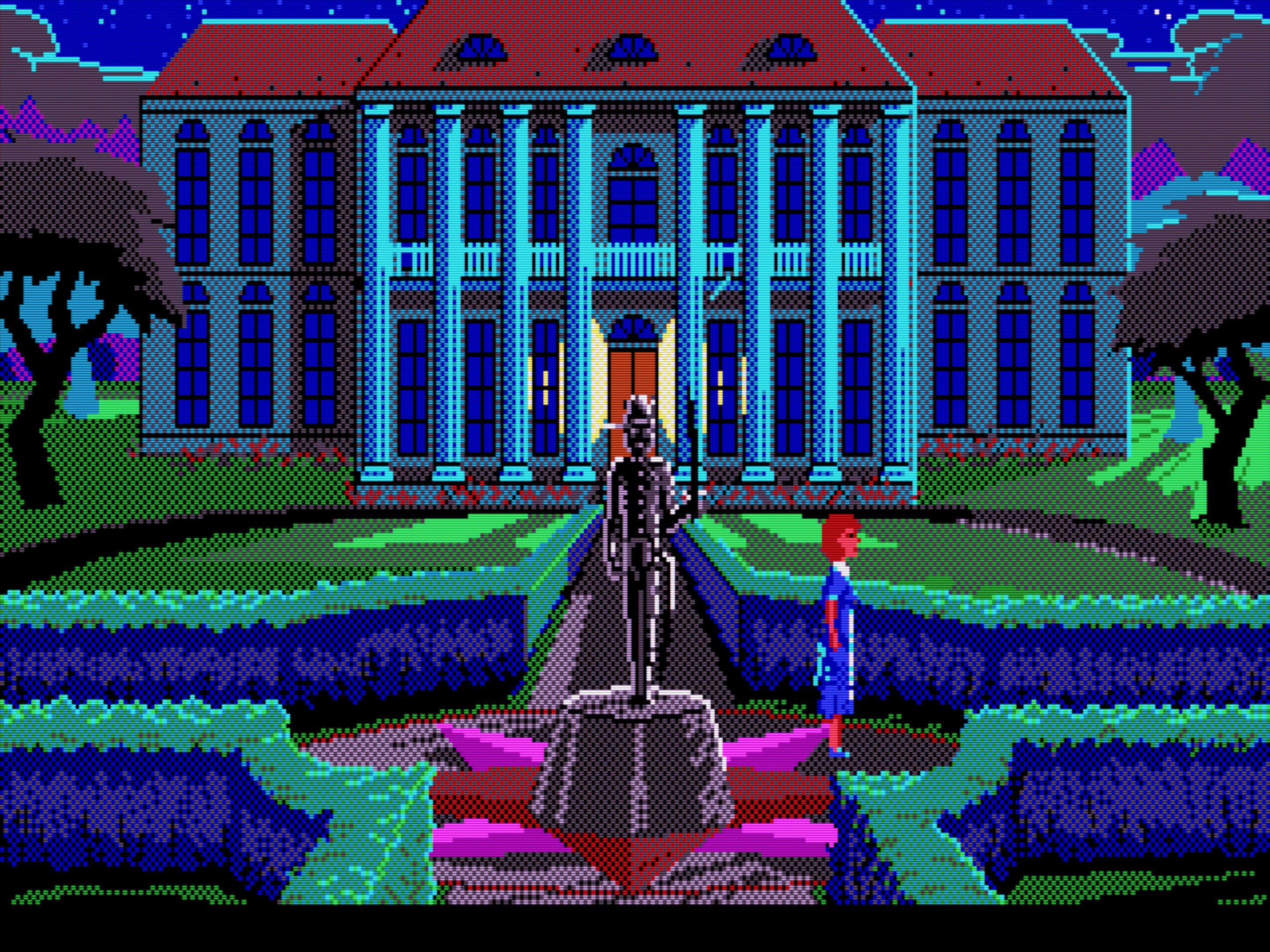
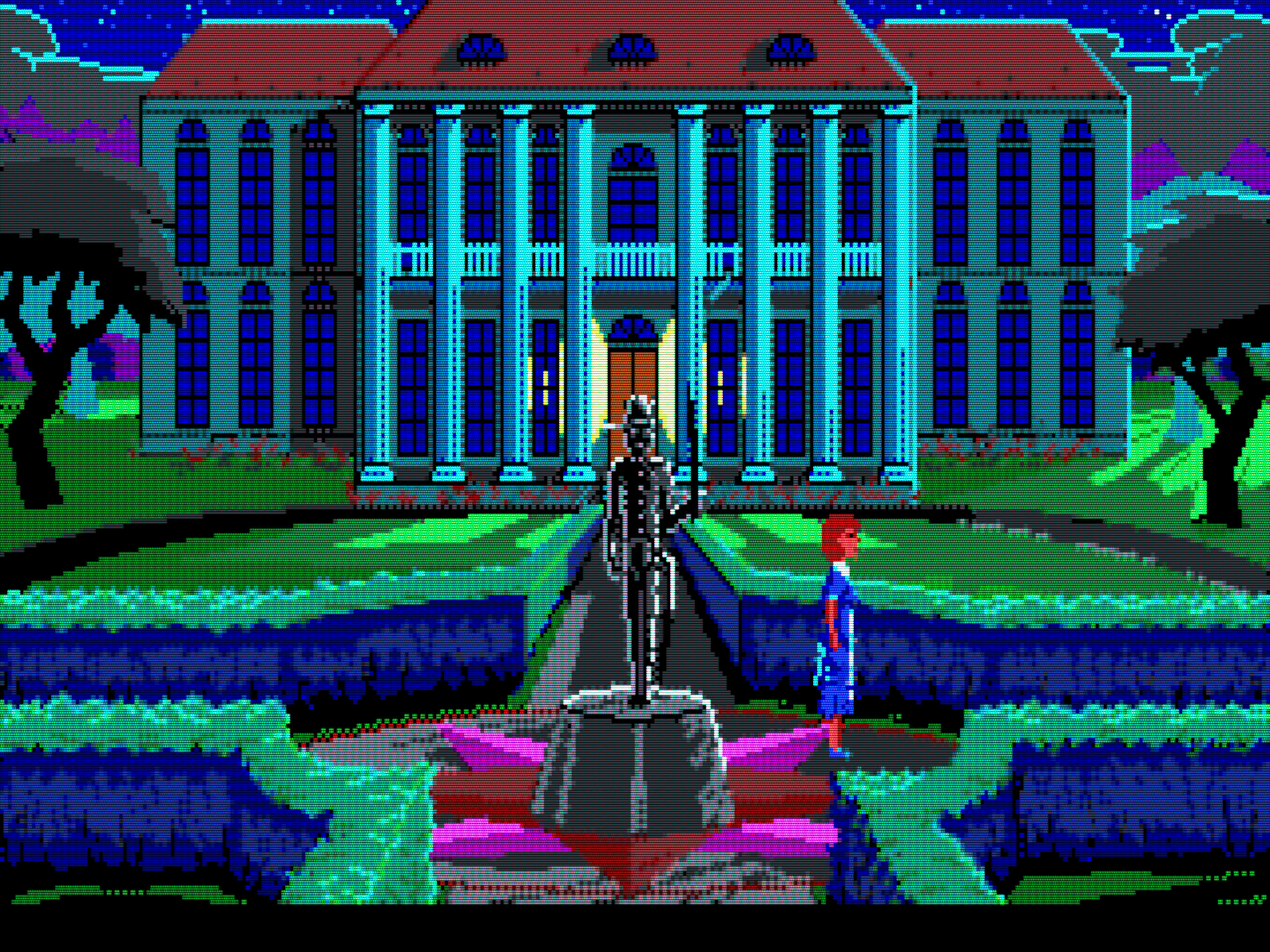
Authentic CRT colour emulation
We took great strides towards emulating and preserving the 1980s/1990s PC CRT
monitor look when we introduced our adaptive CRT
shaders
in 0.81.0.
This feature achieved authentic scanline, phosphor mask, and per-pixel bloom
emulation to bring that smooth, “naturally anti-aliased” CRT look into your
DOS gaming experience. Now we’re taking another big step by addressing the
colour and brightness reproduction aspects of those miniature particle
accelerators, also known as CRT monitors!
Staging now applies typical PC CRT monitor colour and brightness transforms to the image by default to achieve an even more authentic and period-correct visual experience. The default settings work in tandem with the adaptive CRT shaders to mimic the look of common CGA, EGA, VGA, and composite monitors. The resulting image has better contrast and colours, and the output is a lot closer to what the game designers intended and what people saw on their CRT monitors back in the day. The improvements are especially noticeable in games with darker graphics, as now we’re emulating the quirky gamma behaviour of CRTs more accurately in the near-black regions.
You can also set crt_color_profile in the [render] section manually to
emulate the colour characteristics of a specific CRT model (e.g., Sony
Trinitron, or the quirky colours of the Commodore 1084S 15 kHz monitor). The
color_temperature setting lets you emulate a monitor with a specific colour
temperature (white point). Use the online help to learn more (e.g., run
crt_color_profile /? at the DOS prompt) and see the Image adjustment
controls, Wide-gamut monitor
support, and Built-in image
viewer sections for more details.
A noteworthy aspect of the feature is that it works with any shader, not
just the CRT shaders! So you can benefit from the feature even when using the
sharp or bilinear shader, or any of the upscalers like scaler/advmame2x.
If you wish to turn off all CRT colour emulation and image adjustments to get
the exact same image as in earlier Staging versions, set image_adjustments
in the [render] section to off (not that we would recommend doing so,
but we’re giving you the option ).
Tip
Click on one of the thumbnails then use the cursor keys to switch back and forth between the before/after images.
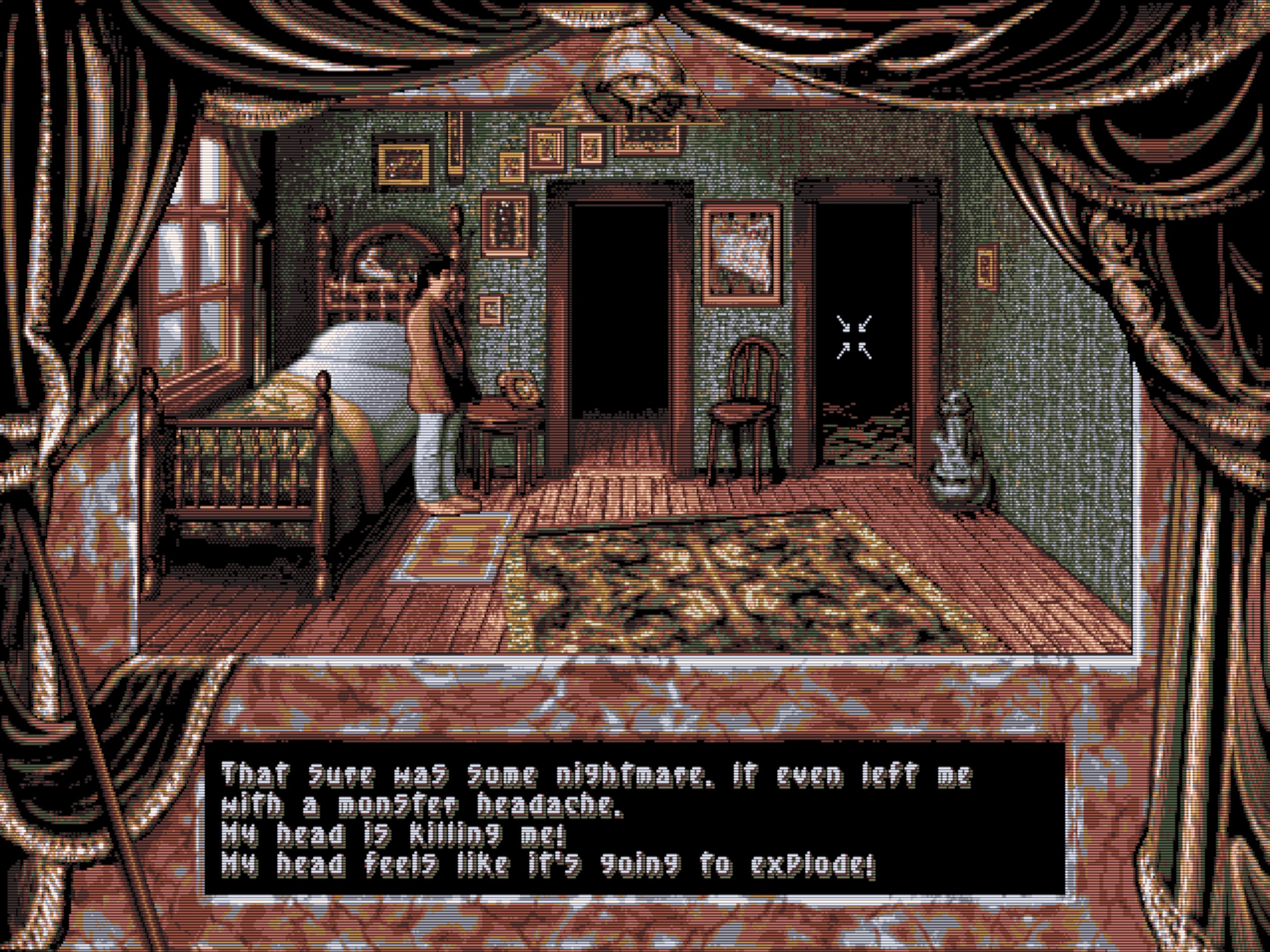
Dark Seed (no CRT colour emulation)
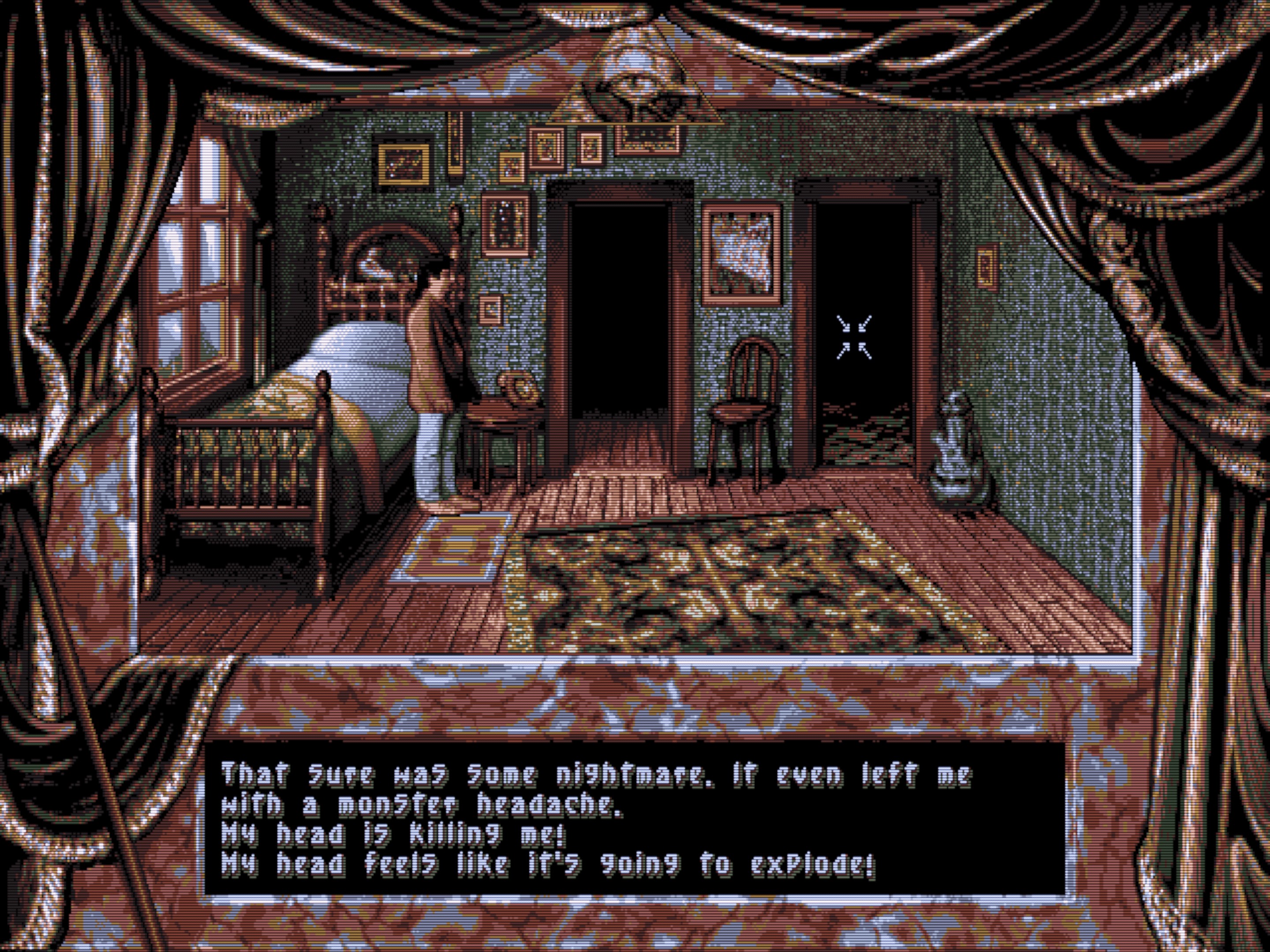
Dark Seed (with CRT colour emulation)
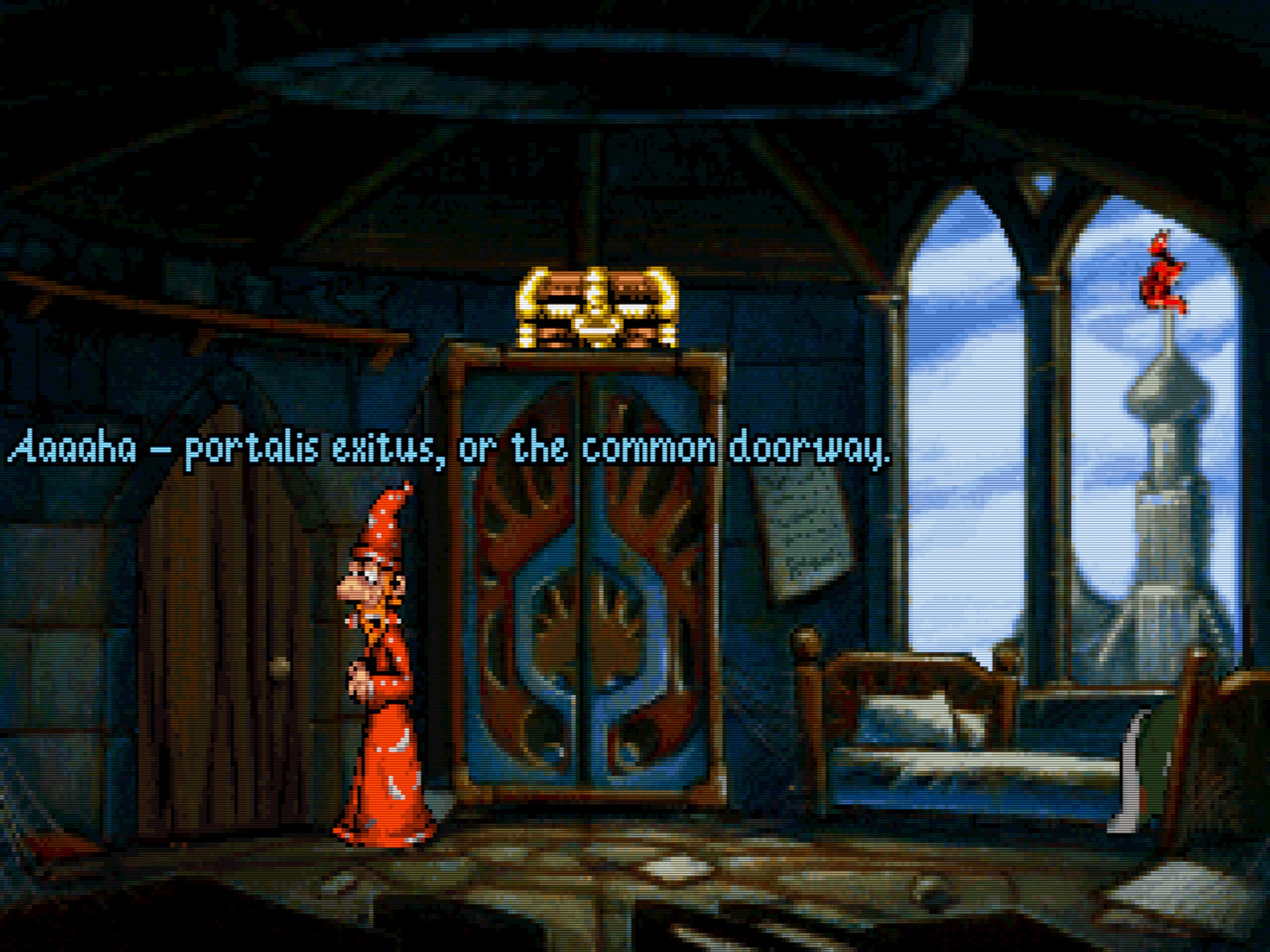
Discworld (no CRT colour emulation)
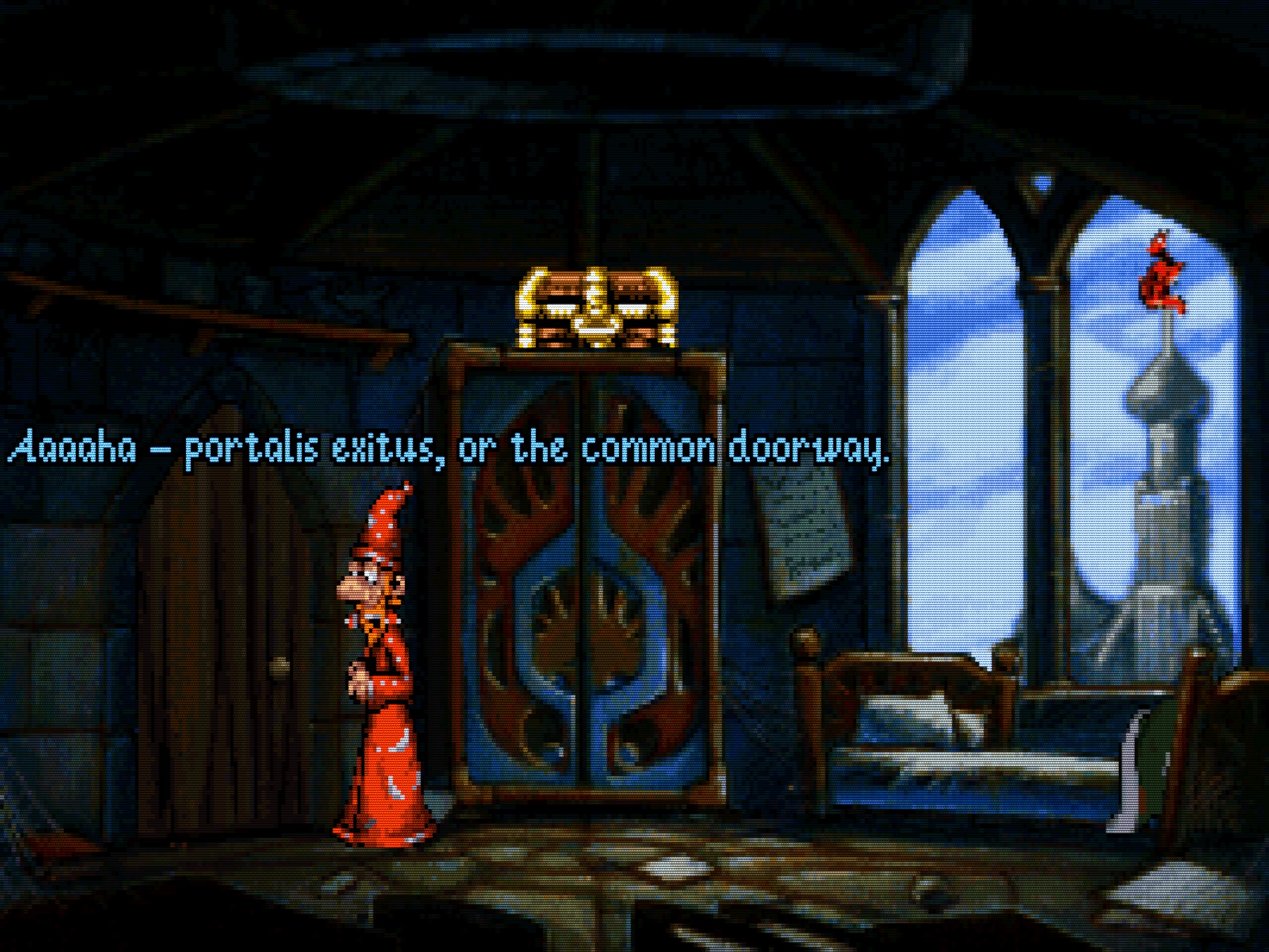
Discworld (with CRT colour emulation)
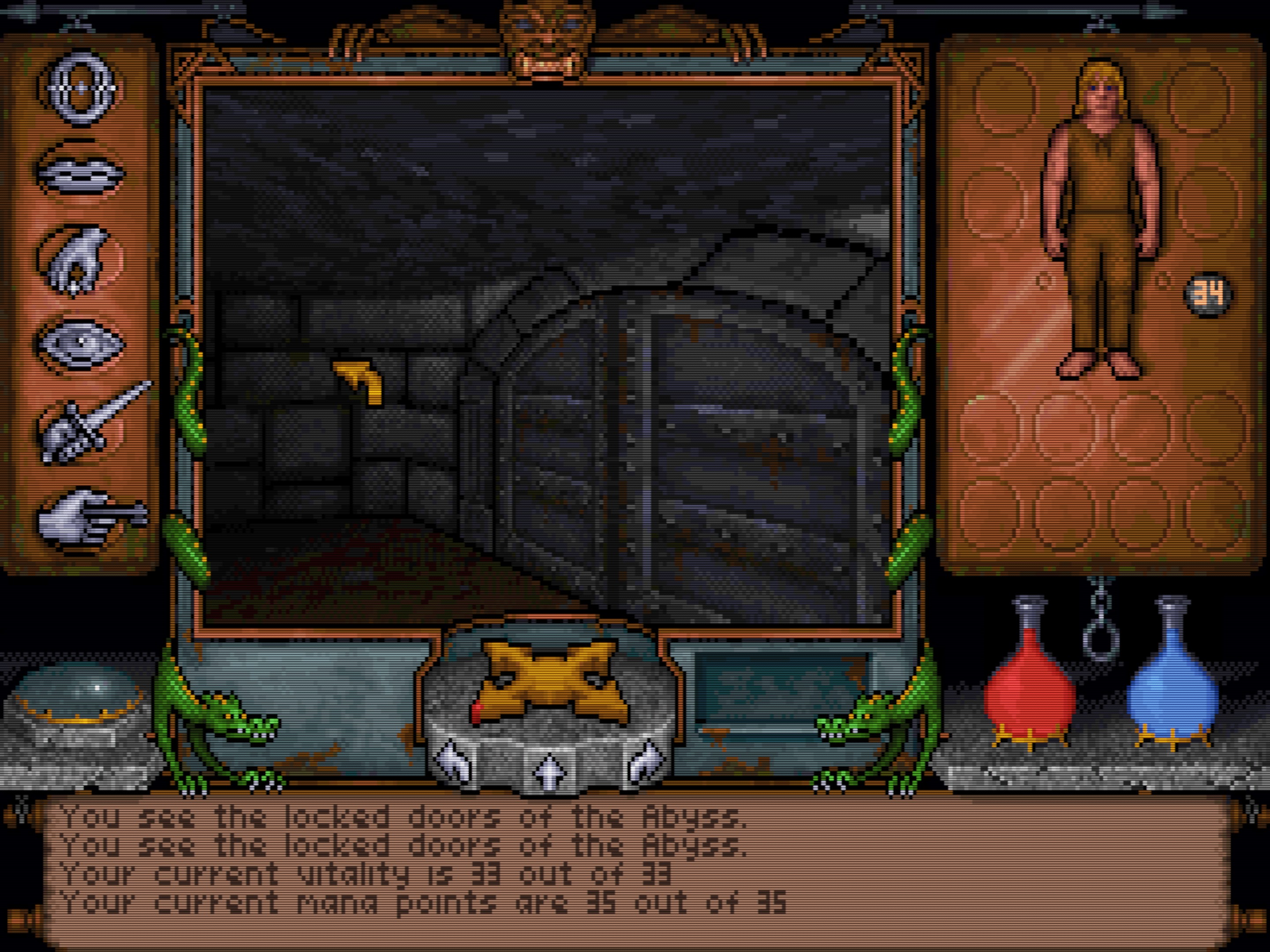
Ultima Underworld (no CRT colour emulation)
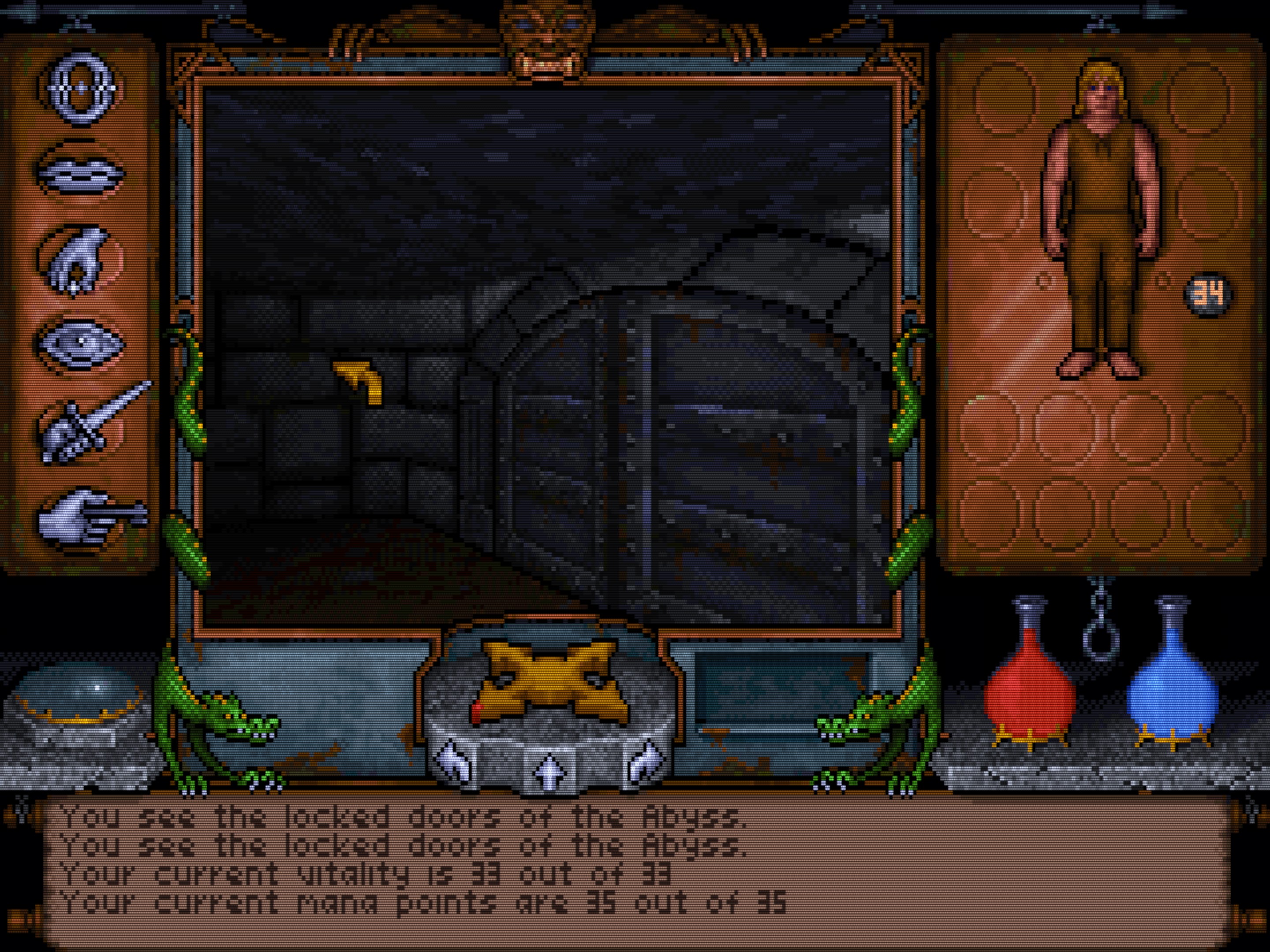
Ultima Underworld (with CRT colour emulation)
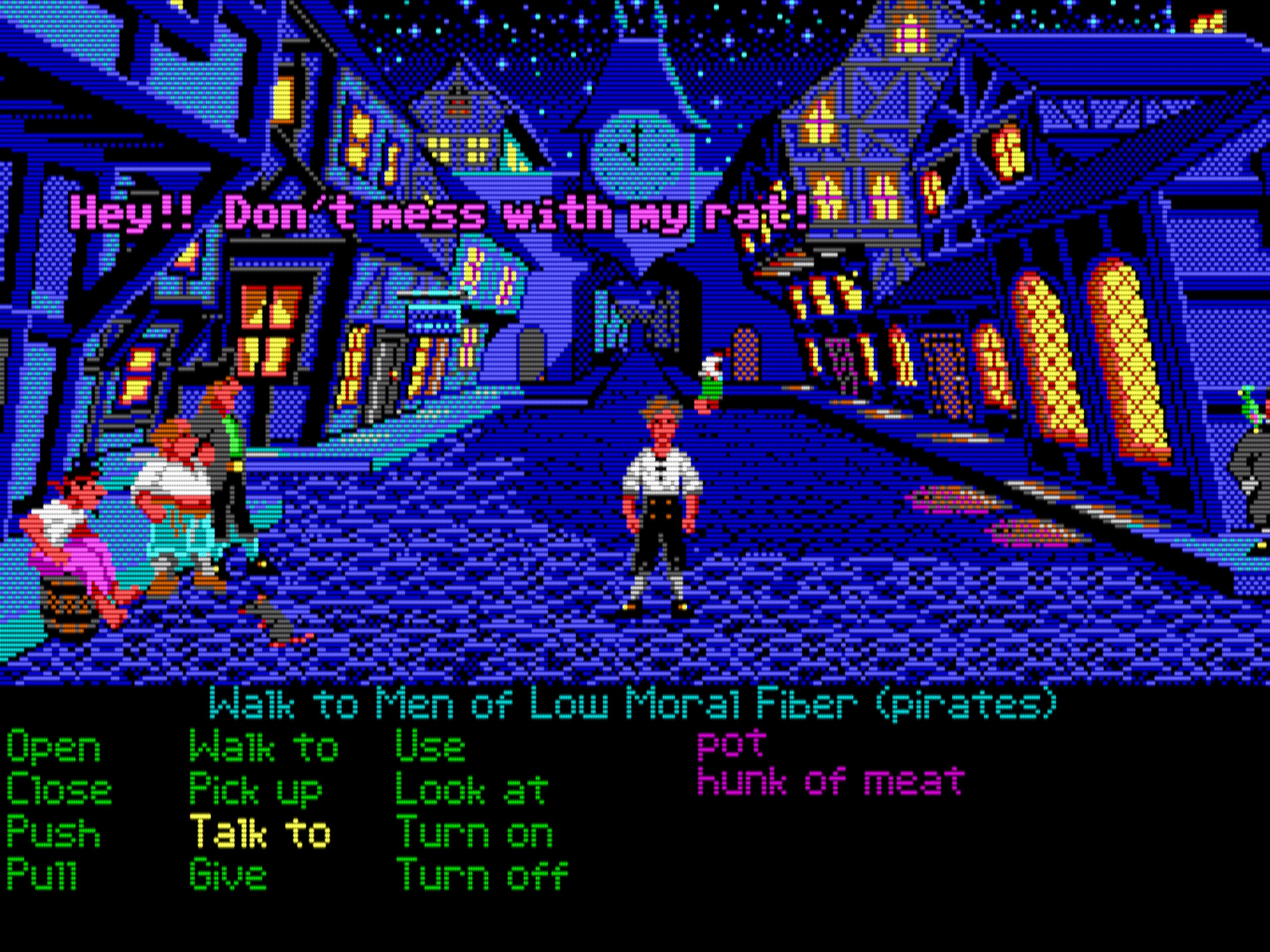
The Secret of Monkey Island (no CRT colour emulation)
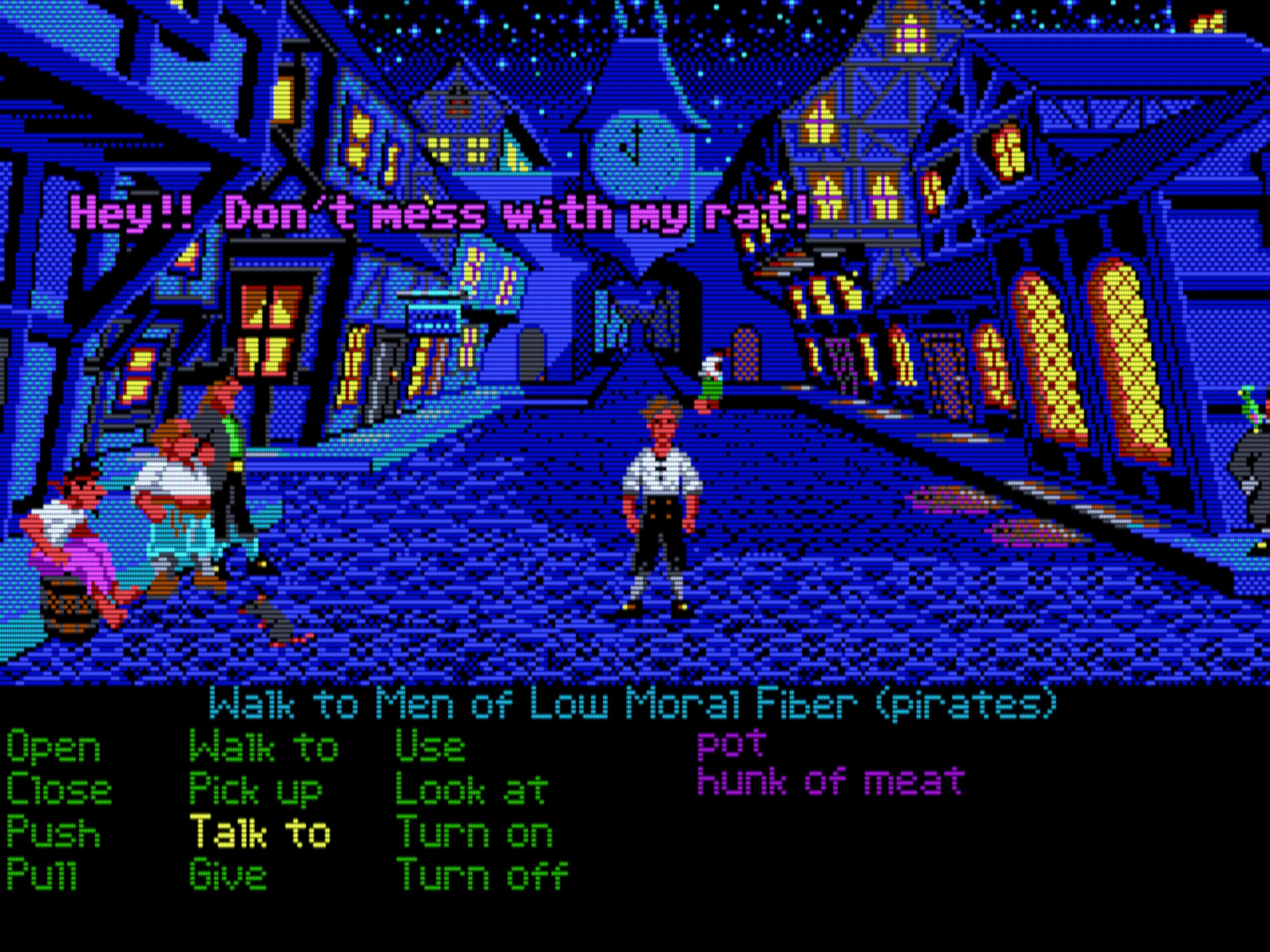
The Secret of Monkey Island (with CRT colour emulation)
Note
CRT colour profile emulation is only available in the OpenGL output mode.
Thanks
The new authentic CRT colour emulation and image adjustment features have
been built on top of the work and research of several prominent figures in
the shader and CRT emulation space: guestrr, Dr. Venom,
Dogway (Jose Linares), Neil Bartlett, Tanner Helland, and
prod80 (Bas Veth). Thanks, guys! 
Info
CRT displays are based on a fundamentally different technology compared to modern flat screens. CRTs have their own peculiar ways of reproducing colour and brightness; you can think of it as an “image transform” built into the CRT monitors that can never be turned off. Graphics artists working on DOS games picked the colours so that the resulting image looked good to them on their CRTs. Effectively, this “fixed transform” was “baked” into the art, so if we display the same art on modern flat screens without applying the CRT “image transform”, we’ll get a different picture, not what the graphics designer intended and what the millions of DOS gamers saw on their screens!
Displaying RGB values naively without an appropriate CRT colour and brightness transform results in wrong colours and raised shadow detail. This is especially noticeable in VGA games featuring dark graphics. The raised shadow detail problem is not noticeable in CGA and EGA games because the CGA and EGA palettes have a fixed set of very bright colours. However, the appropriate colour transforms make CGA/EGA games look a lot more natural, less over-saturated and “in your face”.
Fine-tuning the settings
The defaults have been tweaked for average sRGB displays. This should give you
a good starting point, but we highly recommend fine-tuning the settings to get
the best results for your particular monitor and viewing conditions. The
most important settings to tweak are the brightness and contrast settings
in the [render] section. Please refer to the Image adjustment
controls section to learn how to change these at
runtime.
The easiest way to quickly get in the ballpark is to use the calibration image
included with DOSBox Staging on the Y: drive. Run the SHOWPIC command to
display the calibration image and follow the on-screen instructions:
Tip
Users of DCI-P3 monitors should consider running their displays in their
native DCI-P3 colour space; see the Wide-gamut monitor support
section for details. It’s recommended to change the brightness and
contrast settings to brightness = 50 and contrast = 60 as a starting
point when using the DCI-P3 and Display P3 colour spaces.
To really zero-in on the best settings for your display, using screenshots
from actual DOS games is the best way. We’ve made a screenshot
pack available
for this containing 40 images from classic games that use a variety of
graphics modes; you can view the images with SHOWPIC or the DOS image viewer
of your choice.
Remember, no two CRT monitors were completely alike; some games look best with slightly different settings, and there’s always room for subjectivity.
Image adjustment controls
We’ve added a couple of new image adjustment settings to the [render]
section so you can tweak brightness, contrast, saturation, colour temperature,
etc. of the video output, just like on a real CRT monitor. Used in conjunction
with the new crt_color_profile setting and the adaptive CRT shaders, you’ll
get a very hardware-like “virtual CRT” experience. If you don’t like the CRT
shaders, that’s not a problem — you can use the image adjustments with any
shader, such as sharp or scaler/advmame2x.
To disable all image adjustments, simply set image_adjustments to off.
This will result in a picture identical to previous DOSBox Staging versions.
This is the complete list of the new image adjustment settings:
brightnesscontrastgammadigital_contrastblack_levelsaturationcolor_temperaturecolor_temperature_luma_preservered_gaingreen_gainblue_gain
Use the online help to learn more about the settings (e.g. run brightness /?
at the DOS prompt). Run the CONFIG -h render command to list all [render]
section settings.
Four new hotkeys have been introduced to help adjust the image settings at runtime while a program is running:
- Ctrl+Alt+F9 (Cmd+Option+F9 on macOS) — Previous image adjustment setting
- Ctrl+Alt+F10 (Cmd+Option+F10) — Next image adjustment setting
- Ctrl+Alt+F11 (Cmd+Option+F11) — Decrease current setting
- Ctrl+Alt+F12 (Cmd+Option+F12) — Increase current setting
The current values are printed to the logs when adjusting the settings. You
can also simply exit the game or image viewer program after you’ve come up
with some settings you like, and save the current config with the CONFIG -wc
<your_config_name> command.
Note
The image adjustments feature is only available in the OpenGL output mode.
Green monochrome VGA emulation
You can do some really cool tricks with the image adjustment settings. The
config below emulates old-school monochrome VGA monitors with green phosphors
that only display the green channel of the RGB input. Pure red and blue
appeared completely black on these monitors — that’s one way to play Prince
of Persia on “hard mode”, with invisible health bars
Use the analog contrast setting in the 30–100 range to adjust the
brightness. You can uncomment the saturation = -50 line to emulate a more
advanced green monochrome monitor that converted the RGB input to greyscale
first.
[render]
shader = crt/crt-hyllian:monochrome-hires
crt_color_profile = none
brightness = 45
contrast = 60
gamma = 10
# saturation = -50
color_temperature = 6500
red_gain = 0
green_gain = 125
blue_gain = 0
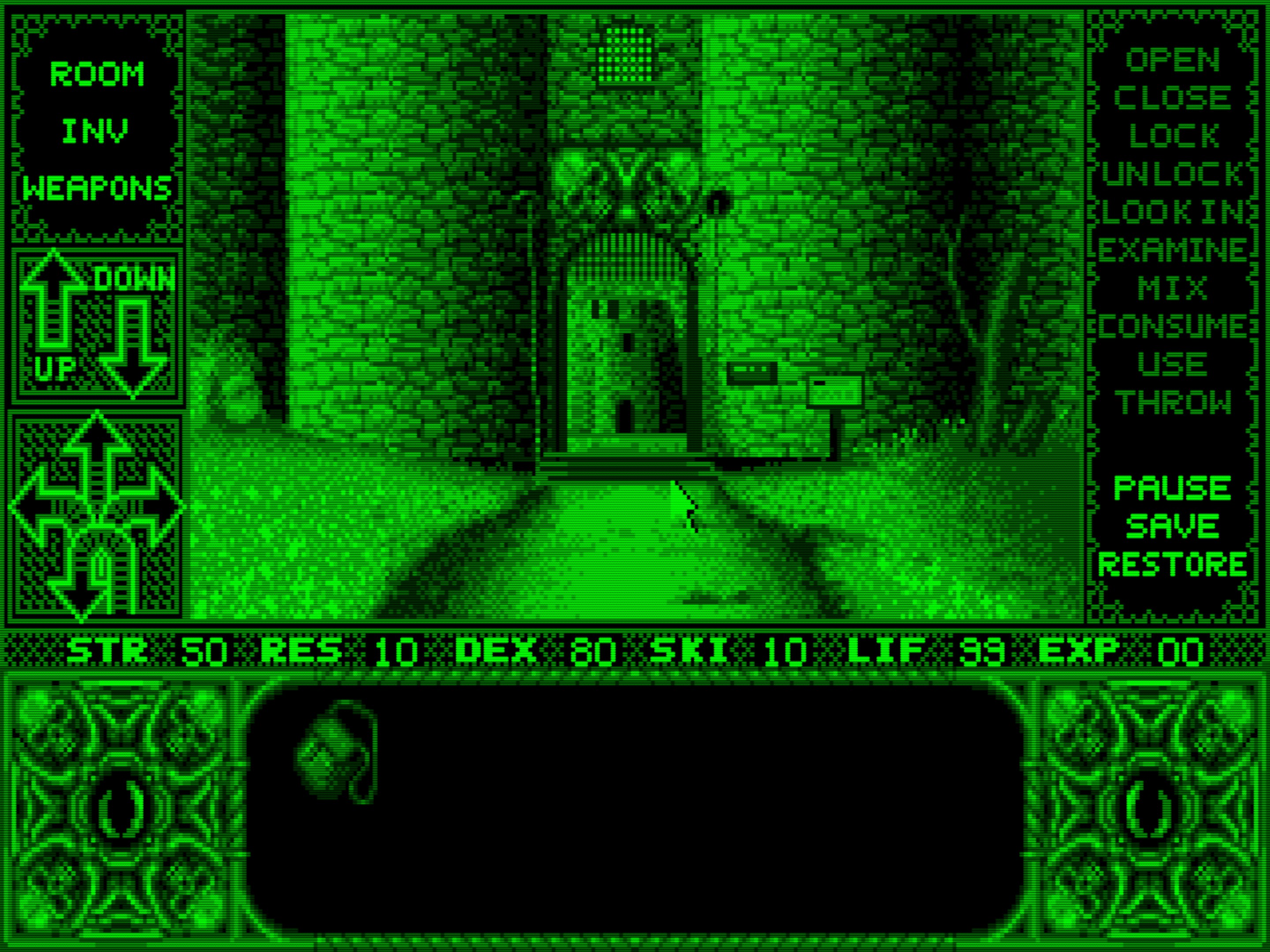
Elvira (old-school green mono VGA monitor emulation)
Amber monochrome VGA emulation
This other handy config snippet emulates a monochrome VGA monitor with amber
phosphors. Use the analog contrast setting in the 30 to 100 range to adjust
the brightness — higher contrast settings turn the highlights into yellow,
which is a pretty cool effect.
[render]
shader = crt/crt-hyllian:monochrome-hires
crt_color_profile = none
brightness = 42
contrast = 100
gamma = 15
saturation = -50
color_temperature = 6500
red_gain = 125
green_gain = 70
blue_gain = 0
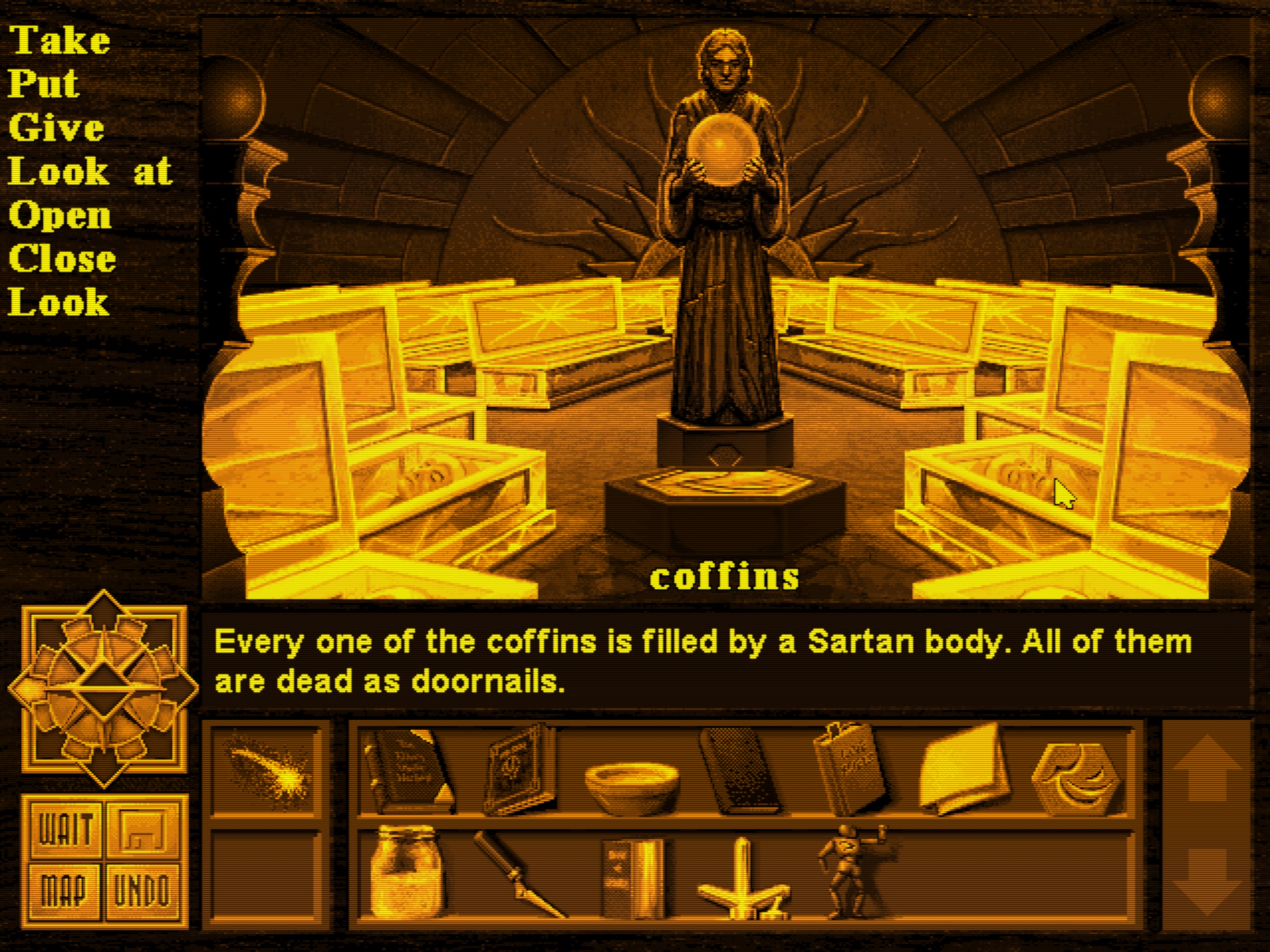
Death Gate (old-school amber mono VGA monitor emulation)
Wide-gamut monitor support
If you tried to use DOSBox Staging with your wide-gamut monitor in its native wide-gamut mode (e.g., DCI-P3 or AdobeRGB) with earlier DOSBox Staging versions, you got grossly oversaturated colours on Windows and Linux.
That changes from today — now you can simply set the colour_space setting
in the [render] section to take full advantage of your wide-gamut monitor.
Run colour_space /? from the DOS prompt for the list of available options.
But why would you want to do so in the first place? There are many reasons:
-
Virtually all wide-gamut monitors drastically reduce the maximum available brightness in sRGB mode, and you need a lot of brightness for a convincing CRT emulation.
-
The new authentic CRT colour emulation feature works best on wide-gamut displays (especially the
philipsandtrinitronprofiles, which have been calibrated for DCI-P3). -
You’ll get better shadow detail in the DCI-P3 colour space, as that has 2.6 gamma, which is closer to the actual observable gamma of CRT monitors.
-
Many wide-gamut monitors lock some of the OSD controls in sRGB emulation mode. Sadly, these are often the most useful settings, such as the brightness and overdrive settings.
-
Colours in sRGB emulation mode usually look a bit worse (usually slightly muted) on a wide-gamut monitor than on a good sRGB-native monitor.
That’s plenty of reasons! Make sure to disable all OS-level and 3rd-party colour management in Windows and Linux when using the feature, especially Automatic Colour Management (ACM) in Windows 11, which is known to behave erratically.
macOS users don’t need to configure anything; thanks to macOS’s excellent system-wide colour management, DOSBox Staging will automatically take advantage of wide-gamut displays.
Note
Wide-gamut support is only available in the OpenGL output mode.
Major frame presentation overhaul
Configuring frame presentation has been vastly simplified. DOSBox Staging now works fine with Variable Refresh Rate (VRR) monitors out-of-the-box — no extra configuration is needed. You’ll get no tearing and perfect frame pacing in all games and demos, regardless of what weird custom refresh rate the program might be using. Fullscreen mode is recommended for perfectly smooth scrolling in 2D games (in windowed mode, there might be some slight judder).
If you’re still on a fixed-refresh monitor (typically a 60 Hz display),
just set vsync = on in your config to avoid tearing in fullscreen mode.
You’ll get vsync “for free” in windowed mode on Windows, macOS, and on more
modern Linux desktops, so the default vsync = off setting should be
perfectly fine if you only use windowed mode.
Note
Tearing is only noticeable in a relatively small number of fast-paced
games, typically 3D games from the mid to late 90s and smooth-scrolling
2D games (e.g., platformers and pinball simulators). If you only play
RPGs, adventures and strategy games, don’t worry about any of this —
just use the defaults and enjoy Staging!
Here are the presentation mode changes in more detail. Use the online help
system to learn more about the new settings (e.g., run presentation_mode /?
at the DOS prompt).
presentation_mode
- The previous CFR (Constant Frame Rate) and VFR (Variable Frame
Rate) presentation modes have been replaced with the
dos-rateandhost-ratemodes. This completely removes VFR presentation, which only presented a frame if it contained changes compared to the previous one. Now we always present frames at a steady rate at the refresh rate of the emulated DOS video mode (dos-rate) or the refresh rate of your desktop (host-rate).
vsync
- The
adaptiveandyieldvsync option have been removed as they served no useful purpose, and a newfullscreen-onlymode has been added.
vsync_skip
- This setting has been removed as it was only necessary to work around
broken GPU drivers that use blocking wait on 60 Hz (or lower) fixed-refresh
displays. Now you can use
presentation_mode = host-rateandvsync = offto achieve the same thing.
host_rate
- This setting has been removed; just use
dos_rate = hostto force the refresh rate of your host display (e.g., to force 60 Hz in 70 Hz VGA games on a fixed 60 Hz refresh rate monitor). Note that this is a hack and might break some games.
Fixed vsync behaviour
Enabling vsync could cause some games to effectively run throttled at the host refresh rate if the host rate was lower than that of the emulated video mode. For example, running Pinball Dreams (a 70 Hz VGA game) on a 60 Hz monitor resulted in perfectly smooth scrolling, but with the game running about 16% slower.
This is no longer the case — enabling vsync doesn’t cause any gameplay or in the audio playback slowdowns.
Improved vsync’ed performance
Previously, enabling vsync could incur a 40–60% performance penalty. This usually wasn’t noticeable in 320×200 VGA games, but could be significant for SVGA gaming at 640×480 or higher resolutions. Voodoo games could be similarly affected.
This limitation has been removed — vsync’ed performance is now on par with non-vsync’ed performance.
FMV video deinterlacer
A new deinterlacer feature has been added to remove alternating black lines from full motion videos (FMVs).
Displaying only every second line of the video was a neat trick employed by many 90s DOS and Windows games to increase the perceptual resolution of the image (as your mind “filled in the blanks”, quite literally) while cutting the storage requirements in half. This also halved the brightness of the video, but the result still looked quite decent on 14-15” CRTs. However, such fake-interlaced content really doesn’t look great on our large, ultra-sharp modern flat screens.
The deinterlacer feature fixes all that and restores FMV videos to their
former glory. It automatically detects interlaced video content and leaves
other parts of the screen intact (e.g., user interface elements,
HUDs, mouse pointer, subtitles, etc.) You can enable it by setting
deinterlacing = on in the [render] section (we recommend doing this on a
per-game basis). The default setting strikes a balance between preserving
brightness and the “fake high resolution” look. There are other options
available, too; run deinterlacing /? to see the full list.
Of course, you can use it together with the CRT shaders, and in fact, we encourage you to do so for the best-looking results.
Here’s a non-exhaustive list of games that use interlacing:
- Angel Devoid: Face of the Enemy
- CyberMage: Darklight Awakening
- Crusader: No Regret
- Crusader: No Remorse
- Dune (CD-ROM version; the game uses a special “dot pattern” interlacing style()
- Gabriel Knight 2: The Beast Within
- Hardline
- Heroes of Might & Magic 2
- KGB (CD-ROM version; the game uses a special “dot pattern” interlacing style)
- Phantasmagoria
- Privateer 2: The Darkening
- Santa Fe Mysteries: Sacred Ground
- Santa Fe Mysteries: The Elk Moon Murder
- Wing Commander IV: The Price of Freedom
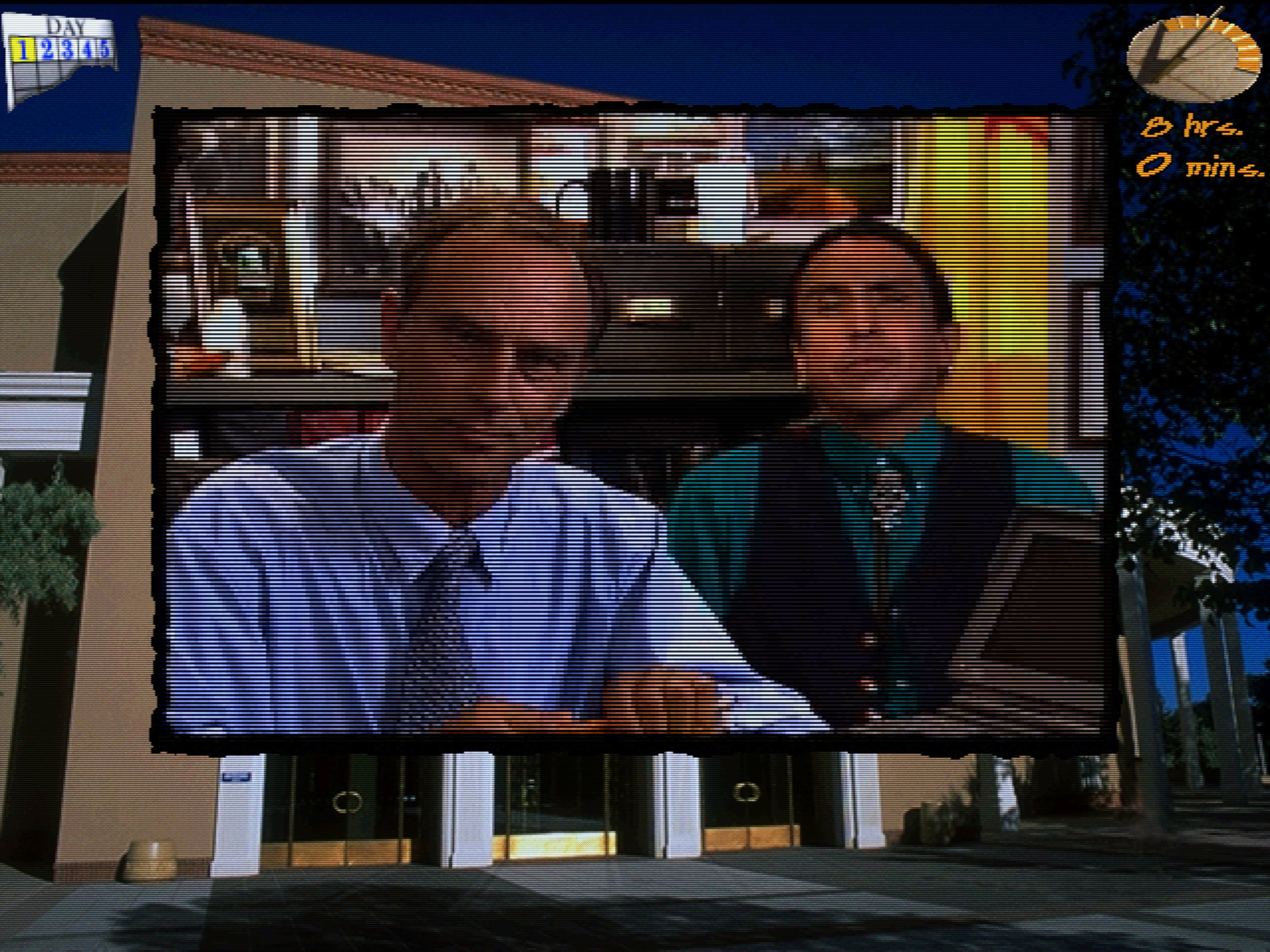
Santa Fe Mysteries: Sacred Ground (original)
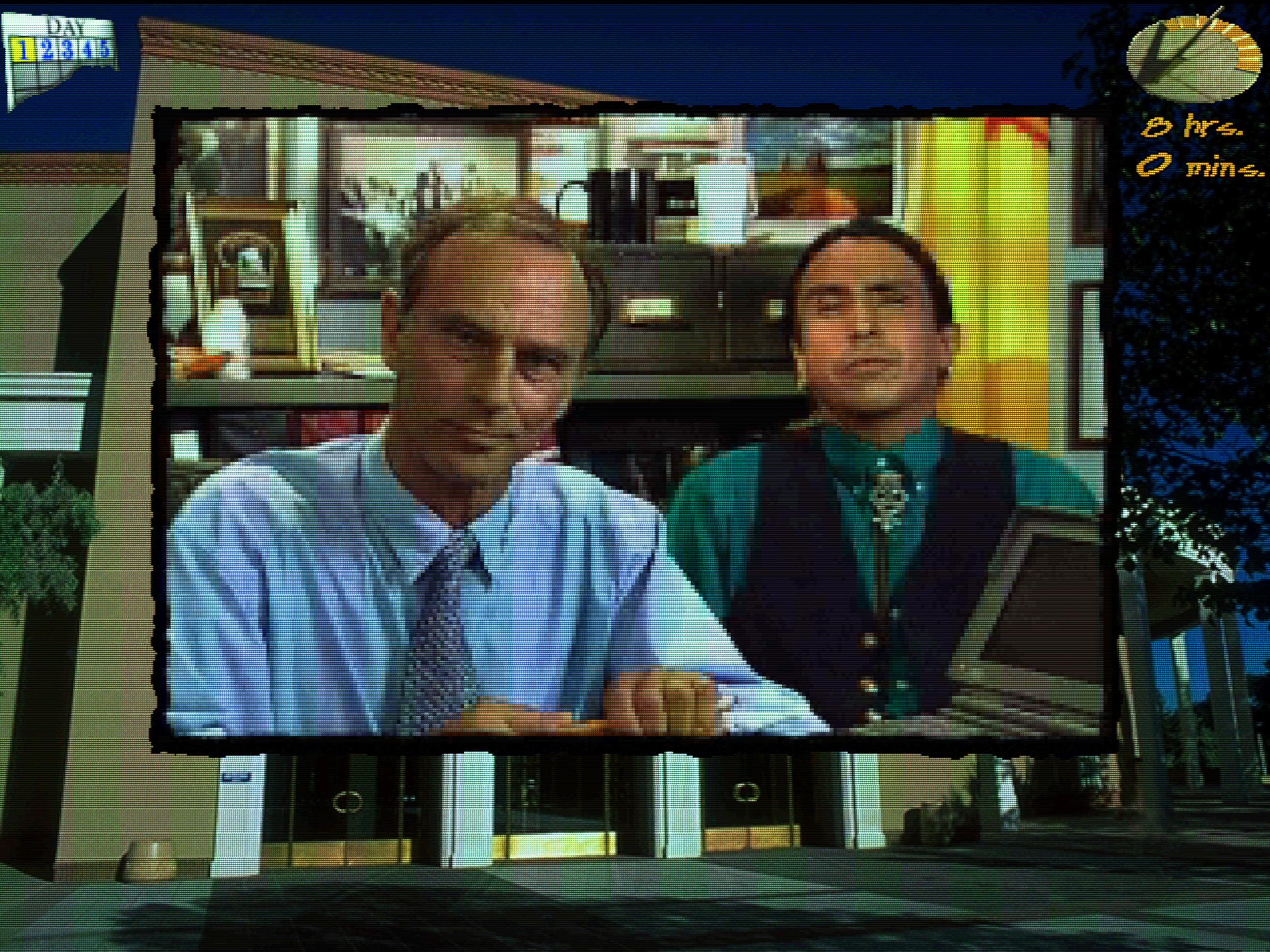
Santa Fe Mysteries: Sacred Ground (deinterlaced)
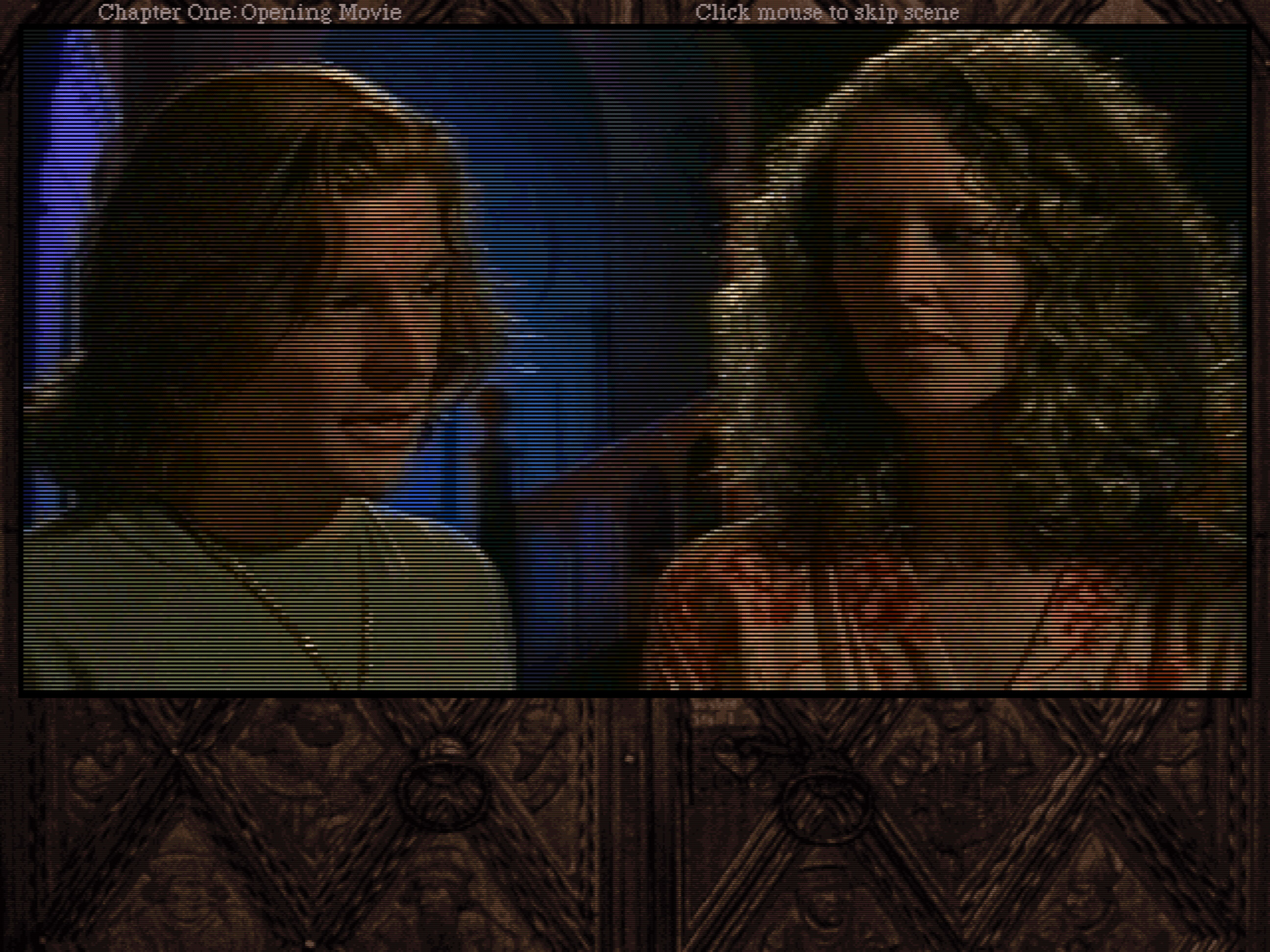
Gabriel Knight 2 - The Beast Within (original)
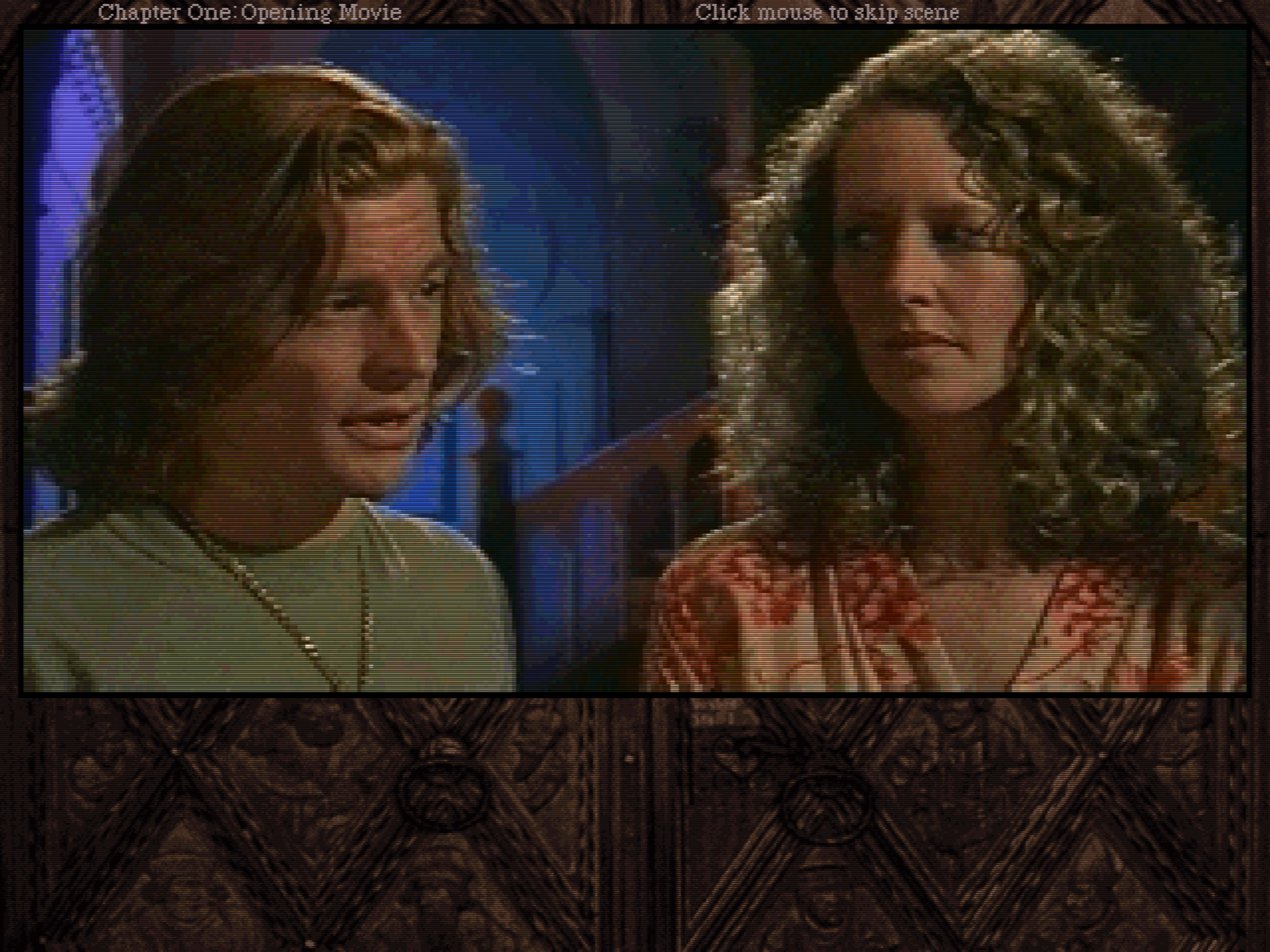
Gabriel Knight 2 - The Beast Within (deinterlaced)
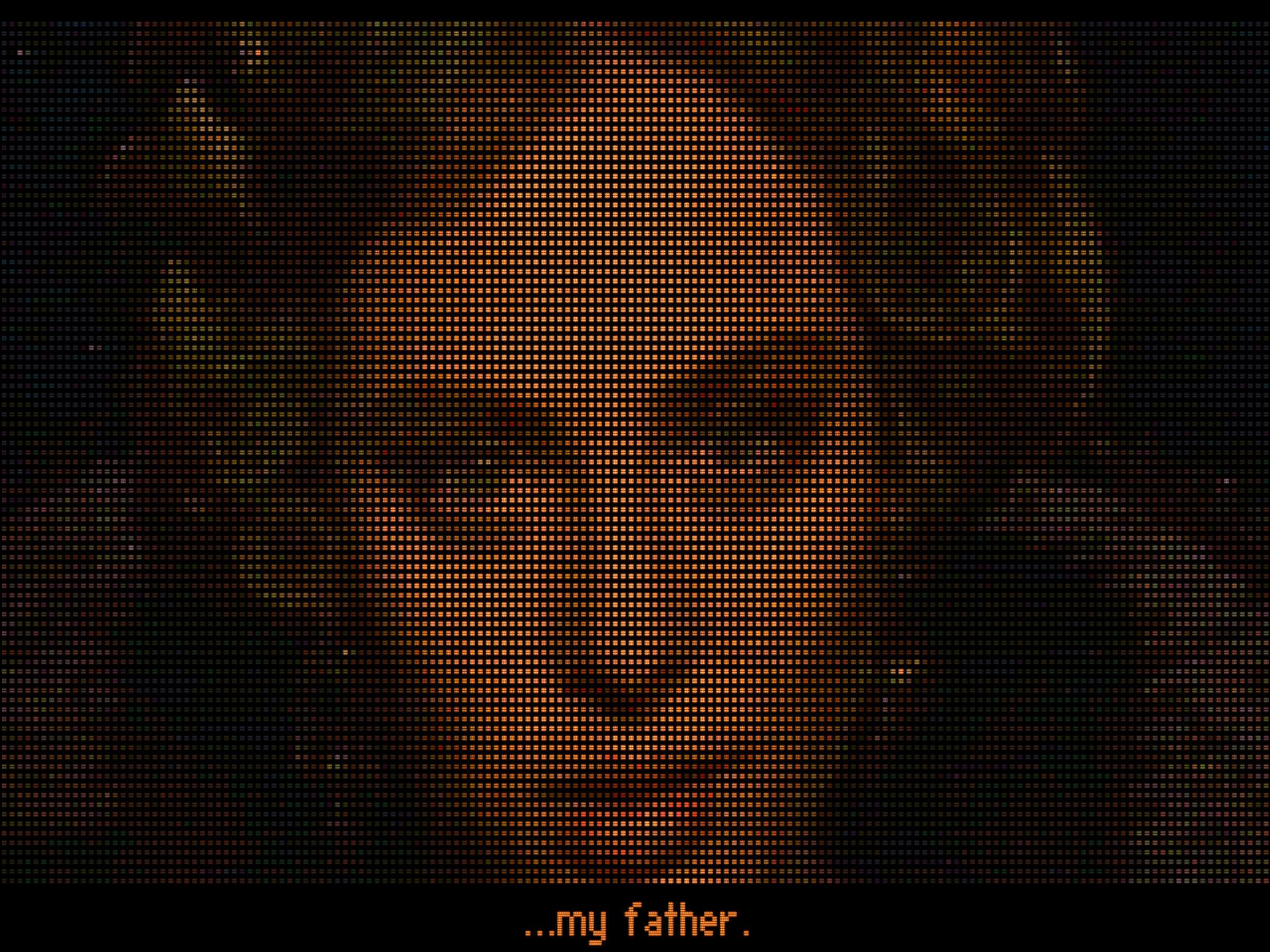
Dune (CD-ROM version) (original)
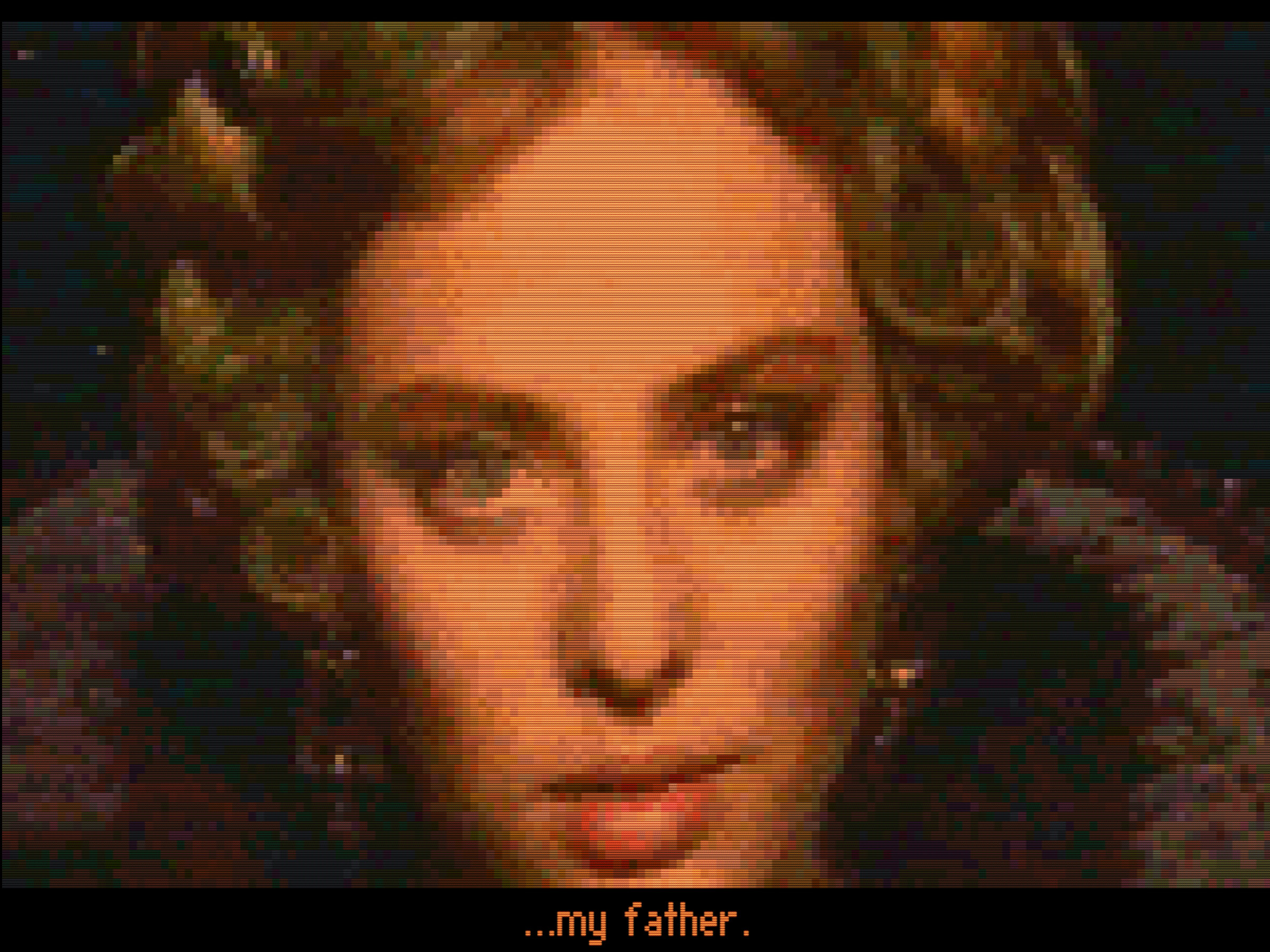
Dune (CD-ROM version) (deinterlaced)
Checkerboard dither remover
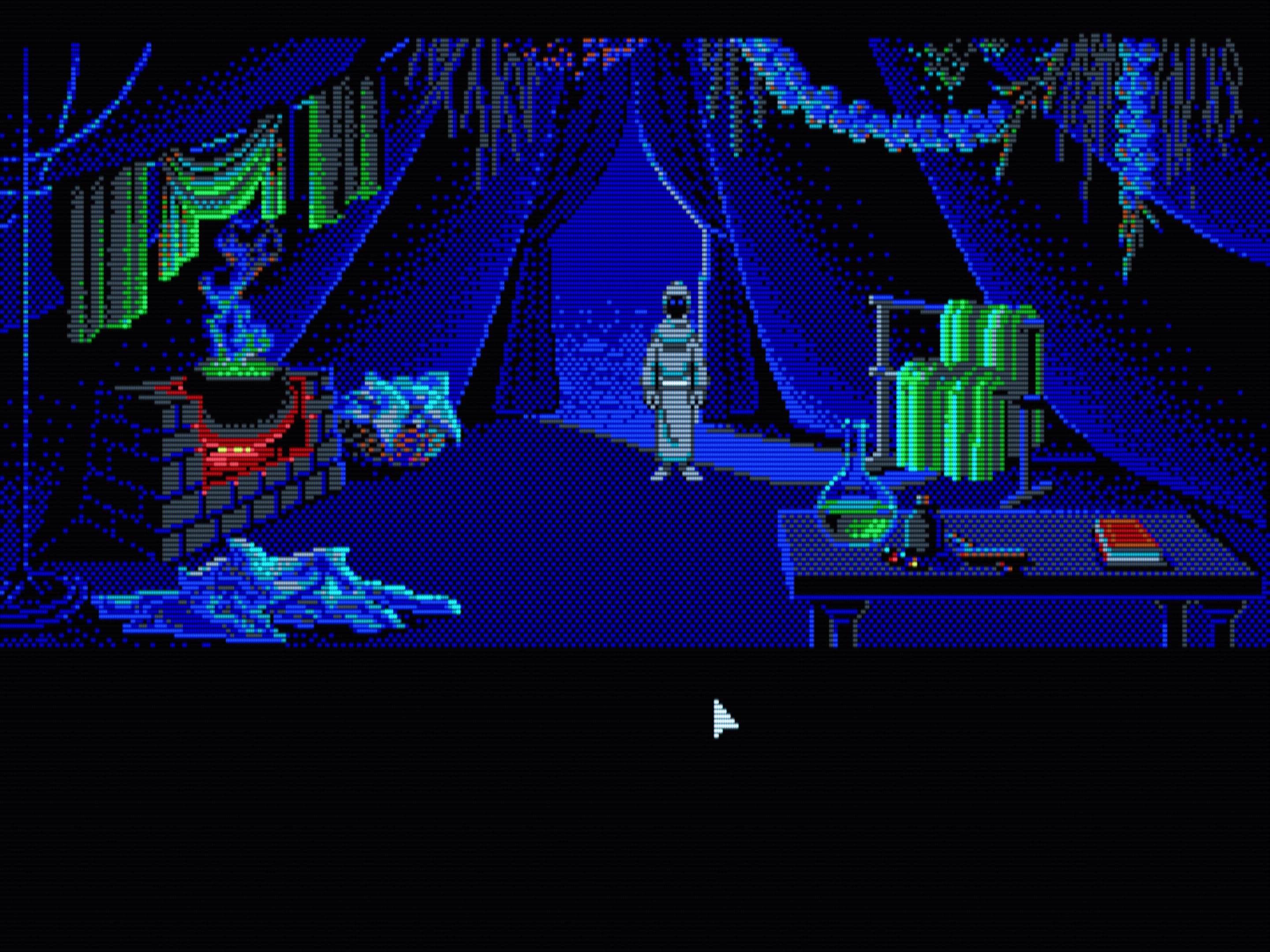
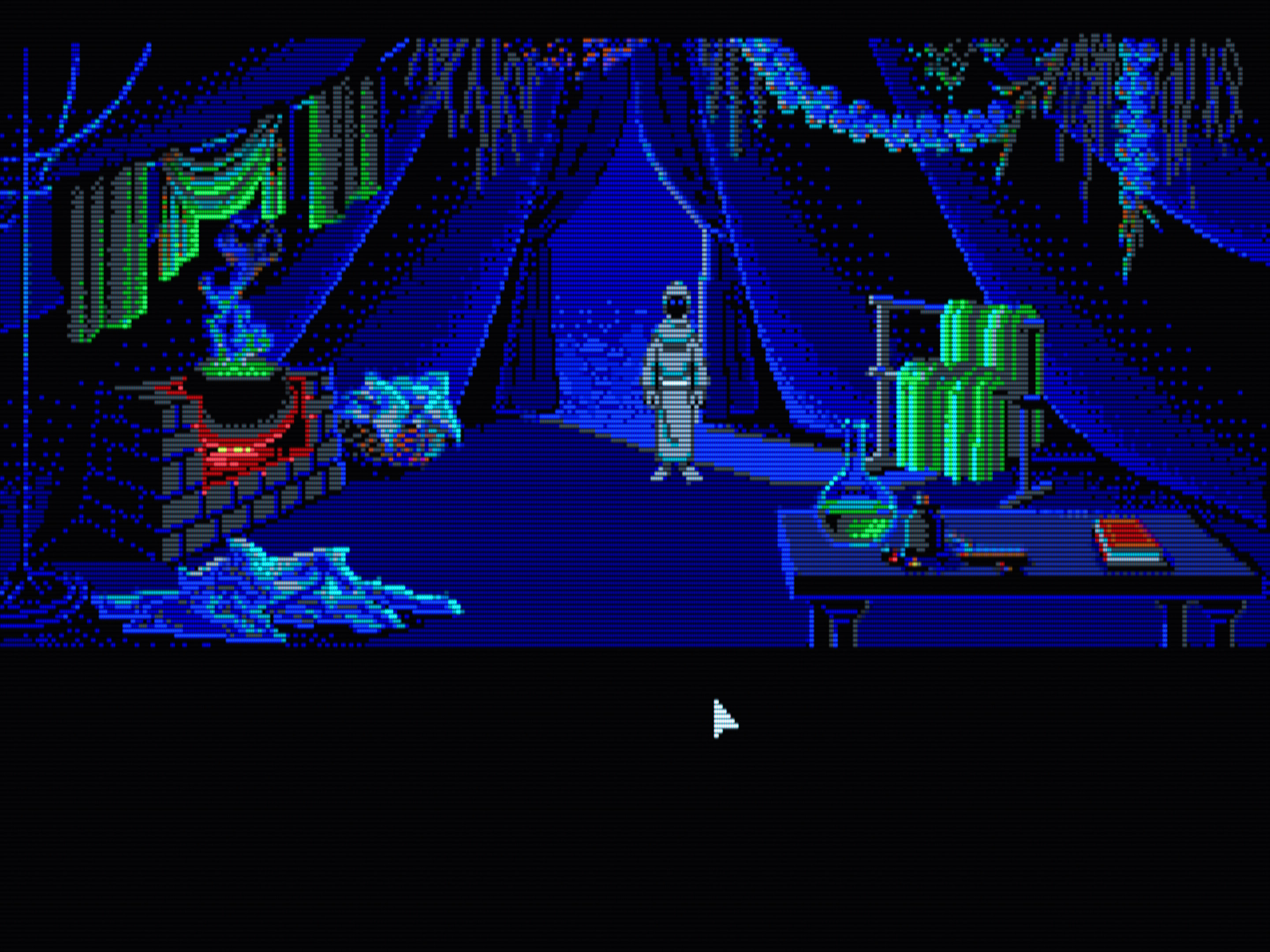
Some DOS games use a technique called dithering to create the illusion of more colours with a limited 4 or 16-colour palette. The most notable examples are the early SCI0 Sierra adventure games that use 320×200 EGA graphics with a fixed 16-colour palette (e.g., Leisure Suit Larry 2 & 3, Quest for Glory I & II, Space Quest III, The Colonel’s Bequest, etc.) Early EGA LucasArts adventures also feature dithering, and so do the early Legend Entertainment titles.
We’re introducing a cool feature that can replace these dither patterns, which
usually resemble checkerboards, with solid colours. The feature works on any
graphics adapter, even VGA. This is a port of Hyllian’s checkerboard
dedither shader — thanks, man!
Set dedithering to on in the [render] section to enable the feature. For
further details, run dedithering /? from the DOS prompt.
You can combine dedithering with any shader (e.g., crt-auto, sharp, or
even upscalers such as scaler/xbr-lv3).
Tip
Click on one of the thumbnails then use the cursor keys to switch back and forth between the before/after images.
The Colonel’s Bequest
(EGA on VGA with CRT shader, original)
The Colonel’s Bequest
(EGA on VGA with CRT shader, dedithered)
Loom
(EGA with CRT shader, original)
Loom
(EGA with CRT shader, dedithered)
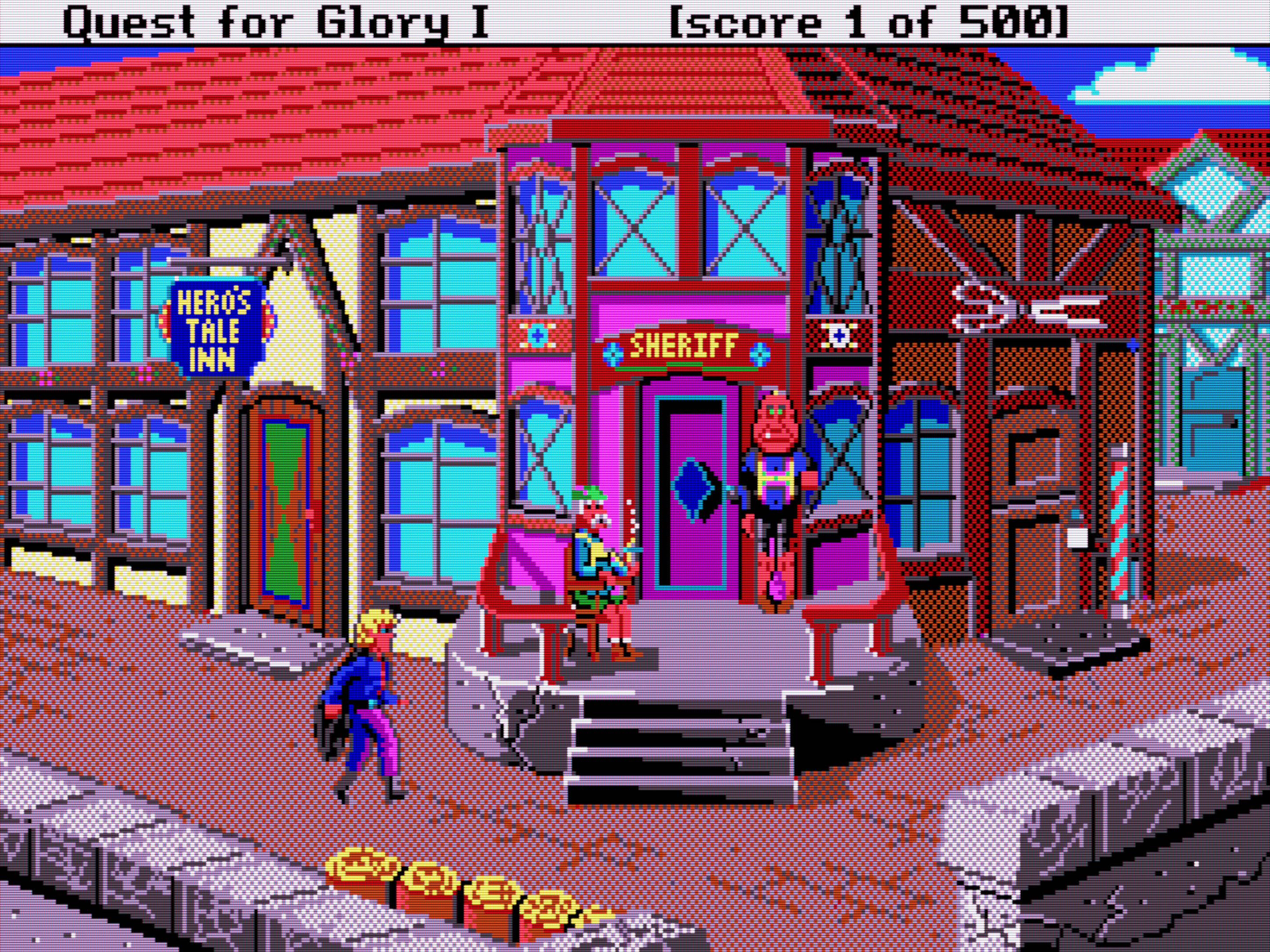
Quest for Glory: So You Want to Be a Hero
(EGA on VGA with CRT shader, original)
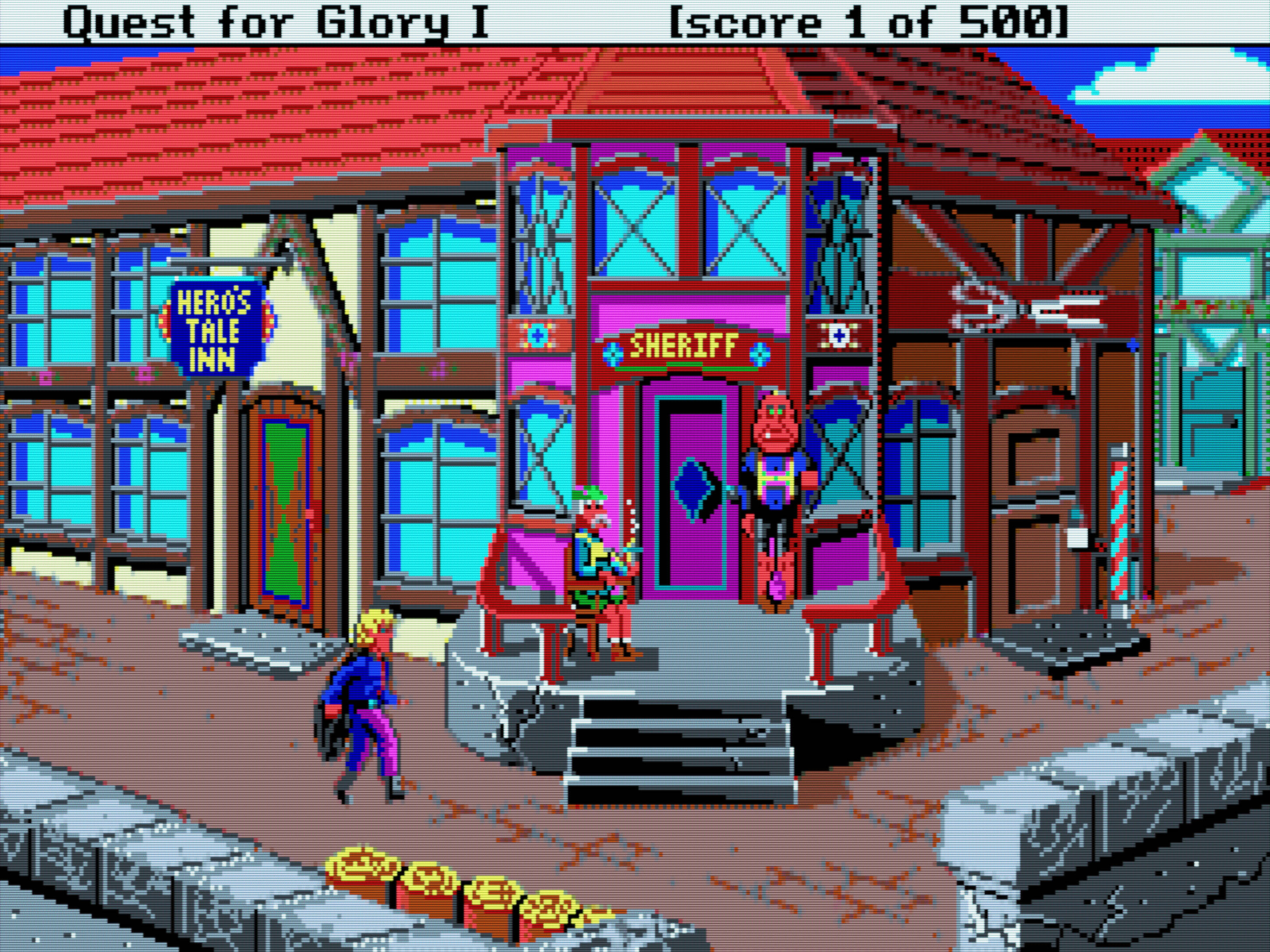
Quest for Glory: So You Want to Be a Hero
(EGA on VGA with CRT shader, dedithered)
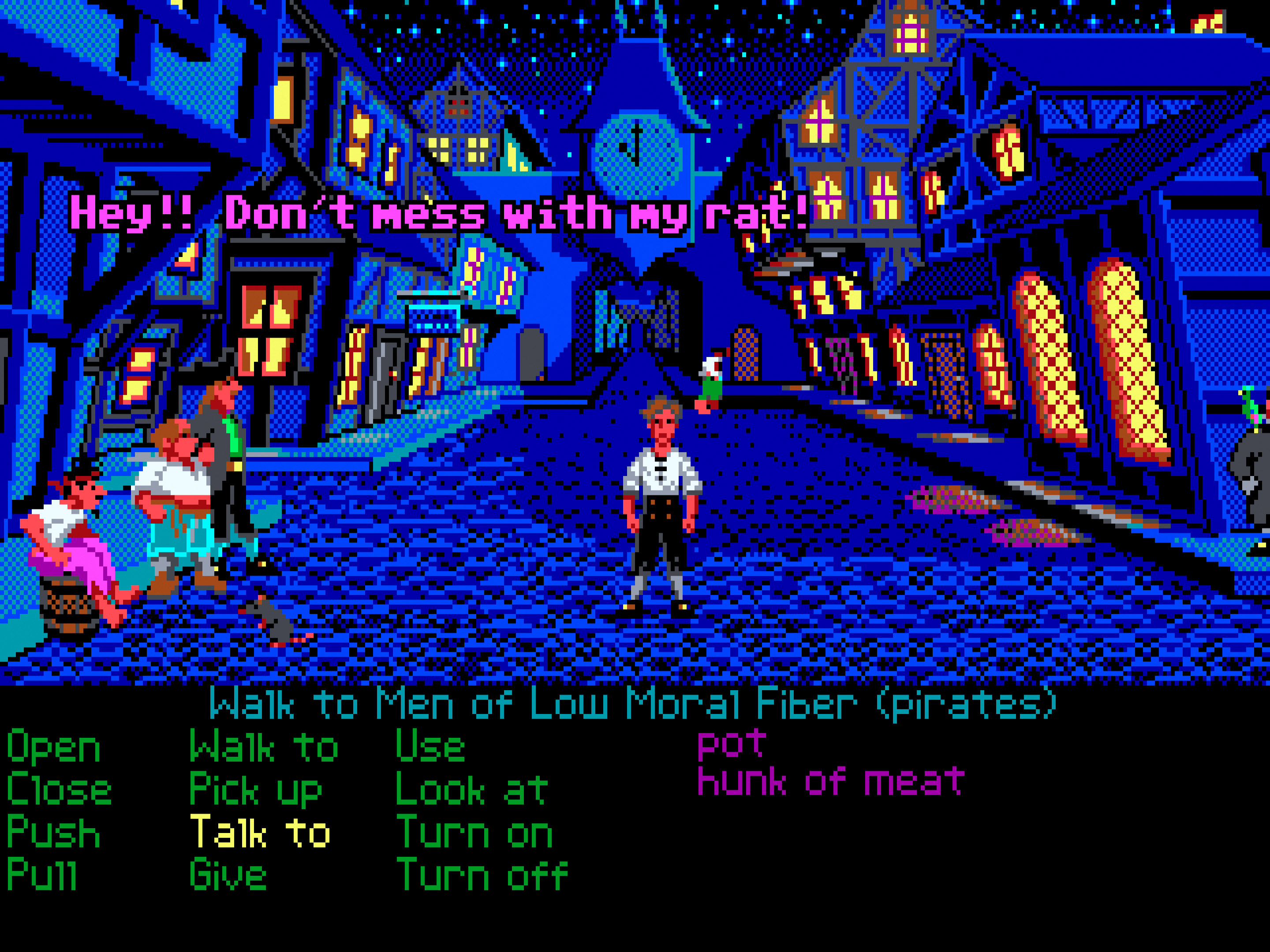
The Secret of Monkey Island
(EGA with sharp shader, original)
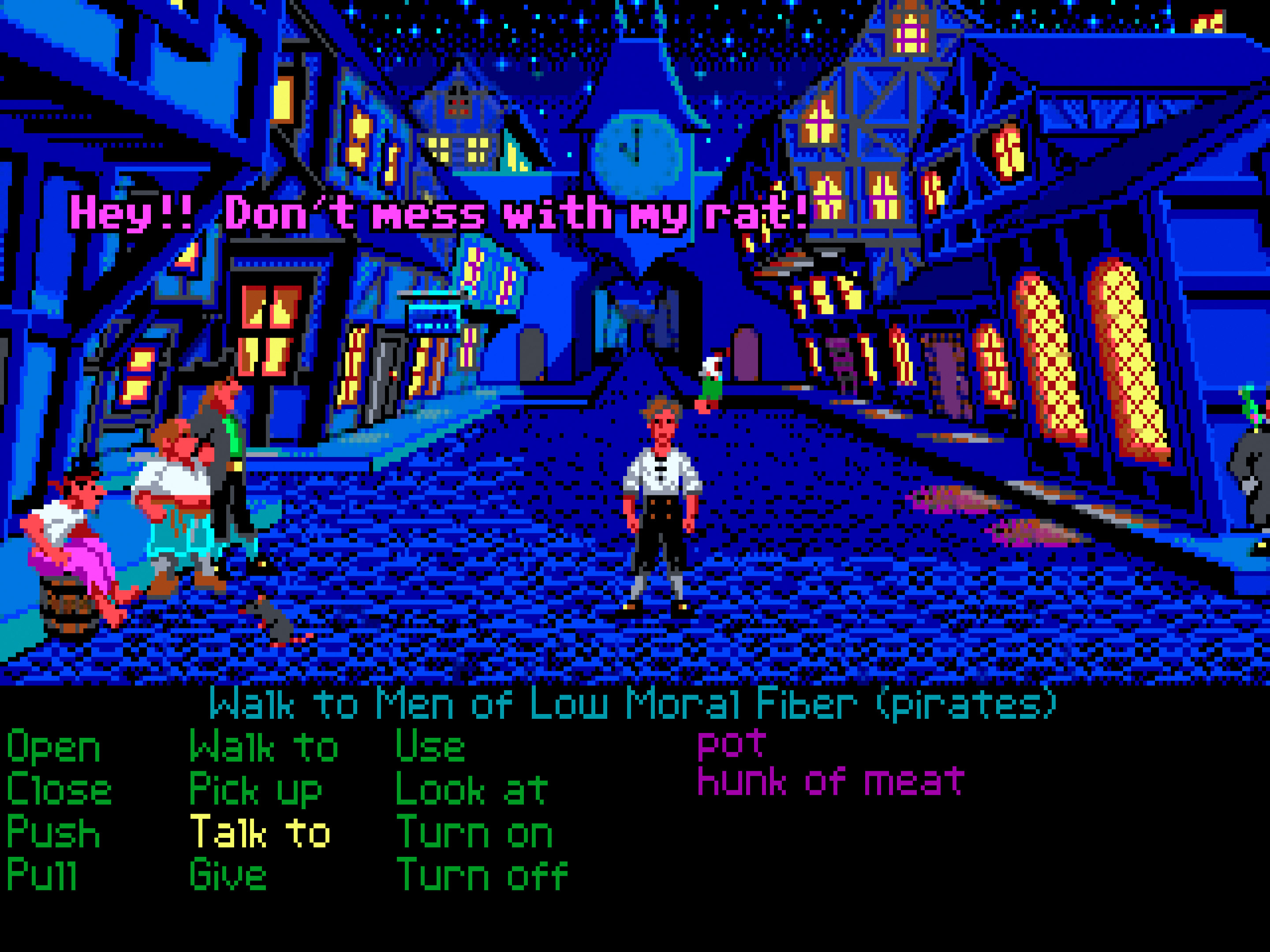
The Secret of Monkey Island
(EGA with sharp shader, dedithered)
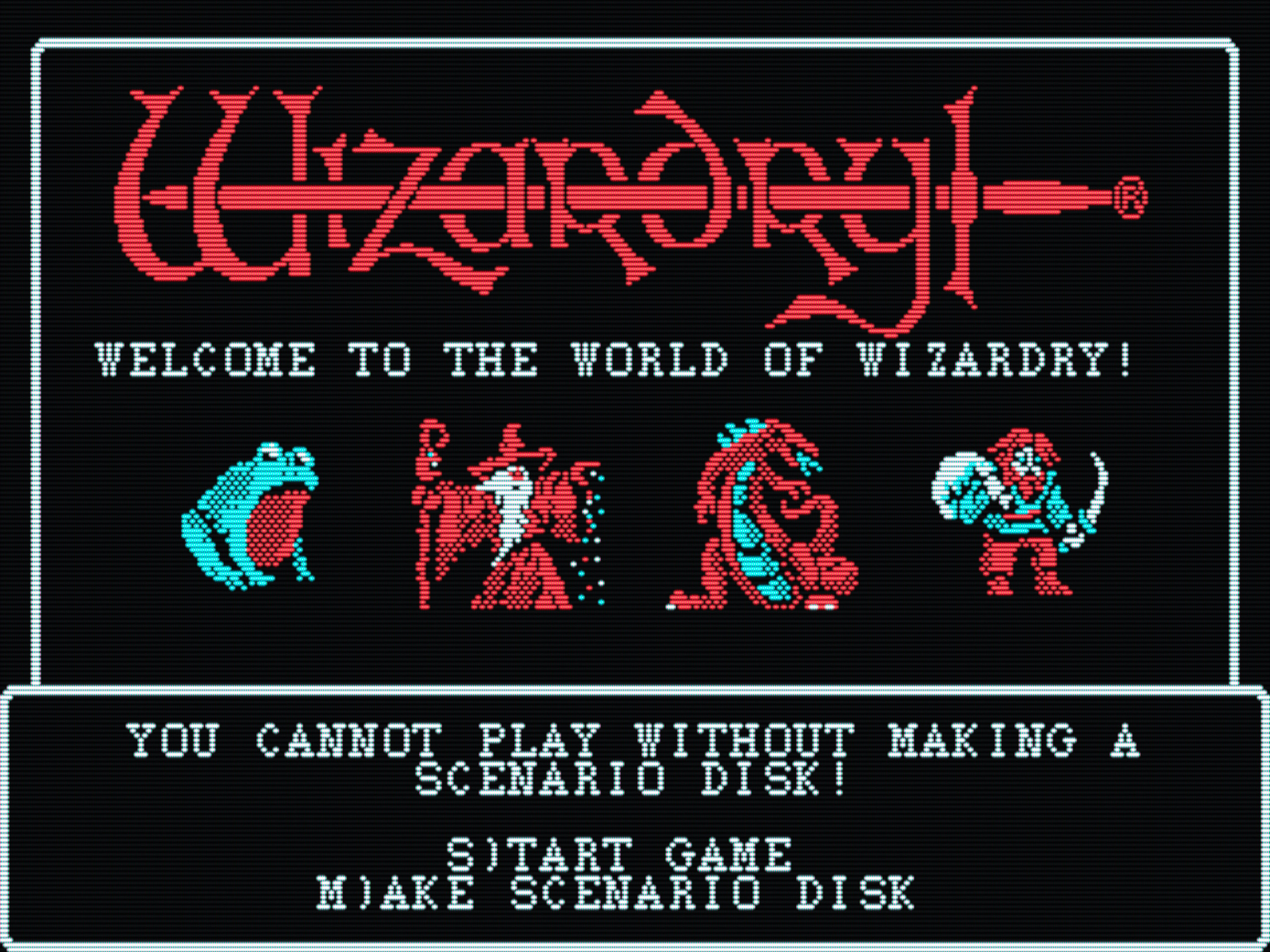
Wizardry: Proving Grounds of the Mad Overlord
(CGA with CRT shader, original)
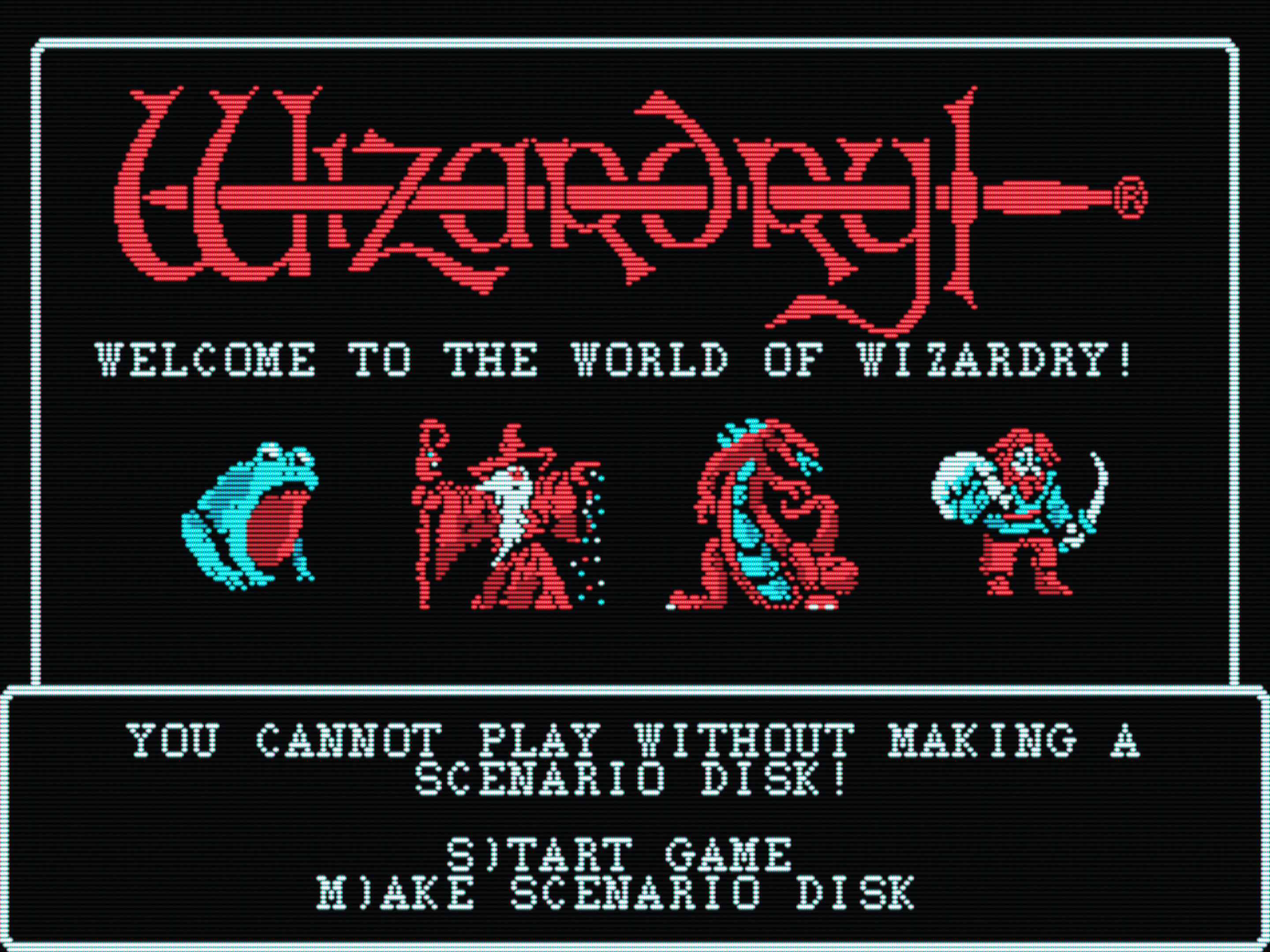
Wizardry: Proving Grounds of the Mad Overlord
(CGA with CRT shader, dedithered)
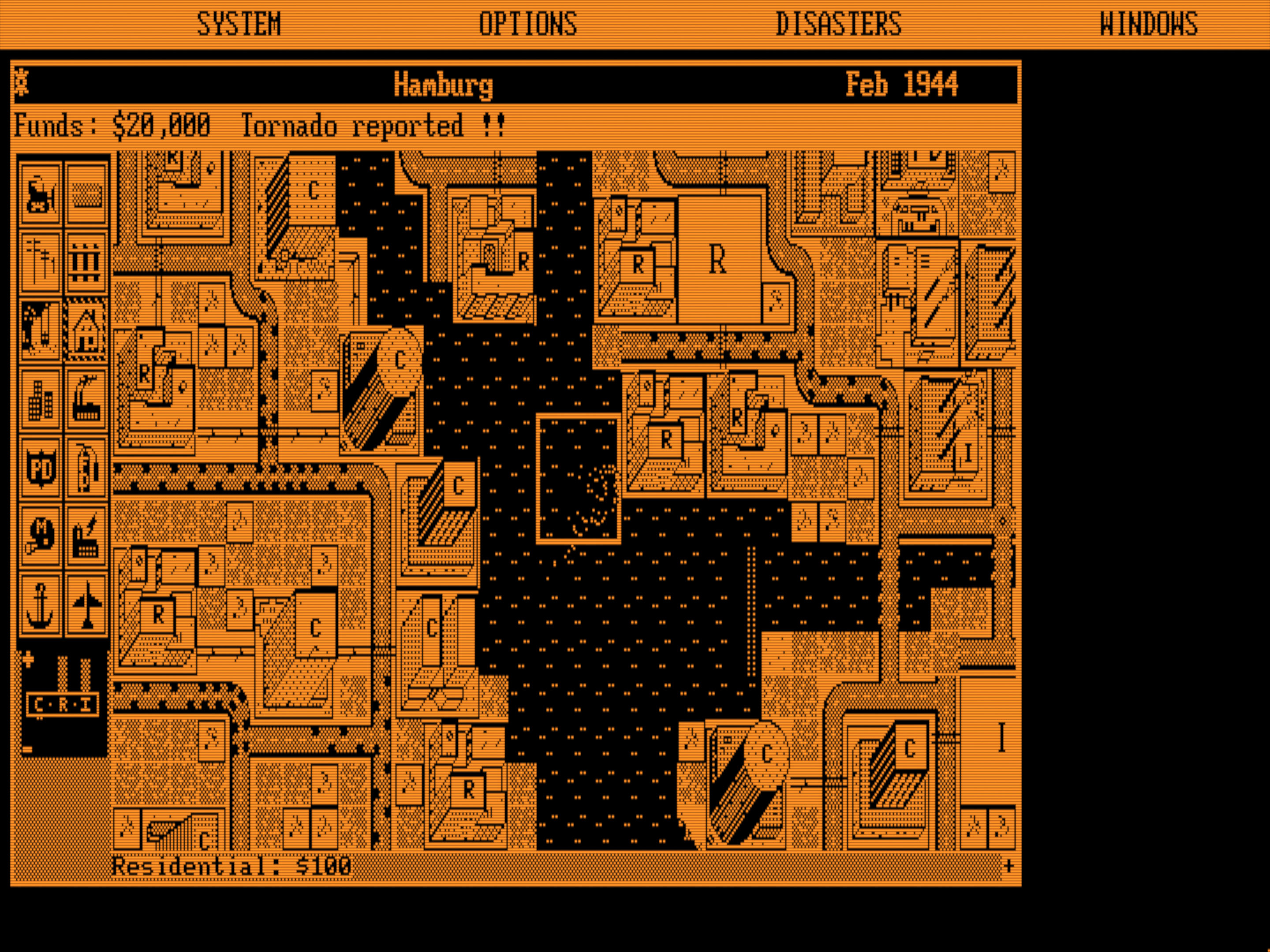
SimCity
(Hercules with CRT shader, original)
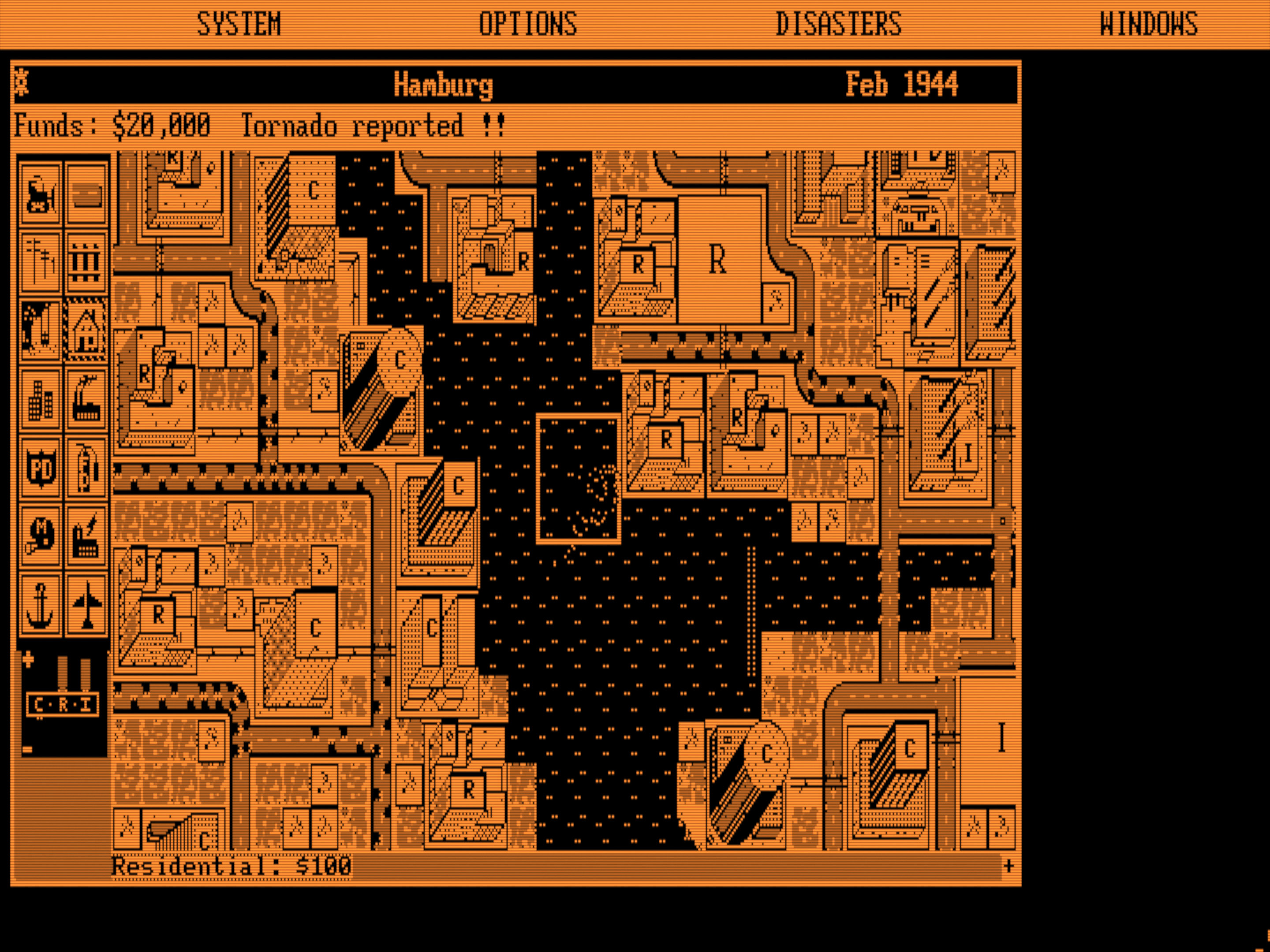
SimCity
(Hercules with CRT shader, dedithered)
Note
Blending dither patterns into solid colours and achieving transparency-like effects were only a thing on consoles connected to consumer TV sets. Dither patterns were clearly visible on tack-sharp (and expensive!) PC CRT monitors from the 80s and 90s. Therefore, the dedithering feature does not result in more authentic results — it goes in the opposite direction. It’s a “fantasy representation” of the dithered graphics of old CGA and EGA games.
Also note that dither patterns were far less apparent on small 13–014”
EGA monitors. To mimic that look, set shader = crt-auto and viewport =
60% or thereabouts on a 24–27” desktop monitor. The diagonal of the
resulting image should be around 13–14” or 33–36 cm — measure it with
a ruler! That’s pretty small, but hey, it’s authentic, and it made people
in the 80s happy
Integer scaling improvements
Integer scaling for the adaptive CRT shaders (the integer_scaling = auto
option) has been refined to reduce pillar and letterboxing. The improvements
are especially noticeable on 4k and 1440p monitors: common video modes now
completely fill the screen vertically on 4k monitors in fullscreen (no more
letterboxing), and 320×200 VGA modes result in minimal letterboxing on
1440p screens. All CGA and EGA modes on 1080p now have no letterboxing in
fullscreen.
At the technical level, adaptive CRT shaders can now use 3.5× and 4.5× vertical scaling factors as well, and integer scaling is disabled above 5.0×. These relaxations of the integer scaling rules result in no visual artifacts.
Built-in image viewer
A new built-in SHOWPIC command has been added for viewing BMP, GIF, IFF/LBM,
PCX, and PNG images. The tool only supports paletted images and the S3 SVGA
adapter for the time being.
Window & fullscreen setting changes
-
The
windowresolutionsetting has been renamed towindow_size. -
The
fullresolutionsetting has been renamed tofullscreen_mode, andfullresolution = desktopis now available asfullscreen_mode = standard. The option to explicitly set screen resolutions inWxHformat has been removed as it’s not useful on modern hardware or when using DOSBox Staging with a real CRT monitor. -
A new
forced-borderlessfullscreen mode has been introduced to force borderless operation on Windows. If the graphics card driver opts out of fullscreen optimisations, the resulting exclusive fullscreen mode makes Alt+Tabbing very cumbersome — forced borderless mode helps with that. See the setting’s help for further info (runfullscreen_mode /?from the DOS prompt). -
fullresolution = originalhas been removed — please usefullscreen_mode = standardorforced-borderlessinstead. -
The window position and size are now remembered when toggling between windowed and fullscreen mode.
Other graphics-related changes
-
The
glshadersetting in the[render]section has been renamed toshader(glshaderis still accepted with a warning). -
Automatic shader switching with the adaptive CRT shaders active is now 100% smooth on screen mode changes (no more occasional minor audio hiccups).
-
From this release onwards, an OpenGL 3.3 Core Profile compatible GPU is required for the OpenGL backend. If you’re on a Raspberry Pi or a device that doesn’t have functional OpenGL drivers, please use the SDL texture renderer (
output = textureortexturenbfor the “non-blurry” version), or an earlier DOSBox Staging version. -
Fix OpenGL shader compilation errors with old non-compliant OpenGL drivers (e.g., on the Surface Pro 3 tablet).
-
Most settings from the
[sdl]section can now be changed at runtime (e.g.,fullscreen,window_decorations,mute_when_inactive, etc.) -
Changing
[sdl]section settings at runtime is now much smoother (previously, changing pretty much any of these settings caused the window to be recreated.) -
Bilinear filtering is now enabled by default on the 3dfx Voodoo to emulate the authentic Voodoo look more closely. This results in no performance degradation.
-
The
brightness,contrastandsaturationsettings have been removed from the[composite]section. Please use the newbrightness,contrastandsaturationimage adjustment settings in the[render]section instead. Note that the new settings have different parameter ranges; you can’t simply use the same values from the old settings. -
The
misc/fixvideo.glslshader has been removed as it has been replaced with the much more advanced deinterlacer feature. -
Fixed 40-column text modes appearing half-wide on emulated VGA adapters with certain shaders (e.g.,
sharpand all upscalers such asscaler/xbr-lv3). This fixes the inventory screen in Sierra AGI adventure games appearing half wide (e.g., Police Quest 1, Space Quest I & II, Gold Rush!, etc.) -
Fix black screen in Robbo when configured for EGA graphics.
-
Fix wrong EGA colours in Math Flash.
-
Fixed crash when using
output = texturewith non-functional OpenGL drivers or hardware. -
SDL_VIDEODRIVER=dummynow works if you want to use DOSBox headlessly for some reason. -
Fixed Linux KMSDRM crashing on launch for some users.
-
Fixed failover to texture mode if the OpenGL renderer fails to init.
Full PR list of graphics-related changes
- Add dedithering option & generalise shader passes (#4777)
- Add FMV video deinterlacer (#4689)
- Add forced borderless fullscreen mode & general window config settings rework (#4415)
- Add Jinc 2 de-dithering shader (#4684)
- Add shader preset support (#4590)
- Add simple built-in image viewer (#4632)
- Allow 3.5x and 4.5x integer scaling for the adaptive CRT shaders (#4418)
- Allow graceful failure if OpenGL context could not be created (#4228)
- Always use SDL_PIXELFORMAT_ARGB8888 for the SDL texture renderer (#4587)
- Authentic CRT colour emulation, image adjustment settings, and wide gamut monitor support (#4618)
- Clean up image capturer (#4701)
- Clean up vertical bars fix FPU code (#4174)
- Cross-platform Voodoo cleanup (#4254)
- Enable bilinear filtering for the 3dfx Voodoo by default (#4250)
- Fall back if sRGB fails (#4589)
- Fix aspect ratio of 40-column text modes on VGA with shaders that force no pixel doubling (#4397)
- Fix auto integer scaling when falling back to the
sharpshader (#4664) - Fix closest video mode calculation in showpic command (#4638)
- Fix crash on Windows when starting in fullscreen mode (#4619)
- Fix crash when setting
output = texture(#4577) - Fix for setting the same shader twice in a row (#4610)
- Fix host refresh rate always returned as 60 (#4595)
- Fix OpenGL uniform errors/warnings when using a debug context (#4594)
- Fix presentation mode regressions (#4605)
- Fix segfault on exit for some Linux systems (#4829)
- Fix setting
deditheringfrom the config & some logging fixes and improvements (#4836) - Fix setting
shader = crt-auto-machinecausing a crash at startup (#4660) - Fix tripping debug assert when starting with
--startmapperand exiting the mapper (#4554) - Fix two broken shaders (#4655)
- Fix VGA double scan regression (#4864)
- Fix VGA double scanning when setting a shader preset at startup (#4616)
- Fix video output freezing 35 minutes, 47 seconds, 483 milliseconds, and 648 microseconds after startup (#4490)
- Fix wrong 640x200 mode ID in SHOWPIC.EXE (#4640)
- Further render and scaler cleanup & improvements (#4697)
- Image adjustment fixes & improvements (#4819)
- Implement in-memory shader caching in the OpenGL renderer (#4551)
- Improve
window_sizeandwindow_positionhelp text (#4704) - Improve window not in foreground SDL workaround for macOS (#4700)
- Minor fixes to renderer init. Allows KMSDRM to failover to texture mode. (#4585)
- Put all custom shader pragmas in multi-line comment blocks (#4745)
- Remove fullscreen_mode=original config option (#4596)
- Remove max frame time check in frame presentation (#4499)
- Rendering and CGA composite cleanup (#4608)
- Reset OpenGL attributes before creating the mapper’s renderer (#4628)
- SDL main cleanup, part 2 — OpenGL modernisation (some of it) (#4390)
- SDL main cleanup, part 3 — Refactor window & render backend management + misc fixes & improvements (#4449)
- Simplify
ShaderManagerAPI & fix various shader loading regressions and problems (#4735) - Total frame presentation overhaul 😎 (#4438)
- Use OpenGL 3.3 Core Profile in the OpenGL render backend (#4591)
- VGA drawing and renderer cleanup (#4677)
Sound
Authentic Roland SC-55 emulation
We are extremely happy to announce that perfect Roland SC-55 (Sound Canvas) emulation has finally been added to DOSBox Staging! This was made possible by nukeykt’s excellent Nuked-SC55 project, which provides virtually perfect SC-55 emulation.
The SC-55 is considered a sort of “holy grail” in DOS emulation circles as it was the de facto General MIDI device for DOS games starting in the 1990s. As the SC-55 is a complex synthesiser with many quirks, it cannot be accurately emulated by a generic MIDI synthesiser like FluidSynth. While FluidSynth can come close to the SC-55 with the right SoundFont on some specific game music, on many other tracks, it will sound way off the mark. It’s hit-and-miss, and you can never get it quite right.
Here are a few comparison recordings so you can hear the differences for yourself. All FluidSynth examples were recorded using the latest GeneralUser GS SoundFont.
Tips on what to listen for
A few helpful pointers for more casual listeners on what to focus on:
-
The SC-55 originals are almost always more “composed” and “smoother” in terms of dynamics (volume swings). The FluidSynth renditions often sound very jarring in comparison due some instrument or section jumping out.
-
The timbres of instruments in most SoundFonts are usually quite different from the SC-55 instrument set. This often gives the compositions a different feel and character at best, and makes them sound wrong at worst — as if the original music was performed by a different band.
-
Some instruments often “stick out” (are much louder) in the FluidSynth versions, which can make entire sections sound totally different depending on the instrumentation.
-
Spatial effects (reverb, panning) often sounds different on the FluidSynth rendition, making the FluidSynth version sound like a “remix”.
-
Compositions that reprogram the default instruments via the the SC-55’s synthesiser engine will invariably sound totally different and wrong.
| Game | Audio example |
|---|---|
| Transport Tycoon Deluxe (SC-55) | |
| Transport Tycoon Deluxe (FluidSynth) | |
| System Shock (SC-55) | |
| System Shock (FluidSynth) | |
| Realms of Arkania 2 (SC-55) | |
| Realms of Arkania 2 (FluidSynth) | |
| Sam & Max Hit the Road (SC-55) | |
| Sam & Max Hit the Road (FluidSynth) |
Luckily enough, you only need to follow the SC-55 ROM installation
instructions below and set mididevice =
soundcanvas in your config to enjoy those General MIDI soundtracks as they
were intended to be heard! Emulating the SC-55 is rather resource-intensive,
so you’ll need a mid-range or better desktop-class CPU released in the last
5-7 years to use it without glitches.
Please refer to the Sound Canvas settings’ descriptions to learn more (e.g.,
run soundcanvas_model /? from the DOS prompt).
If you wish to learn more about the Sound Canvas devices, here are a few recommendations:
SC-55 ROM Installation instructions
The Sound Canvas emulation cannot produce any sound without the ROM files of
the original hardware units. Start by downloading the ROM files from
here, unpack the ZIP
archive, then move the contents of the Nuked-SC55-Resources/ROMs/ folder
into the DOSBox Staging soundcanvas-roms folder.
The soundcanvas-roms folder is stored in a platform-specific location:
| Windows | C:\Users\%USERNAME%\AppData\Local\DOSBox\soundcanvas-roms\ |
| macOS | /Users/<USERNAME>/Library/Preferences/DOSBox/soundcanvas-roms/ |
| Linux | ~/.config/dosbox/soundcanvas-roms/ |
This is what the contents of soundcanvas-roms should look like:
soundcanvas-roms
├── SC-55-v1.10
│   ├── sc55_rom1.bin
│   ├── sc55_rom2.bin
│   ├── sc55_waverom1.bin
│   ├── sc55_waverom2.bin
│   └── sc55_waverom3.bin
├── SC-55-v1.20
│   ...
├── SC-55-v1.21
...
Now start up DOSBox Staging and verify that the Sound Canvas plugin is
functional by running MIXER /LISTMIDI. The Sound Canvas section should look
like this:

Now activate the Sound Canvas by running mididevice soundcanvas and then
re-run MIXER /LISTMIDI:

Alternatively, you can also set soundcanvas_rom_dir to a user-defined ROM
location in the new [soundcanvas] config section.
About the emulated SC-55 versions
We emulate revision v1.21 of the original SC-55 by default, as that achieves the broadest overall compatibility with DOS games. Capital Tone Fallback (CTF) — a quirk of the early units — works perfectly on this model (see this rather comprehensive list of affected games).
Emulating the SC-55 mk2 model is more resource-intensive, and the good news is, it’s rarely necessary. In fact, you lose CTF support on the mk2, and even though it has higher polyphony limits on paper, the voice priority schemes differ, so some pieces written for the original unit can suffer from cut-off note issues on the mk2.
Legal notes
By providing an easy-to-use Roland SC-55 emulation feature, we aim to preserve an important part of DOS gaming history for all to freely enjoy for posterity. The feature is only intended for personal use (e.g., retro gaming, or writing music as a hobby) and research purposes.
As per the original Nuked SC-55 license, the use of the feature is
strictly prohibited for the creating commercial Roland SC-55 emulation
hardware boxes or in commercial music production is. Moreover, you are not
allowed to include the bundled Nuked-SC55.clap plugin in any commercial
software package without both Roland’s and nukeykt’s express permissions
(in other words, if you delete the plugin from your commercial package,
you’re fine — DOSBox Staging will continue to work, just without Sound
Canvas support).
License notes
Please see this detailed description on how we bridged the license incompatibility between DOSBox Staging and Nuked-SC55 while fully complying with both the GPL v2 and the MAME license and respecting nukeykt’s wishes.
Denoiser to remove OPL and Sound Canvas noise
A new denoiser setting has been added to the [mixer] section that removes
residual noise from the OPL synths’ and the Roland SC-55 Sound Canvas’ output.
These devices are emulated to an extremely high degree of accuracy, which
reproduces some undesirable quirks as well, such as residual noise between
sounds in silent passages. This can be heard in some games on good-quality
headphones if you have sensitive ears.
The denoiser (technically, a noise gate) has been finely tuned so it doesn’t degrade the useful signal in any way. Therefore, the feature is enabled by default.
The noise issue only affects the original “mk1” Roland SC-55 models in all games featuring “spacious” arrangements with silence between notes.
The OPL noise issue is only present in some games. Here are a few examples:
- Beneath a Steel Sky — audible constant noise during the intro
- Doom — chord-like noise at the start of the E2M2 level music
- Frederik Pohl’s Gateway, Gateway II: Homeworld — hanging note after exiting to DOS
- Gods — audible noise in-game between the quiet sound effects
- Tetris Classic (1992) — buzzing noise after each level’s intro music has finished playing
- Wizardry 6: Bane of the Cosmic Forge — hanging notes after sound effects
Disk noise emulation
For those who miss the gentle whirring and clicking of old hard drives and floppies, DOSBox Staging can now play emulated disk noises. It’s a small touch, but it adds a surprising amount of atmosphere — there’s something oddly satisfying about hearing the floppy drive chatter while a game loads.
You can enable disk noises with the hard_disk_noise and floppy_disk_noise
config settings in the new [disknoise] section. The noise sounds are routed
to the DISKNOISE mixer channel. Run hard_disk_noise /? and
floppy_disk_noise /? for more details.
For the full “waiting for the game to load” experience, pair disk noises with the new disk speed throttling feature.
Notes
-
The hard disk samples are courtesy of Arnold0 (https://www.youtube.com/@arnlol).
-
If desired, the FLAC samples can be replaced with custom sounds in the
resources/harddiskdirectory, as long as they are in 22 kHz format.
FluidSynth improvements
Auto-apply optimal settings for common SoundFonts
A new auto option has been introduced for the fsynth_chorus and
fsynth_reverb settings which is the new default. In auto mode, DOSBox Staging
will apply optimised chorus & reverb settings for some popular SoundFonts. If
the SoundFont cannot be detected, auto will simply apply the default chorus
and reverb settings (same as setting the on option).
We provide optimised settings for the following SoundFonts:
-
GeneralUser GS — a general-purpose Roland GS compatible SoundFont by S. Christian Collins
-
4gmgsmt-sf2_04-compat — conversion of the original synthgs.sbk AWE32 SoundFont
-
synthgs-sf2_04-compat — conversion of the original 4gmgsmt.sf2 Sound Blaster Live! SoundFont
-
Fluid R3 — a general-purpose Roland GS compatible SoundFont by Frank Wen
-
Trevor0402’s Roland SC-55 emulation SoundFont
Re-enable portamento handling
Previously, we did not send portamento MIDI messages (CC 5, 64 & 84) to FluidSynth because it could not emulate the special concave portamento curve of Roland Sound Canvas. The linear portamento of FluidSynth made certain tunes sound way out of tune (e.g., the infamous Level 8 music in Descent), so this was the best overall option.
FluidSynth 2.5.0 introduces a special xg-gs portamento time mode, which
faithfully emulates Sound Canvas style portamento (based on
reverse-engineering the behaviour of the hardware module — a joint effort
between the DOSBox Staging and FluidSynth projects). With this mode enabled,
we can send the portamento messages again, and they will sound correct.
Configuration changes
-
Support for the second volume scaling parameter in the
soundfontsetting has been removed; use the newsoundfont_volumesetting for SoundFont-level volume adjustments. -
You can now specify a user-defined SoundFont directory via the new
soundfont_dirsetting. When defined, DOSBox Staging attempts to load the SoundFont from this directory first before trying the other standard locations.
Other changes
-
Now you can switch to a different SoundFont while FluidSynth is active by simply changing the
soundfontconfig setting (previously, you had to force the re-initialisation by issuingmididevice fluidsynthafter changing the SoundFont). -
Changing any setting from the
[fluidsynth]section (e.g.,fsynth_reverb,soundfont_dir) will take effect immediately, and the current SoundFont will be reloaded if FluidSynth is active. -
The list of available SoundFont files in the
MIXER /LISTMIDIcommand’s output is now sorted. The current SoundFont file is highlighted in a case-insensitive manner on Windows and macOS. -
MIXER /LISTMIDIoutput is now paginated.
MIDI configuration changes
-
The
autooption for themididevicesetting has been renamed toport. This makes a lot more sense, as this option routes the MIDI output to a MIDI port of the host operating system’s standard MIDI interface. -
The OS-specific
win32(Windows),coremidi(macOS), andalsa(Linux) settings formididevicehave been deprecated. They are still accepted with a warning and are mapped tomididevice = port.
Innovation SSI-2001 changes
Simplified settings
The Innovation SSI-2001’s configuration has been simplified to the following settings:
innovationinnovation_sid_filter(replaces6581filter)innovation_filter
The sidmodel, sidport, sidclock, and 8580filter settings have been
removed — now we only emulate the original card that uses the SID 6581 chip
at base port 280h. All 15 games in existence that support the card and its
variants will run fine with these settings.
Microprose’s “The Entertainer” support
Microprose’s “The Entertainer” variant of the Innovation SSI-2001 sound card
is now also also emulated when innovation is enabled.
Only two games that support the card: Microprose’s Gunship (v429.04 and v429.05) and Pirates! (v432.1, v432.2, and v432.3).
Other sound-related changes
-
Fix CD-ROM audio tracks not playing for the correct length in Alone in the Dark 2.
-
Fix King’s Quest IV Enhanced freezing on a black screen at startup (GUS regression introduced in 0.82.0)
-
Fix audio hanging after about 2 minutes of play in the GOG version of Tomb Raider.
-
Fix MT-32 music not playing in the intro of Best of the Best Championship Karate.
-
Fix GUS regression that caused the demo Astral Blur by TBL demo to infinitely loop the first scene.
-
Fix incorrectly inverted audio channels for SoundBlaster Pro (e.g., in Doom and Star Wars: Dark Forces).
-
Reduce audio stuttering in games using SoundBlaster’s DMA and Direct DAC modes.
-
We don’t leave
fastseek.lutfiles on the local filesystem anymore when mounting CUE/BIN CD-images with MP3-encoded audio tracks. -
Support for the obsolete Open Sound System (OSS) MIDI has been removed (
mididevice = oss). This makes ALSA the only available MIDI subsystem on Linux (mididevice = alsa) to send MIDI data out of DOSBox Staging. -
Now you can switch to a different MT-32 ROM while the MT-32 is active by simply changing the
modelconfig setting (previously, you had to force the re-initialisation issuingmididevice mt32after changing the model).
Full PR list of sound-related changes
- Add bounds checking to SoundBlaster’s read_dma_16bit() and read_dma_8bit() (#4188)
- Add denoiser to filter out residual OPL and Sound Canvas mk1 noise (#4230)
- Add seek-only mode for disk noise emulation, fix hdd noises missing i… (#4486)
- Add
soundcanvas_rom_dirconfig setting and environment variable helpers (#4572) - Add support for Microprose’s ‘The Entertainer’ variant of the Innovation SSI-2001 (#4857)
- Added disk noise emulation and configurable IO throttling (#4325)
- Allow changing the current FluidSynth
soundfontconfig and the MT-32modelon-the-fly (#3982) - Always set SB per-frame callback for DAC (#4563)
- Auto-apply optimal FluidSynth chorus & reverb settings for common SoundFonts (#4817)
- CDROM Audio: Do not continue to the next track if less than 2 seconds remains (#4487)
- Defer SDL audio subsystem init until mixer init (#4665)
- Don’t let the mixer request frames for SoundBlaster in fast-forward mode (#4202)
- Don’t save MP3 seek table to fastseek.lut file (#4311)
- Dynamically load fluidsynth library at runtime (#4222)
- Fix clang tautological compare warning and related undefined behaviour in stb_vorbis (#4571)
- Fix crash if opening the
soundfont_dirdirectory failed (#4106) - Fix deadlock on exit while LPT DAC is running (#4063)
- Fix edge case where CDROM mixer hangs at the end of a track (#4302)
- Fix GUS hang in KQ4 enhanced (#4787)
- Fix GUS Mix Control Register not getting reset to the correct value (#4271)
- Fix HDD disk noises being played for floppies v2 (#4661)
- Fix incorrect check cast in IMFC (#4226)
- Fix init order & no sound regression (#4663)
- Fix recovery from fast-forward when the Sound Canvas can’t keep up (#4210)
- Fix SoundBlaster DMA regression (#4084)
- Fix SoundBlaster Notify Unlock (#4169)
- Fixed reversed audio channels for SoundBlaster Pro (#4412)
- FluidSynth configuration improvements (#4047)
- Generic Sound Canvas emulation support (#4090)
- Improve GUS config setting descriptions (#4252)
- Improvements to the resource loader (#4437)
- Increase the number of audio frames generated by SoundBlaster when the mixer is underflowing (#4175)
- Inject Nuked-SC55-CLAP plugin into the release packages (#4425)
- Lock the mixer thread inside disknoise_destroy() (#4373)
- Make mixer master gain volume atomic (#4403)
- Only register disk noise callback if required (#4376)
- Paginate
MIXER /LISTMIDIoutput & fix showing the active SoundFount (#4811) - Re-enable portamento handling for FluidSynth (#4780)
- Reinstate FluidSynth as an internal dependency (#4550)
- Restore deprecated mixer channel name aliases (#4400)
- Simplify
midideviceandmidiconfigsettings (#4040) - Sort SoundFonts in
MIXER /LISTMIDIoutput & fix current SF2 matching (#3981) soundcanvas_modelsetting description fix. (#4298)- Standardize the Sound Blaster against other audio devices (#3875)
- Tone down FluidSynth logging (#4569)
- Upgrade external vcpkg dependencies to v0.83.0-1 (#4348)
- Upgrade Nuked-SC55-CLAP to v0.8.0 (#4442)
- Upgrade the Nuked-SC55-CLAP plugin to v0.11.0 (#4748)
Input
Improved built-in DOS mouse emulation
The config settings controlling the behaviour of the built-in DOS mouse driver
in the [mouse] section have been extended, and some existing settings have
been reshuffled:
dos_mouse_driverhas been renamed tobuiltin_dos_mouse_driverdos_mouse_immediatebecame theimmediateparameter of the newbuiltin_dos_mouse_driver_optionssetting
The old names are still accepted with a warning (but beware, we might remove support for these legacy names in the future).
The complete list of settings that control the built-in DOS mouse behaviour are:
builtin_dos_mouse_driver
- Whether the built-in DOS mouse driver should be emulated. A new
experimental
no-trsmode is also available that could theoretically help with some problematic programs.
builtin_dos_mouse_driver_model
- This new setting lets you select the mouse model simulated by the built-in
DOS mouse driver:
2button(the new default),3button, orwheel. Previously, the built-in mouse driver was hardcoded to emulate a 3-button wheel mouse. This was problematic in a few games that misinterpreted middle mouse button presses, e.g., Eye of the Beholder. 2-button mice without a scrollwheel were the most widespread in gaming circles throughout the entire DOS era, making2buttonthe best overall model.
builtin_dos_mouse_driver_move_threshold
- The built-in driver can now be configured to report mouse movement only
when the accumulated
“mickey”
counter crosses the threshold set with this new option. Setting this to
2fixes the wonky “stuck” mouse movement issue in Ultima Underworld I & II, which happens when you move the mouse very slowly (the issue is present on real hardware too, so with this setting we are providing better-than-hardware behaviour).
builtin_dos_mouse_driver_options
- This lets you fine-tune the mouse driver behaviour via a list of
options, e.g.,
modernto fix the mouse in Descent II official 3dfx Voodoo patch, andno-granularityto fix the drifting mouse pointer issue in Joan of Arc: Siege & the Sword onmachine = hercules.
Please refer to the settings’ online help for further information, e.g., by
running builtin_dos_mouse_driver_model /? from the DOS prompt.
Keyboard capture
DOSBox Staging can now take over most system-level keyboard shortcuts if
the new keyboard_capture option in the [sdl] section is enabled. Such
shortcuts include (non-exclusive list):
- Alt+Tab — switch between open programs on Windows & Linux
- Ctrl+Esc — activate Start Menu on Windows
- Ctrl+F4 — switch to virtual desktop 4 on KDE on Linux
- Ctrl+Left/Right — switch desktop space on macOS
Most of these special shortcuts are now passed to the running game, or they can trigger actions set up in the mapper. Keyboard capture is especially useful when running Windows 3.1 (e.g., you can then use Alt+Tab to switch between programs), or to let Staging handle the function keys on macOS instead of the OS.
Basic clipboard support
We’ve added a new CLIP.EXE command for bi-directional clipboard
integration between the emulated DOS environment and the host OS. You can use
the command in batch scripts or the DOS command line.
For example, try executing DIR | CLIP or CLIP < Z:\AUTOEXEC.BAT in the DOS
prompt — this will copy the text into the host clipboard.
To go the other direction, pressing Ctrl+V in the DOS command line will paste the first line of the host clipboard’s text content into the DOS command line.
The feature is disabled in secure mode (it will appear to work, but no data is
exchanged with the host clipboard). Run CLIP /? to learn more.
Note
This is a reimplementation of the original CLIP.EXE command available on
the Windows 98 Resource Kit CD, which is now part of modern Microsoft
Windows)
Improved Windows 3.1 mouse compatibility
The built-in mouse driver was reworked so that it now works properly with the Windows 3.1 MS-DOS Prompt run in a window (the garbled display and janky mouse movement issues are now gone), except when using the third-party VBADOS Int33 mouse driver — this one is not handled properly yet.
In case the new mouse code causes problems for you, set
builtin_dos_mouse_driver = no-tsr to revert to the previous behaviour.
Warning
Multiple DOS windows under Windows 3.1 are not supported and are currently very unstable.
Mapper changes
-
Binding changes made in the mapper are now immediately saved to disk; the Save button has been removed from the mapper UI.
-
When remapping an input, bind names (e.g.
some-joystick-name-axis1) can now fill the line instead of being truncated early. -
The mapper layout has been improved (it had regressed a bit in 0.81.0).
-
Unpausing now works if the pause hotkey has been remapped.
Keyboard layout autodetection changes
Keyboard layout auto-detection has been rewritten; now it tries to match one
of the configured host OS layouts. The mechanism also takes into account the
DOSBox Staging translation and the language setting of the host OS. It should
work much better than the old solution, but in case of problems, you can
always set keyboard_layout = us manually.
Full PR list of input-related changes
- Add configurable mouse mickey threshold (#4681)
- Add keyboard grabbing support (#4338)
- Add ManyMouse support to CMake scripts (#4344)
- Add mouse hack for ‘Joan of Arc: Siege & the Sword’ game on Hercules machine (#4699)
- Adjust VMware interface behavior to match VMware Workstation Player (#4564)
- Builtin DOS mouse driver improvements (#4578)
- Document Microsoft Digital Media Pro Keyboard scancodes (#4187)
- DOS mouse driver minor fixes/cleanups (#4356)
- Enable hotplugging joysticks (#4122)
- Enable hotplugging joysticks (2nd attempt) (#4146)
- Enforce no-TSR mouse mode on Tandy/PCJr machines (#4698)
- Ensure physical host buttons only perform one bound event (#4079)
- Ensure the line feed follows carriage return when reading from the DOS console (#4009)
- Fix debugger keypresses not being registered on Windows (#4098)
- Fix false positive key check in Windows console read multitasking subroutine (#4717)
- Fix mouse TSR writing to ROM (#4719)
- Fix new PVS Studio warning in mouseif_dos_driver.cpp (#4539)
- Immediately save user mapper changes to disk (#4124)
- Improve DOS builtin mouse driver configurability (#4284)
- Increase bind name display length in the mapper to avoid truncation (#4131)
- Initial clipboard sharing support (#4036)
- Keyboard layout / code page autodetection tweaks + macOS support (#4069)
- Keyboard layout autodetection fixes/improvements (#4082)
- Mouse code cleanup and serial mouse regression fix (#4706)
- Remove wrong assertion in the keyboard autodetection code (#4293)
- Revert “Ensure physical host buttons only perform one bound event” (#4129)
- Revert CRLF keyboard change (#4067)
- Revert Hotplug Support #4122,#4138,#4143 (#4145)
- Rework builtin DOS mouse driver for better guest Windows compatibility (#4381)
- Rework the VMware mouse emulation, support the official Windows 9x driver (#4555)
- Silence unknown function warnings for more OEM mouse driver extensions (#4722)
- Suppress redundant mapper initialization at startup (#4138)
- Synchronize the reported DOS mouse driver language with the translation (#4669)
- Use floating point inputs in the mouse emulation code (SDL 3 preparation) (#4065)
- Use ‘reg_dx’ for the mouse double speed threshold, as stated in the Microsoft specification (#4838)
- Unpause the emulator with a remapped pause key (#4851)
- Warn about MOUSE.COM options which are not going to be implemented (#4544)
DOS integration
Floppy and CD-ROM automounting
Similar to the hard drive automounts (i.e., drives/c in your game folder),
now floppy and CD-ROM images can be automounted as well.
If a CD-ROM image file is detected in a drives/x folder in your start
folder, it will be mounted as drive X:. Multiple image files in the same
drive are supported, and will be mounted in alphabetical order (you can switch
between them with Ctrl+4 / Cmd+F4). Files that are not CD-ROM images
will be ignored.
Similarly, if floppy images are detected in drives/a or drives/b, they
will be mounted as drive A: or B:, respectively.
It is possible to force a specific drive type for the automounted folder
(e.g., to mount a folder containing .IMG floppy images as a hard disk
partition) with the type parameter in the automount config (you can use
y.conf from resources/drives as a template).
MDS/MDF CD-ROM image support
We’ve added support for MDS/MDF CD-ROM images. Images in this format are typically created by Alcohol 120% or Daemon Tools.
IMGMOUNT has been merged into MOUNT
The IMGMOUNT and MOUNT commands have been consolidated into a single
MOUNT command that supports all mount types (directories, disk images,
bootable images, and overlays). There was very little reason to have two mount
commands that perform similar duties with similar arguments, but for different
mount types — even long-term users were confused by this.
Consequently, running MOUNT without arguments now lists all mounted images
and directories in an improved format.
The IMGMOUNT command remains available as an alias of MOUNT for backward
compatibility, but please migrate your configs to use MOUNT only, as support
for this might be removed in the future.
New MAKEIMG command
A new MAKEIMG command has been added to allow for the creation of disk
image files straight from the DOS prompt.
By default, the image will be created in the current working directory on the
host filesystem (for relative paths), or at the provided absolute host path.
You can also create the image in a mounted DOS directory with the
-writetodos options.
A few usage examples:
MAKEIMG floppy.img -t fd_1440kb -label DEMODISK
MAKEIMG hd250_raw.img -t hd_250mb -noformat
MAKEIMG hd123.img -t hd -size 123
MAKEIMG simple.img -t fd_720kb -writetodos
Run MAKEIMG /? for the full list of available options.
Notifications subsystem
Previously, when changing configuration settings in the DOS prompt, there was
no indication whether the operation succeeded; error messages only
appeared in the logs (e.g., when trying to set CONFIG -s sbtype = asdf or
simply sbtype asdf). This has been improved; now the error is printed to the DOS
console as well in addition to the logs.
Similar improvements have been made to some of the built-in commands
that only logged the error message (e.g. the MIXER and IMGMOUNT
commands). We’ll gradually convert all commands to use the notifications
system where appropriate.
File locking improvements
The file_locking setting has a new default of auto, which only
enables the feature when Windows 3.1 is running. The games we have tested that
require this features are all Windows games. A few rare DOS games have been
broken by enabling file locking (e.g., the installer of
Falcon 3.0: Operation Fighting Tiger
crashing), so it is now disabled by default when not running Windows.
DOS command improvements
-
The
MODEcommand has been improved to be more compatible with the original MS-DOS version. This fixes game installer batch files that attempt to set the video mode withmode co80command or something similar (e.g., Phantasmagoria and Lighthouse: The Dark Being. -
The
MEMcommand has been rewritten to provide similar functionality, as the real MS-DOS one. -
XCOPYnow more closely matches the behaviour of the original MS-DOS command. This fixes a few game installers, such as the one for Grand Theft Auto. The binary was taken from DOSBox-X 2025.05.03. -
The
BOOT,LOADROM, andMOUSEcommands won’t allow performing actions that are not safe when run from the Windows 2.x or 3.x command prompt. -
The
LS,MORE,SETVER, andTREEnow tolerate repeating some option switches. -
The
TREEcan now detect conflicting switches. -
Fixed
CHOICE /Trepeating the default key if the specified timeout is reached.
Remove early-exit protection
The EXIT command is no longer prevented if run in the first few seconds
after launching.
If DOSBox Staging quits immediately after launching, check your [autoexec]
section in the config file and remove any EXIT commands so you can see any
error messages.
New DOS screen font (CPI) loader
-
CPI files can now be loaded from mounted disk images (not only from mounted directories).
-
Fixed the CPI (DOS screen font) loader so it does not crash anymore with some CPI files.
-
Added support for DR-DOS and Windows NT CPI file formats.
-
Most MS-DOS style CPI files over 64 KB in size will work now.
-
Removed direct support for the FreeDOS CPX files; they can still be used if they are uncompressed first with the 3rd-party UPX tool.
-
Some problematic code pages (like 60258, which replaces the I ASCII uppercase character with a national variant) are now patched when loading.
Other DOS integration changes
-
Using Ctrl+F4 / Cmd+F4 to swap disk images no longer causes DOSBox to “forget” any remaining
[autoexec]commands or commands given with the-ccommand line argument. -
Fixed daylight saving time (DST) not being properly taken into account when updating a file’s modified timestamps.
-
Fixed a problem when if large amount of memory was configured, total EMS size was reported as 0 bytes.
-
Fixed file modified timestamps not being set properly on Windows in some cases (mainly affected unarchiving tools and installers such as Doom 1.9 update installer).
Full PR list of DOS integration related changes
- Abort mounting drives if parameters are invalid (#4806)
- Automount CD images from drives/[x] folders (#4379)
- Automount floppy images from
drives/aanddrives/bfolders (#4788) - Cleanup AUTOEXEC.BAT regeneration (#4362)
- Correct EMS Set Handle Name to read from correct registers (#4496)
- Filesystem fixes (#4645)
- Fix AUTOEXEC.BAT being deleted on disk swap (#4360)
- Fix choice /t repeatedly pressing default key (#4716)
- Fix file timestamp conversion on Windows (#4339)
- Fix images sometimes not found on DOS filesystem (#4797)
- Fix reporting EMS size if large ‘memsize’ is configured (#4752)
- Implement auto config option for file_locking (#4721)
- Implement MDS/MDF CDROM images (#4538)
- Implement new MAKEIMG command (#4678)
- Improve
MODEcommand compatibility (#4668) - Improve mount message for multiple images (#4759)
- Introduce notifications subsystem (#4351)
- Minor DOS command improvements (#4423)
- New CPI (DOS screen font) loader (#4154)
- Remove early-exit protection (#4450)
- Remove std_fs::path and explicitly convert to UTF-16 on Windows (#4764)
- Replace XCOPY.EXE with the one from DOSBox-X 2025.05.03 (#4476)
- Retain CD-ROM behaviour for directories mounted with
-t cdrom(#4833) - Rewrite & improve MEM.EXE command (#4749)
- Unify IMGMOUNT and MOUNT into a single command (#4683)
- Use MOUNT command when auto-mounting CD images (#4779)
General
HTTP API for modding & external tools
DOSBox Staging has gained an HTTP API that lets you explore its internal state and memory, including writing to memory locations. This opens up lots of exciting possibilities, such as writing cheat and modding tools similar to The All-Seeing Eye and Gold Box Companion, but in a more robust and cross-platform manner. Typically, you would create these tools as single-page offline web applications that you can run in a browser window next to DOSBox Staging. This drastically reduces the barrier to entry — all you need to know is HTML and JavaScript! We’re excited to see what kind of cool tools the community will come up with!
The HTTP API is disabled by default due to security reasons. To enable it, set
webserver_enabled = on in your config in the new [webserver] section and
restart Staging. Then open http://localhost:8080/ in a browser to learn more
about the API.
We have included three example applications in our GitHub repository:
- a memory monitor to monitor and manipulate memory locations,
- a memory scanner, which is a lightweight version of Cheat Engine,
- and a memory viewer with a built-in disassembler.
The README in our GitHub repository explains how to set up these example apps.
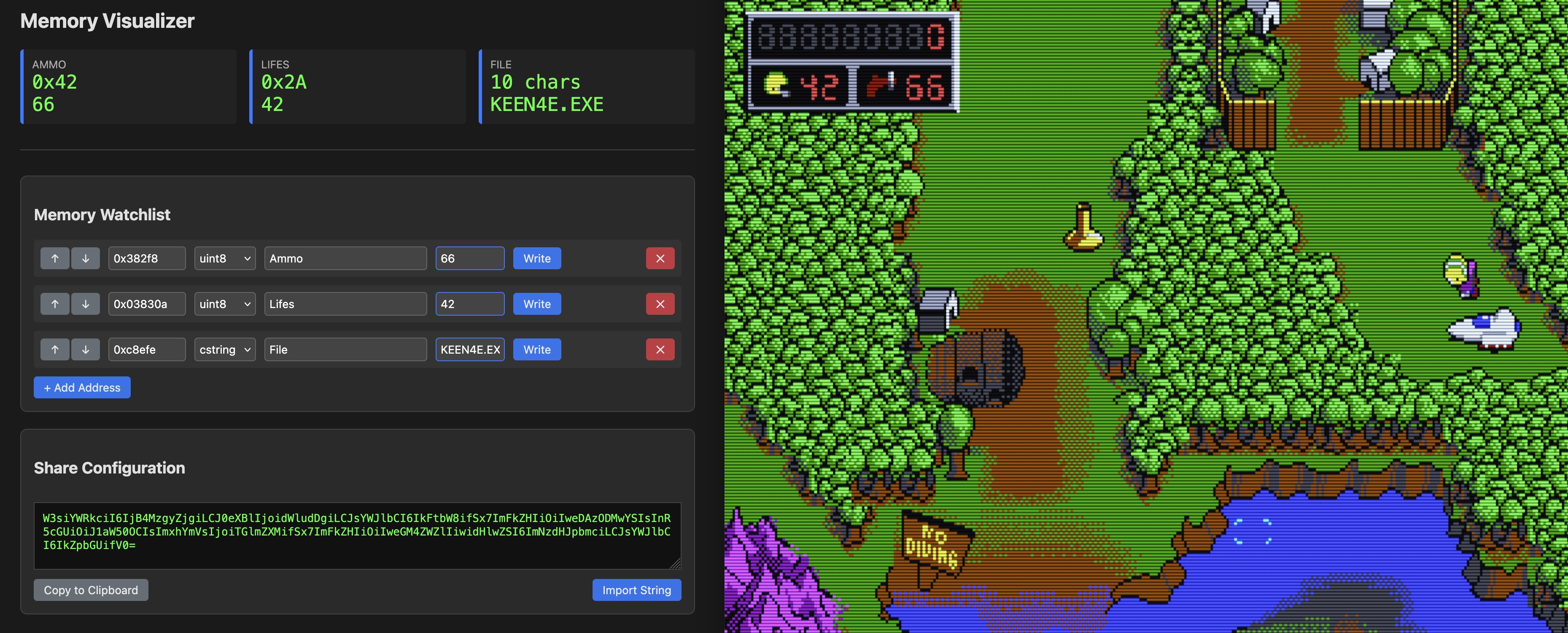
Commander Keen 4 and the memory monitor app running side by side — we just gave ourselves 42 ammo and 66 lives
Config setting help shortcut
Now you can use the settingname /? shortcut to display a config setting’s
help. For example, you can use sbtype /? instead of the tedious to type
CONFIG -h sbtype command.
To list all config setting names in a given section, you’ll need to continue
to use CONFIG -h sectionname (e.g., CONFIG -h gus).
Improved legacy CPU cycles setting support
Since 0.82.0, we defaulted to using the new cpu_cycles,
cpu_cycles_protected, and cpu_throttle config settings to control the
emulated CPU speed. We still supported the old cycles setting for backward
compatibility — setting cycles enabled “legacy” cycles mode, but this was
a one-way street. You could not return to “modern” mode by setting
cpu_cycles or the other new settings.
This limitation has been lifted: now you can switch between legacy and modern
cycles modes freely. Setting cycles enables legacy mode, and setting
cpu_cycles, cpu_cycles_protected, or cpu_throttle enables modern mode.
Warning
We don’t retain the current settings when switching between modes; e.g. if
you’re in legacy mode and set cpu_cycles = 5000, then
cpu_cycles_protected will be set to its default value of 60,000
instead of retaining the current protected mode value.
Disk speed throttling
For an even more authentic experience, you can now throttle the speed of the emulated floppy and hard drives. It is recommended to use this together with the new disk noise emulation feature for a more authentic experience.
You can set the desired disk speed via the new hard_disk_speed and
floppy_disk_speed config options in the [dosbox] section (valid settings
are slow, medium, fast, and maximum). The default is maximum, which
does not introduce any speed throttling.
macOS DOSBox Staging document packages
Added support for DOSBox Staging document packages on macOS. Simply add the
.dosbox extension to a game folder that contains a dosbox.conf file and
auto-mounted drive folders, then double-click on it to launch DOSBox Staging
from there.
Partial Unicode path support on Windows
On Windows 10 (1903 or later) and 11, DOSBox Staging now supports Unicode file and directory paths in the following situations:
-
At the command line with options such as
--confand--working-dir -
User directory (
C:\users\<username>\appdata\Roaming) where<username>contains characters outside of your local language -
Folder/file paths set in config files (but not in the autoexec section)
Older versions of Windows will continue to be restricted in what characters can be used in paths.
Improved FPU emulation on non-x86 platforms
The accuracy of FPU emulation on non-x86 platforms has been improved in many cases. As an example, here is a before and after comparison of the x87 diagnostic program MCPDIAG running on macOS / Apple Silicon:
MCPDIAG results — 0.82.2
MCPDIAG results — 0.83.0
Reduced CPU usage when idling
Now DOSBox Staging uses less host CPU power when idling at the DOS prompt.
This can reduce the usage of the main CPU core Staging runs on from 100% to
around 25% on a fast desktop CPU with cpu_cycles = max. This is accomplished
with an emulated HLT CPU instruction.
If you want to use other DOS idling software, disable the new behaviour by
setting cpu_idle to off to prevent conflicts
Additionally, our shell is now more multitasking-friendly; Windows 3.1 DOS
window will use less CPU power and will work better with power saving drivers
like WQGHLT.
Other general improvements
-
Changing settings that require a restart using the
config = valueform failed on Windows (e.g.,machine = cgafollowed byconfig -rdidn’t work). Now that’s fixed. -
32-bit segment offsets can now be referenced when creating variables using the IV command in the debugger.
-
Fix crash on exit when using nullmodem inhsocket.
Full PR list of miscellaneous enhancements
- Add macOS .dosbox package support for double-click launching (#4566)
- Add REST HTTP API to expose the DOS memory for game modding & tools (#4730)
- Allow switching between legacy and modern cycles settings (#4781)
- API: Add more control over allocation strategy (#4776)
- Change display names of bool conf settings to ‘on’ and ‘off’ (#4248)
- Config setting help shortcut (#4247)
- Fixes for “toggle” config setting values (#4727)
- HTTP API improvements (#4847)
- Improve FPU emulation on non-x86 platforms (#4534)
- Mapper layout fixes (#4600)
- Platforms builds workflow - add RISC-V, update to Debian 12 (#4025)
- Small improvements to the web server (#4871)
- Use emulated HLT to lower the host CPU usage in some cases (#4535)
- User manual related fixes (#4843)
- Windows activeCodePage and resource file build improvements (#4526)
Full PR list of miscellaneous fixes
- Always raise the window after startup on macOS (SDL workaround) (#4657)
- Destroy the renderer in GFX_Quit() (#4580)
- Fix all the unsafe ‘sscanf’ usage detected by CodeQL (#4670)
- Fix double free in TCPClientSocket destructor (#4114)
- Fix handling of LOCK combined with other prefixes (#4775)
- Fix icache flush incorrectly tied to W^X policy (#4792)
- Fix Output label in debugger (#4723)
- Fix setting queued settings on reboot sometimes failing on Windows (#4782)
- Fixed debugger command IV truncating addresses to 16-bit (issue #4515) (#4800)
- Handle uppercase “-V” argument for version (#4690)
- Make
CALLBACK_Idle()loops more robust (#4629) - Unhardcode the layout of debugger windows (#4691)
- Unit tests compilation fix (#4329)
- Use new GH ARM64 runners and remove debian-cross docker from CI (#4158)
Full PR list of documentation-related changes
- Add ANSI Markup Editor to the translation doco (#4736)
- At last — user manual! 📚 📜 🤓 (#4822)
- Build-related documentation updates (#4367)
- Cleanup Linux build documentation, CMake is now the default build method (#4454)
- Config setting description fixes (#4820)
- Config setting help text improvements & fixes (#4761)
- Convert PVS-Studio workflow to CMake & big build system cleanup (#4299)
- docs: Add Visual Studio troubleshooting tips (#4718)
- Fix broken anchor:
documenetation->documentationin DOCUMENTATION.md (#4859) - Fix ‘expand_shell_variable’ description (#4624)
- Fix ‘lpf’ acronym in help text messages (#4615)
- Fix and improve copyright year updater script & update copyright year (#4765)
- Fix outdated links in the pull request template (#4676)
- Implement documentation versioning (#4854)
- Improve setting help formatting (#4606)
- Improve unit testing instructions (#4659)
- Minor bundled libraries and legal notes cleanup (#4673)
- Spring cleaning, part 2 🌷 🧹 🗑️ 🔥 (#4332)
- The
GUIDEandMANUALcommands open a versioned URL now (#4849) - Update CONTRIBUTING.md (#4459)
- Update contribution guidelines (#4327)
- Update Linux build instructions (#4652)
- Update macOS build instructions (#4378)
- Update mapper.cpp - correct comment about ABNT1 (#4482)
- Update Windows build instructions (#4422)
Full PR list of project maintenance related changes
- _with_debugger amended to executable name when OPT_DEBUGGER ON. (#4803)
- Add and fix additional warnings to the CMake build (#4492)
- Add ccache support to CMake build (#4744)
- Add CMake tests (#4407)
- Add cmake_test_discovery* files to gitignore (#4621)
- Add compile commits script for CMake (#4335)
- Add FROM_HASH option to the compile commits script (#4408)
- Add initial Linux CMake CI workflow (#4291)
- Add macOS CMake + vcpkg release build workflow (#4170)
- Add more metadata to the macOS executable for better observabilty (#4687)
- Add release management script & make release notes draft public (#4773)
- Add release notes differ script (#4845)
- Add sanitizer options to CMake build system, for Linux and macOS (#4401)
- Add several missing checks to the CMake build system + other fixes (#4396)
- Add Windows presets for CMake (#4184)
- Address PVS warnings (#4783)
- Allow graceful shutdown on SIGTERM (#4841)
- Build system improvements, including Linux CMake install rules (#4435)
- build: Add meson build files for REST API. (#4771)
- Bump vcpkg baseline (#4747)
- Bump vcpkg baseline (#4270)
- Bump vcpkg baseline & update FluidSynth to 2.4.5 (#4295)
- Clean up config handling code (#4570)
- Cleanup some code related to machine types (#4414)
- Cleanup the resources directory (#4479)
- Define HAVE_STRUCT_DIRENT_D_TYPE in CMake (#4741)
- Disable narrowing & conversion warnings in the CMake build and reinstate macOS CI build warning checks (#4290)
- Dynamically load Slirp library at runtime (#4330)
- Enable additional warnings for Clang and GCC 13+ (#4647)
- Enable more GCC/clang compiler warnings (#4561)
- Exclude debugger-related files from non-debugger builds (#4712)
- Fix building the Windows installer by dropping Icelandic localisation (#4536)
- Fix building with Meson (#4353)
- Fix crash when using deprecated settings in the config (#4430)
- Fix Git hash injection in CI and local builds (#4316)
- Fix issues found using sanitizer (#4720)
- Fix Meson build (#4477)
- Fix Meson build, broken after directserial removal (#4649)
- Fix missing warnings in CMake (#4641)
- Fix missing XML tag in Visual Studio solution file (#4092)
- Fix non UTF-8 characters in ManyMouse library (#4648)
- Fix platform specific parameters for ppc64le (#3996)
- Fix PVS-Studio warnings (#4686)
- Fix release notes preview & Windows installer package (#4801)
- Fix running unit tests locally on macOS (#4424)
- Fix several compiler warnings (#4392)
- Fix several SonarCube warnings (#4420)
- Fix some warnings in Windows CDROM code as shown by MSYS2 (#4115)
- Fix vcpkg compilation on Linux for newer compilers (#4828)
- Fix win32 link errors/omissions involving MIDI and locale (#4088)
- Fix writing entire autoexec description to config file. Refactor Config::WriteConfig() (#4804)
- Fixes for ~130 SonarCloud reported issues (#4674)
- Fixes for ~220 SonarCloud reported issues (#4671)
- Fixes for ~30 SonarCloud reported issues, ~15 rules cleaned up (#4726)
- Improve GCC 15.x support (#4518)
- Improve handling config setting updates & module re-initialisations (#4516)
- Improve IMGMOUNT backward compatibility mechanism (#4832)
- Improve our GitHub issue templates (#4166)
- Improve platform builds workflow (#4000)
- Improve PVS-Studio workflow (#4194)
- Improve the handling of invalid integer config settings (#4666)
- Improve the internal Unicode engine (#4521)
- Initial Linux support in CMake files (#4186)
- Major project organisation improvements (#4451)
- Make CFileInfo’s destructor non-virtual (#4739)
- Make unit test execution more robust on macOS & CI (#4746)
- Migrate SDL_net to standalone asio (#4679)
- Minor Windows CMake QoL improvements (#4323)
- Move
pluginsdir to the root in the Linux & Windows packages (#4432) - Normalise build workflow names & deprecate non-CMake Windows and macOS builds (#4278)
- Only delete the build dir for the selected CMake preset in
compile-commits.sh(#4355) - Only show warnings and errors in the build output on macOS (#4399)
- Optimize FPU code to set flags (#4651)
- Organise files (part 2) (#4513)
- Partial macOS and Windows compilation output cleanup (#4398)
- Print VCPKG error log on workflow failure (#4006)
- Prune all code for unsupported platforms (#4796)
- PVS Studio warning fixes (#4363)
- Recommend and list cmake presets (#4863)
- Remove
ModuleBase(#4556) - Remove FluidSynth vcpkg port (#4347)
- Remove function pointer for DOSBOX_Restart (#4558)
- Remove GHC filesystem library (#4754)
- Remove KDevelop files (#4404)
- Remove MSVC project files and make the CMake the only build method on Windows (#4342)
- Remove references to LGTM and update a few CI related links (#4172)
- Remove reinterpret_cast for accessing SDL Events (#4143)
- Remove s390x and ppc64le platform builds & simplify workflow (#4192)
- Remove Tracy (#4634)
- Remove Wine support from DOS to host filesystem code (#4753)
- Replace #if WIN32 with #ifdef WIN32 (#4191)
- Replace non-ASCII copyright symbol in winres.rc (#4345)
- Revert object pool stuff (#4111)
- SDL main cleanup, part 1 (#4384)
- SDL main cleanup, part 4 — Separate OpenGL and SDL rendering backends & a cornucopia of other improvements (#4542)
- Set CMAKE_EXPORT_COMPILE_COMMANDS by default (#4209)
- Show stack trace symbols in Loguru dump (#4467)
- Simplify build options & remove serial passthrough (#4644)
- Spring cleaning, part 1 🌷 🧹 🗑️ 🔥 (#4328)
- Spring cleaning, part 3 🌷 🧹 🗑️ 🔥 (#4464)
- Sync with SVN r4485-r4494 (#4710)
- Sync/update Visual Studio filters (#4095)
- Update and always use the vcpkg baseline in CI (#4012)
- Update macOS notarize script (#4858)
- Use CMake to control macOS minimum version (#4692)
- Use short SPDX copyright headers (#4389)
- Warn about implicit fall-throughs in switch/case blocks (#4685)
- Webserver security hardening (#4772)
- Website release notes draft generation (#4818)
Full PR list of other changes
- Add HTML release notes to build artifacts (#4774)
- Bump external DOSBox Staging deps version (#4760)
- Check HAVE_CLOCK_GETTIME in CMake (#4393)
- ci: Fix getting the current version with
get-version.sh(#4475) - ci: Fix PVS failure due to output report change (#4762)
- Drop the Debian package & platform build CI actions (#4639)
- Fix release package name generation on macOS (#4510)
- Fix reporting of failed CI builds on Linux and macOS (#4354)
- Fix typos Nix0S to NixOS (#4017)
- Fix Windows + Ninja compilation error (#4470)
- Library upgrades (#4609)
- Lower PVS Studio (and compilation) warning limits (#4068)
- Make Windows CI build errors visible (#4382)
- meson: Fix a bad relative resource path on macOS (#4675)
- Reintroduce vcpkg binary caching (#4421)
- Remove set -e from install-icons.sh (#4405)
- Replace infinity with max float in prop parser (#4234)
- Restore Debian 11 dependency file (#4308)
- Restrict usage of warning flags only with compatible compilers (#4709)
- Revert “Normalise build workflow names & deprecate non-CMake Windows and macOS builds” (#4286)
- Update debian cross docker images and CI to debian 12 (#3950)
- Update README.md (#4410)
- Update PVS-Studio workflow for the latest version (#4834)
- Upgrade download-artifact action manually (#4633)
- Use CMake to build the Windows release on CI (#4331)
- Use personal access token for the release drafter (#4319)
Localisation
Translation updates
Updates to Polish, Dutch, German, French, and Italian translations.
Migrating to the gettext .po localisation format
DOSBox Staging now uses a gettext compatible *.po translation file format.
This makes detecting outdated translations easier and allows the use of
specialised translation-aiding software, such as the well-known
Poedit.
Please read our translation guide for more details.
ANSI markup tool
Adhering to the 80-character line limit in the translations is very hard when
using ANSI colour tags (e.g., [color=light-green]COMMAND[reset]). We’ve
added a very handy ANSI Markup Editor
to the website to make this process a lot easier.
Just press the Help button and follow the instructions.
Tip
This is a single-page web app; if you want to use it offline, just save
the page’s source to your computer as an .html file and open it in any
browser.
Locale autodetection improvements
-
Completely reworked locale detection; in particular, DOSBox Staging no longer tries to set the keyboard layout based on country/region output formatting, which could produce unexpected results on some configurations.
-
Language (translation) autodetection now checks the list of preferred languages in the OS preferences, not just the current GUI language. If it can’t find a translation for the most preferred language, it tries the next, and so on.
-
Keyboard layout autodetection is now influenced by the translation or host GUI language.
Locale handling improvements
-
Added
nativeoption tolocale_period, which tries to reuse host OS display formats for time/date/numbers/etc, as long as the given formats can be represented by the DOS locale subsystem. -
The
KEYBcommand output is now much more informative; the command itself can be used to restore the ROM font, and it won’t try to load CPI fonts on display adapters that don’t support custom fonts. -
Added
--list-layoutscommand line option to list all available keyboard layouts. The list can also be printed inside the emulator using theKEYBcommand. -
Added
--list-code-pagescommand line option to list all available code pages with a brief description. -
The
uskeyboard layout (which is basically a no-layout mode) can now be used with all the code pages. -
Non-Latin translations are only used for DOS messages if the selected code page supports the given script, otherwise DOSBox Staging reverts to English messages.
-
If the translations important help messages are not up to date (marked as fuzzy), they are now displayed in English.
-
The language can now be changed at runtime (e.g.,
config -set
  language=pl
).
Locale updates
-
DOSBox Staging now has internal locale definitions for an additional 25 countries. This includes European microstates and several African states that use the Latin alphabet.
-
Modern Bulgarian locales now use the euro currency due to Bulgaria joining the eurozone (lev is now only used in the historic locales).
-
The internal Unicode can now handle code page 111 (Greek, used by the AST Premium Exec DOS) if it is set by using the original CPI file.
-
FreeDOS ISO/KOI/MAC/WIN code page packages are now integrated — you can now select any code page from these packages and both translations, and clipboard integration will fully work with them.
Full PR list of localisation-related changes
- Add locale definitions for additional 25 countries (#4715)
- Allow language change at runtime (#4322)
- C++ library locale autodetection fixes (#4309)
- Change ‘ux’ keyboard layout autodetection priority to low (#4326)
- Clean up and fix translation scripts and documentation (#4480)
- Complete support for code page 59829 (#3998)
- Consider keyboard layout list random on GNOME (#4116)
- Do not promote code pages to modern replacements (#4528)
- Enforce using Unix EOL marks in the translation subsystem (#4654)
- Fix a few issues with the Dutch (NL) translation (#4653)
- Fix country detection on Windows (#4087)
- Fix failing assertion when keyboard layout autodetection fails, prefer ROM font for autodetected code pages (#4103)
- Fix for country ‘0’ (International English) support (#4085)
- Fix for default config file created without using translations (#4630)
- Fix for translated ‘-list-countries’ and similar messages (#4386)
- Fix missing translation error log (#4533)
- Fix translation for keyb cmd (#4266)
- Import FreeDOS ISO/KOI/MAC/WIN code page packages (#4121)
- Improve language (translation) autodetection (#4132)
- Keyboard layout autodetection priorities (#4107)
- Kill the transliteration/romanization rules with fire 🔥🔥🔥 (#4117)
- Locale detection improvements (#4597)
- Migrate to the gettext .po localisation format (#4511)
- Minor locale updates (#4607)
- Review auto-detection priorities for Italian keyboard layouts (#4130)
- Rework locale settings and autodetection (#3951)
- Rework translated messages handling (#4074)
- Simplify ‘for’ help message handling (#4349)
- Support both ISO 639 (language) and ISO 3166-1 alpha-2 (territory) in the translation file names (#4541)
- Translation fixes (#4840)
- Translation handling improvements (#4656)
- Unicode engine improvements (#4119)
- Update de.lng (#4502)
- Update Dutch (nl) translation (#4265)
- Update Dutch (NL) translation (#4646)
- Update Dutch (NL) translation (#4732)
- Update Dutch (NL) translation (#4798)
- Update Dutch (NL) translation (#4827)
- Updated French translation (#4830)
- Update Italian (it) translation (#4821)
- Update italian (it) translation (#4488)
- Update italian (it) translation (#4312)
- Update italian (it) translation (#4235)
- Update italian (it) translation (#4125)
- Update italian (it) translation (#4853)
- Update Italian (it_IT) translation (#4808)
- Update Italian (it_IT) translation (#4625)
- Update Polish (pl) translation (#4237)
- Update Polish (pl) translation, English string improvements (#4136)
- Use English strings for important messages if their translation is not up to date (#4707)
- Use LANG variable as a fallback for LC_* on POSIX systems (#4072)
- Use untranslated keyboard layout name for logging (#4313)
Contributors
0.83 commit authors
- arifogel
- binarymaster
- dividebysandwich
- dux119-cmd
- eduo
- emmericp
- farsil
- FeralChild64
- Grounded0
- interloper98
- johnnovak
- jstasiak
- kklobe
- lordhoto
- maximilien-noal
- NicknineTheEagle
- oturpe
- Player1UK
- rderooy
- runlevel5
- shermp
- tobro7BC
- Torinde
- weirddan455
0.83 financial contributors
- 0mnicydle
- Burrito78
- codengine
- dbalsom
- Dioguiev
- Florent Wagner
- Gryzor1363
- hubby4
- Hydra3654
- martyMcFly
- Max Harmathy
- Maximilien Noal
- Michael Schmitz
- Orhan Ilker Basaran
- qwertfisch
- Robin Mathheussen
- SnowB0und14
- VirtualAlex
- Voracios DOS Gamer
Thank you
We are grateful for all the community contributions and the original DOSBox project, on which DOSBox Staging is based.