Aspect ratios & black borders
Okay, let’s tackle the pressing question every second person wants an answer for: why doesn’t the image fill the screen completely? And why are there black borders around it?
Computer monitors were originally not widescreen but had a 4:3 display aspect ratio, just like old television sets. The complete switch to 16:9 in computer monitors and laptops happened only by the early 2010s. The low-resolution 320×200 VGA mode was designed to completely fill a 4:3 CRT screen. When displaying such 4:3 content on a 16:9 modern flat panel, you’ll get black bars on the sides of the image – this is called pillarboxing.
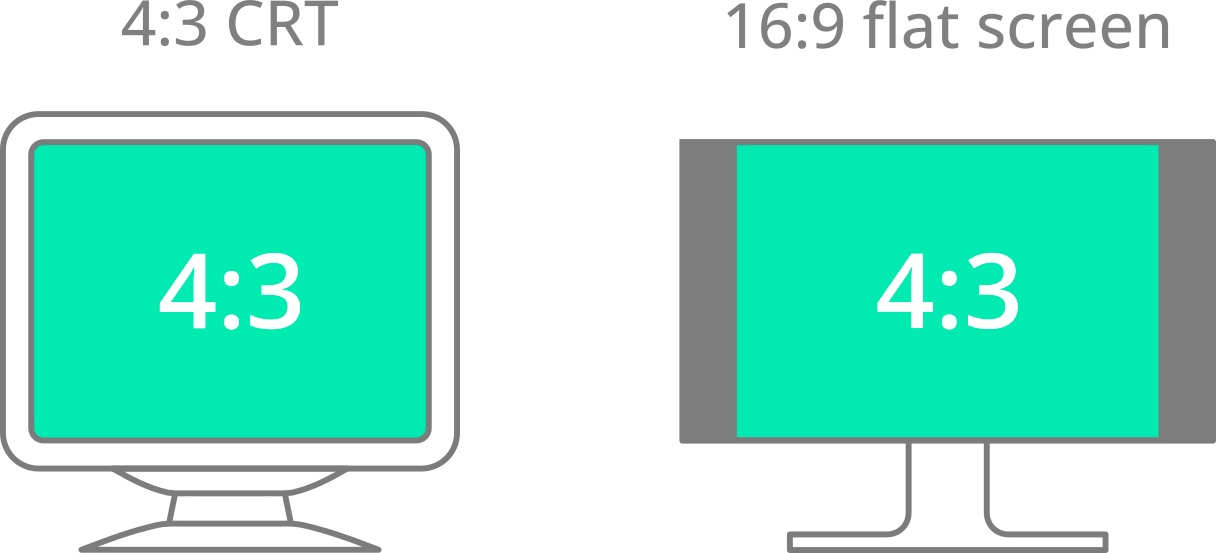
Pillarboxing in action: black bars fill the extra space
when the aspect ratio of the screen and the image do not match
Hang on — something is not right here! 320:200 simplifies to 16:10, which is close enough to 16:9 that the image should fill a widescreen monitor almost completely, with only minor pillarboxing. That would be true if the pixels of the 320×200 VGA mode were perfect squares — but they’re not.
As mentioned, 320×200 graphics completely fill the screen on a 4:3 CRT, but that’s only possible if the pixels are slightly tall rectangles rather than squares. If you do the maths, they need to be exactly 20% taller than wide. Here’s how to derive it: 4:3 can be rewritten as 320:240 by multiplying both sides by 80. Then 240 divided by 200 is 1.2, so the pixel aspect ratio (PAR) is 1:1.2, or 5:6.
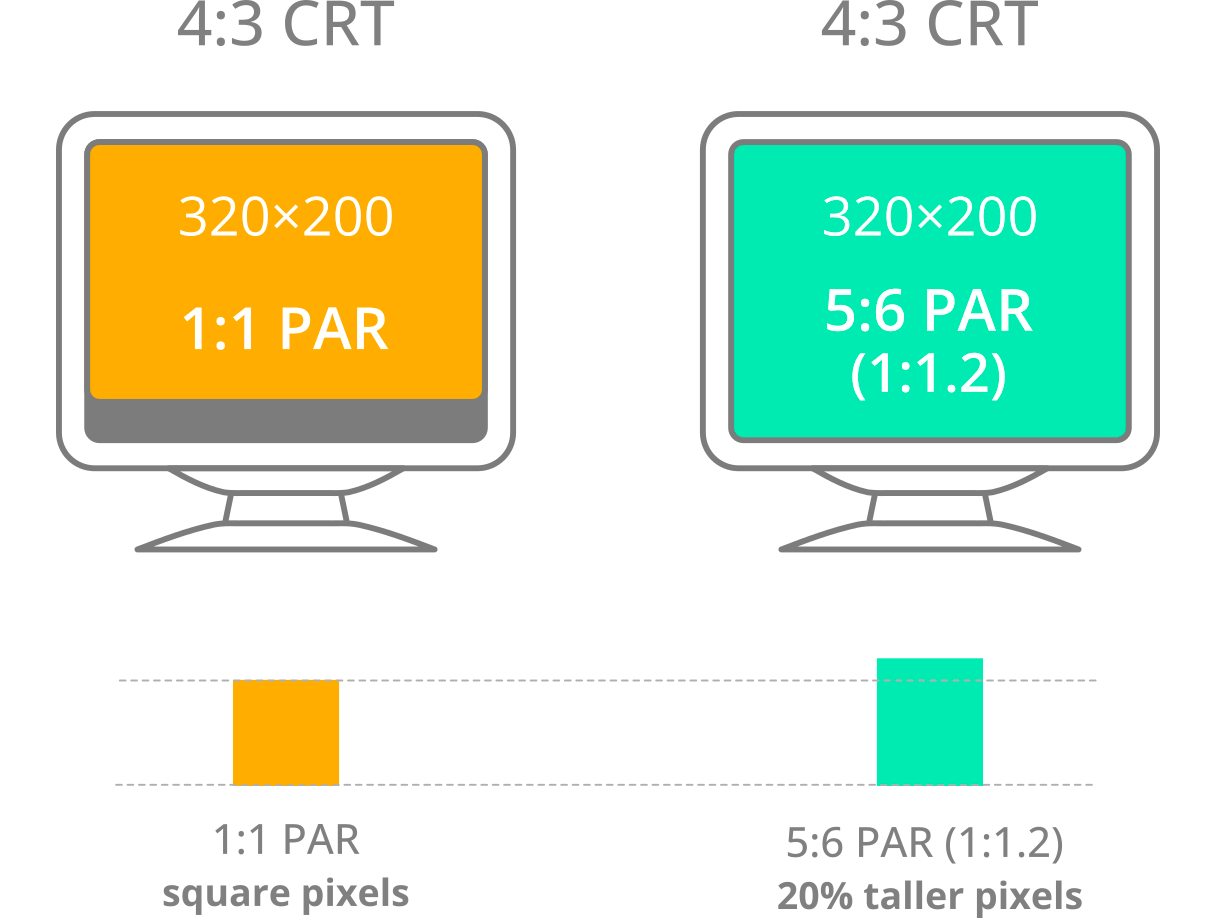
Left: 320×200 pixel image with square pixels on a 4:3 monitor — there is some letterboxing below the image; Right: the same image with 20% taller pixels on the same monitor — the image fills the screen completely.
But hey, not everybody likes maths, especially not in the middle of a gaming session! Most of the time, you won’t need to worry about aspect ratio correctness because DOSBox Staging handles that automatically for you. There is a small but significant number of games, though, where forcing square pixels yields better results (one good example is the game Beneath the Steel Sky from the Getting Started guide).
Most of the time you won’t need to worry about any of this — DOSBox Staging handles aspect ratio correction automatically. There is a small but significant number of games, though, where forcing square pixels yields better results (Beneath the Steel Sky from the Getting Started guide) is one good example).
When pixels are not squares
The fact that monitors weren’t widescreen until around 2010 tends to be forgotten nowadays, and older DOSBox versions didn’t perform aspect ratio correction by default, which certainly didn’t help matters either. The unfortunate situation is that you’re much more likely to encounter videos and screenshots of DOS games in the wrong aspect ratio (using square pixels) on the internet today — at least for more recently created content. If you check out any old computer magazine from the 1980s or ’90s, most screenshots are shown in the correct aspect ratio (though occasionally the magazines got it wrong too).
In case you’re wondering: pixels are perfectly square in 640×480 and higher resolutions (1:1 pixel aspect ratio), but there are a few more video modes with non-square pixels — the 640×350 EGA mode (1:1.3714 PAR), the 640×200 EGA mode (1:2.4 PAR), and the 720×348 Hercules graphics mode (1:1.5517 PAR).
Integer scaling
That explains the black bars on the sides — but what about the letterboxing above and below the image? Why doesn’t the image fill the screen vertically, and why does it change size depending on the DOS video mode?
CRT monitors didn’t have a fixed pixel grid like modern flat panels. They were far more flexible and could display any resolution within their physical limits. They did not even have discrete pixels as modern flat panels do — the image was literally projected onto the screen, much like a movie projector.
Modern flat screens, however, do have a fixed native resolution. The scanlines of the emulated CRT image need to line up with this pixel grid vertically; otherwise you get interference artifacts — typically wavy vertical patterns that look rather unpleasant. To prevent this, DOSBox Staging constrains the vertical scaling factor to integer values by default, ensuring clean alignment with the display’s native grid. The horizontal direction is rarely a problem, so non-integer horizontal scaling is generally fine.
On a 4K monitor (3840×2160), the 320×200 VGA mode double-scanned to 640×400 will be enlarged by a factor of 5 vertically, and by 5 × 4/3 = 6.667 horizontally to maintain the correct 4:3 aspect ratio. The final output is 2667×2000 pixels — those 160 unused vertical pixels account for the slight letterboxing above and below the image.
The higher your monitor resolution, the more you can get away with non-integer vertical scaling. If you play in fullscreen on a 4K screen, you can safely disable integer scaling up to 640×480 without any adverse effects:
On lower-resolution monitors or in windowed mode, you’ll need to experiment — some combinations look fine, others will produce interference patterns.
See Integer scaling and Aspect ratio & viewport in the manual for the full configuration reference.
Sharp pixels
“Okay, enough blabbering about all those near-extinct, mythical cathode-ray tube contraptions, grandpa. Can’t you just give us sharp pixels and be done with it?”
Sure thing, kiddo. Just put this into your config:
Integer scaling is disabled by default when the sharp shader is selected. To
re-enable it:
This gives you 100% sharp pixels vertically. Horizontally, there may be a 1-pixel-wide interpolation band at the edges of some pixels depending on the DOS video mode and upscale factor — but this is the best possible compromise between correct aspect ratio, even pixel widths, and overall sharpness. At 1080p the result is quite acceptable, and from 1440p upwards you’d have to press your nose against the screen to notice it.
Custom viewport resolution
All well and good, but at fullscreen on a large modern display the graphics can look like they were constructed from brightly coloured bricks.
14” VGA monitors were the most popular option until the mid-1990s. Before that, CGA and EGA monitors were typically 12–14”, and monochrome Hercules monitors only 10–12” — and those are nominal sizes, with the actual visible area roughly 1.5 to 2 inches smaller.
To approximate the physical image size of a typical 14” VGA monitor on a modern 24” widescreen display, you’d want to restrict the output to around 960×720 — though that’s a non-integer vertical scale factor, so it’s better to bump it to 1067×800:
The viewport size is specified in logical units (more on that below). You can also specify the viewport as a percentage of your desktop size:
The video output will be sized to fit within that rectangle while maintaining the correct aspect ratio. Why 89%? It’s a value that produces optimal image sizes for DOS resolutions between 320×200 and 640×480 on most common modern displays — with integer scaling enabled, 320×200 content will have roughly the physical size of a 15” CRT, and 640×480 that of a 19” monitor. Good upper limits that balance modern comfort with something close to the original experience.
Running DOS games in fullscreen on a modern 24” widescreen is the equivalent of playing them on a 21” CRT — a huge professional monitor that very few gamers ever owned. Low-resolution art was never meant to be seen that large.
Logical units vs pixels
Most operating systems operate in high DPI mode using a 200% scaling factor on 4K displays, and use “unscaled” logical units for specifying window dimensions. The viewport setting adopts the same approach — the viewport size must always be specified in logical units.
For example, on a 4K display, a viewport resolution of 1280×960 logical units will translate to 2560×1920 physical pixels (assuming a typical 200% scaling factor). On a 1080p display with 100% scaling, it will simply translate to 1280×960 pixels.
The maths behind 89% (for the curious)
This is hardcore mode — only the brave and the mathematically inclined shall prevail! 🤓 🧠 📚
-
Assuming a 1920×1080 desktop resolution,
viewport = 89%restricts the maximum viewport size to 1709×961 logical units. -
The viewport size is a potential maximum. With integer scaling disabled and aspect ratio correction enabled, a 4:3 DOS image will come out at 1281×961 logical units (because 1281 / 961 ≈ 4/3).
-
On a 1080p monitor this gives you 1281×961 pixels; on a 4K monitor with 200% DPI scaling, the resulting image will be 2562×1922 pixels.
-
With integer scaling enabled and 320×200 VGA double-scanned to 640×400, dividing 961 by 400 gives 2.4025 –— so a 2× vertical integer scaling factor is used. The resulting image will be 1067×800 on 1080p and 2133×1600 on 4K, measuring about 14.4” diagonally — just above the viewable size of a typical 15” CRT.
-
For the 640×480 VGA mode, 961 / 480 ≈ 2.0021, so a 2× factor is used again. The resulting image will be 1280×960 on 1080p and 2560×1920 on 4K, measuring roughly 17.3” diagonally — almost exactly the viewable area of a typical 19” CRT.
Q.E.D. 