MIDI
Between about 1988 and 1994, MIDI music was the ultimate high-end audio option in DOS gaming, offering never-heard-before realism and audio fidelity. Not many could afford the high price tag of MIDI sound modules back in the day — they often cost 3 to 5 times as much as a Sound Blaster card. But thanks to the wonders of emulation, now all DOS enthusiasts can experience MIDI music nirvana in its full glory!
Before getting into the different MIDI devices used by DOS games, it is worth clearing up some terminology:
-
MIDI is the communication protocol — it defines how computers and MIDI devices communicate with each other
-
A MIDI sound module or synthesiser is the device that turns those MIDI messages into audible sounds (it’s usually a little box sitting next to your computer)
-
General MIDI (GM) is a standard that defines how certain MIDI data is interpreted by the sound module
-
The Roland Sound Canvas SC-55 is one particular MIDI sound module that supports General MIDI, as well as Roland’s GS extensions to GM
These terms are related, but they are not interchangeable. In particular, General MIDI is not a sound device, and the SC-55 is not the same thing as General MIDI. This distinction is important when choosing a MIDI device for a DOS game.
What is MIDI?
The MIDI standard (Musical Instrument Digital Interface) was created in the early 1980s to allow audio equipment from different manufacturers to communicate with each other. Originally aimed at the professional market, it soon found its way into home studios and computer games thanks to the home computer revolution.
MIDI is essentially a communication protocol. When you press a key on a MIDI keyboard, a short message is sent to a sound module instructing it to play a certain instrument at a certain pitch. Because the communication is digital, the keyboard can be replaced with a computer — a MIDI sequencer program can send thousands of precisely timed messages, controlling a full orchestra’s worth of instruments.
MIDI compositions are best viewed as the computer music equivalent of sheet music — a MIDI score contains note data and instructions describing how those notes should be played, while the sound module is responsible for generating the actual sounds using its on-board samples or synthesis capabilities.
This separation between music data and the device that plays it is the key to understanding the rest of this chapter. The same MIDI music can sound quite different depending on which synthesiser or sound module receives it.
MIDI in DOS gaming
In the beginning, all DOS games came on floppies. Even if a game came on 10 floppies or more, there was simply not enough space for long musical pieces stored as digital audio. Given that MIDI scores take very little disk space compared to digital audio (generally, just a few tens of kilobytes per composition), MIDI music was an ideal match for DOS games before the wide-spread adoption of the CD-ROM with its huge 650 to 700 megabytes of capacity on a single CD. This is similar in principle to how the Creative Music System and AdLib synthesisers were used in games, except that MIDI sound modules could produce much higher-quality music using sampled sounds of real-world instruments.
MIDI sound in DOS games evolved through three distinct periods:
- 1987–1991 — MT-32 era
- The Roland MT-32 was the only MIDI option. Sierra On-Line, LucasArts, and Origin Systems led the way with dedicated MT-32 music.
- 1991–1993 — MT-32 / Sound Canvas transition era
- The Roland Sound Canvas SC-55 appeared alongside the General MIDI standard. Many games supported both MT-32 and General MIDI, giving players a choice between different MIDI sound systems.
- 1993 onwards — Sound Canvas dominance
- General MIDI became the standard. MT-32 support faded as the SC-55 was cheaper and more widely available, while General MIDI provided a standardised way of specifying instruments. By 1995, very few new games included MT-32 support.
The important distinction is that the periods above describe both music formats and the hardware used to play them. A game supporting General MIDI could use a variety of GM-compatible synthesisers; the SC-55 became especially important because it was the dominant hardware used for DOS game music.
Roland MT-32
The Roland MT-32, released in 1987, used Roland’s novel Linear Arithmetic (LA) synthesis, blending sampled and synthesised sounds to produce a range far more realistic than the FM synthesis of cards like the AdLib. Sierra On-Line adopted it for most of their games from 1988 onwards, and LucasArts and Origin Systems soon followed suit, turning the MT-32 into the de facto high-end audio standard for several years despite its steep price tag. Classic games with dedicated MT-32 support include King’s Quest IV, The Secret of Monkey Island, Wing Commander, and Ultima VI.
The MT-32 is a MIDI sound module, but it is not a General MIDI module. MT-32 music therefore needs to be treated separately from General MIDI music; see MT-32 vs General MIDI below.
See the Roland MT-32 page for setup instructions and further details.
Roland Sound Canvas SC-55
General MIDI (GM) was introduced in 1991 to solve a simple but annoying problem: MIDI could tell a synthesiser what notes to play, but not which instruments to use. GM standardised the instrument assignments — program number 1 is always an acoustic grand piano, program 41 is always a violin, and so on — so that music written for GM-compatible equipment would use the same basic instrument assignments on different devices.
GM is therefore a standard for MIDI sound modules and music data, not a particular sound module. A GM-compatible synthesiser can play General MIDI music, and different GM-compatible devices can produce noticeably different sounds because their actual samples, synthesis, and effects are different.
The Roland Sound Canvas SC-55, released in 1991 (the same year as the General MIDI standard), was the world’s first General MIDI sound module and it quickly became the de facto standard for DOS game music. In addition to GM, the SC-55 also supports Roland’s own GS (General Standard) extension that adds extra instruments, percussion kits, and sound effects while remaining fully compatible with the core GM specification.
This distinction matters when discussing DOS game music. A game can support General MIDI without specifically requiring an SC-55. The SC-55 is important because it was the hardware many DOS game composers wrote and tested their music on, so its particular sounds are often the reference for how that music was intended to sound.
Many games use the SC-55 specific GS extensions and may not sound correct on a generic General MIDI synthesiser such as FluidSynth. Games like Gabriel Knight, Star Wars: Dark Forces, Day of the Tentacle, Ultima VII, Doom, and Duke Nukem 3D all sound their best on the Roland SC-55 or a compatible device. Since different GM manufacturers recorded their own instrument samples, playback can sound noticeably different from one device to another — the SC-55 is the gold standard for hearing the music as the composer intended.
See the Roland Sound Canvas page for setup instructions and further details.
MT-32 vs General MIDI
Warning
Do not confuse the Roland MT-32 family of MIDI sound modules with General MIDI-compatible modules. MIDI is the common communication protocol, but the sound generation aspects (how they MIDI synthesiser respond to MIDI messages) of MT-32, SC-55 and other General MIDI modules are very different.
The MT-32 is a programmable synthesiser, and most MT-32 supporting games take advantage of that to create custom sounds. General MIDI, by contrast, defines a fixed standard set of instruments so that General MIDI music can be played on different GM sound generators. This ensures a grand piano will always sound like a grand piano, a flute always like a flute, but the timbre of these sounds will often vary significantly between GM sound modules created by different manufacturers.
Music composed for the MT-32 often sounds utterly wrong on a General MIDI device, and vice versa. Yes, they both use MIDI, but that only refers to the communication protocol. A game designed for one system should therefore be configured for the corresponding MIDI device.
Quite confusingly, there is a large list of games that claim MT-32 compatibility but only sound correct on a General MIDI module. Make sure to check the List of games that falsely claim MT-32 compatibility as well before configuring a game for MT-32 sound.
Alternative General MIDI devices
The Yamaha DB50XG and MU-series (MU50, MU80, MU100, etc.) are alternative GM/GS MIDI modules that offer excellent Roland SC-55 compatibility with a more modern and punchy sonic character. They are alternative hardware MIDI modules, not alternative versions of the General MIDI standard. Many enthusiasts prefer them to the SC-55 in certain games. For a detailed comparison of how these modules stack up against the SC-55, see this article. These modules are currently not emulated in DOSBox Staging, but can use them as external MIDI synthesisers.
Built-in MIDI devices
DOSBox Staging offers three main ways for MIDI playback:
-
Roland MT-32 emulation — Built-in emulation of the MT-32 and CM-32L.
-
Sound Canvas emulation — Authentic Roland SC-55 emulation via the Nuked SC55 CLAP plugin. This emulates a specific General MIDI-compatible MIDI sound module, rather than “General MIDI” itself.
-
FluidSynth — Built-in generic General MIDI synthesiser that uses SoundFont files and emulates no particular DOS-era hardware.
In other words, the built-in choices can be thought of as different MIDI playback devices or systems:
-
MT-32 — Authentic emulation of the Roland MT-32 sound module
-
Sound Canvas — Authentic emulation of the Roland SC-55 sound module, supporting General MIDI and Roland GS. Most “General MIDI” DOS soundtracks were composed specifically for the SC-55.
-
FluidSynth — General MIDI synthesiser that uses SoundFont files. It cannot provide authentic results for DOS games; it can be thought of as an alternative experience (e.g. by trying different SoundFonts for the same game).
This distinction is useful throughout the rest of the chapter: when a game supports General MIDI, you must choose a GM-compatible MIDI playback device; when it supports the MT-32, you need the MT-32 — nothing else will usually suffice.
Which MIDI device should I use?
Determining whether a game supports the Sound Canvas (that is, General MIDI through the SC-55), the Roland MT-32, or both is not always obvious from the setup utility alone. The community-maintained List of MT-32-compatible computer games on the VOGONS Wiki is the most comprehensive reference for which MIDI devices each game supports and which produces the best results. This information is often found out from interviews with the original composers. There is no other reliable way to know for sure — game manuals and setup utilities often omit or misrepresent this information.
As a rough rule of thumb:
-
Pre-1992 games (especially Sierra and LucasArts adventures) — try Roland MT-32 first.
-
1992–1993 games — check the VOGONS list; many sound excellent on either the MT-32 or General MIDI. For General MIDI music, Sound Canvas emulation provides authentic SC-55 experience (what the composer intended), while FluidSynth provides an alternative GM synthesiser.
-
Post-1993 games — almost always support General MIDI. Use Sound Canvas emulation for the most authentic results, or FluidSynth as a lighter alternative.
Note
Remember that General MIDI describes the supported MIDI format, while Sound Canvas describes a particular MIDI sound module. Thus, when a game is listed as supporting General MIDI, that does not mean it specifically requires an SC-55. The SC-55 is therefore the best choice when you want to reproduce the sound of the hardware most commonly used by DOS game composers.
Roland MPU-401 MIDI interface
Initially, you had to buy the Roland MPU-401 MIDI interface to connect an external MIDI sound module to your PC. This was an external box connected to your PC which then you hooked up to another external box, your sound module. Later on, sound cards started incorporating integrated MPU-401 compatible interfaces, so you could connect the sound module directly to your sound card.
DOSBox Staging emulates a Roland MPU-401 compatible MIDI interface which is enabled by default. The emulated MPU-401 operates in the so-called Intelligent Mode out-of-the-box; this provides certain extra features many older games depend on. The other, more recent mode is UART Mode. Older titles often require Intelligent Mode, most more recent ones work fine with either.
See mpu401 for more details.
Setting up MIDI
MIDI related settings are to be configured in the [midi] section. Set the
mididevice setting to select which MIDI device to use:
mt32to use the built-in Roland MT-32 emulation,fluidsynthto use the built-in FluidSynth MIDI synthesiser,soundcanvasto use the built-in Sound Canvas emulation,- or
port(the default) to send MIDI data to an external MIDI device configured viamidiconfig.
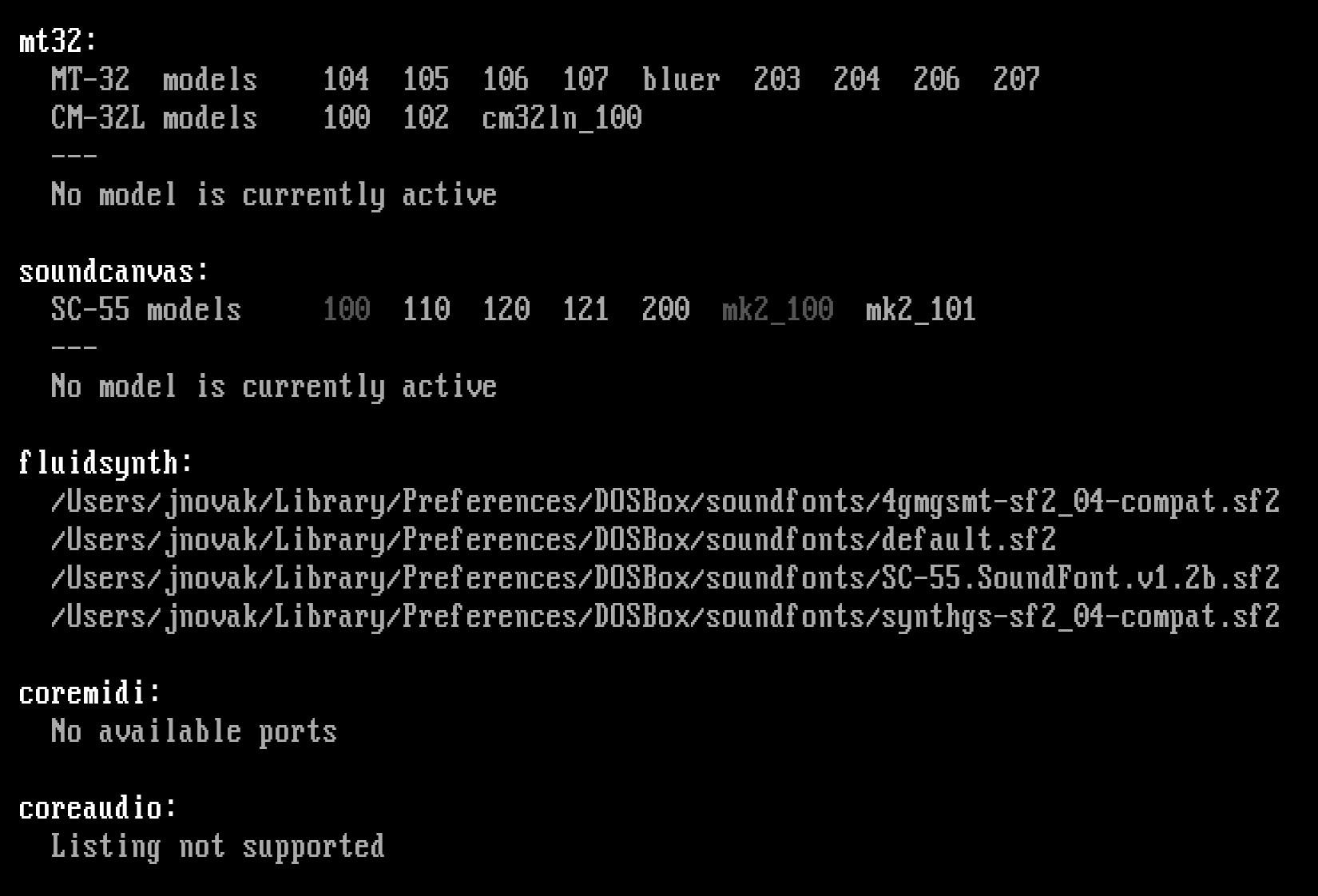
You can use the MIXER /LISTMIDI DOS command to see the list of available
external MIDI devices:
Tip
To easily switch between a built-in and an external MIDI device per game (typically between the built-in MT-32 emulation and Roland’s Sound Canvas VA running in an external MIDI host program), you can use the layered configuration approach to your advantage.
As an example, to easily switch between the built-in MT-32 emulation and an external MIDI device that contains “loopMIDI” in its name, put this into your global configuration:
Without any further MIDI configuration in your local DOSBox config, this
will default to using the built-in Roland MT-32 emulation. To switch to the
external MIDI device, set mididevice to auto in your local config:
Using external MIDI devices
DOSBox Staging can send MIDI data to any MIDI device outside of its own built-in synthesisers. This includes physical hardware modules connected via USB, but also software synthesisers running on your machine — anything that appears as a MIDI port to the operating system.
Physical MIDI devices
If you own a physical MIDI sound module (an MT-32, SC-55, or similar), you can connect it to your computer and have DOSBox Staging send MIDI data directly to it. This is the ultimate option for enthusiasts who want authentic hardware playback.
You’ll need a USB MIDI interface (e.g., Roland UM-ONE mk2) to connect the module to a modern computer. The MIDI cable carries note data only — you’ll also need audio cables from the module’s line outputs to your speakers or audio interface.
Virtual MIDI devices
You can also route the MIDI output of DOSBox Staging to another software synthesiser running on your machine (such as Roland’s Sound Canvas VA, or any DAW or standalone synth plugin) by using a virtual MIDI loopback driver. This creates a virtual MIDI cable that connects DOSBox Staging’s output to the other program’s input.
-
Windows — loopMIDI or loopBE create virtual MIDI ports. Install one, create a port, then point your external synthesiser at that port for input and set
midiconfigto the port name in DOSBox Staging. -
macOS — Use the built-in IAC Driver in Audio MIDI Setup to create virtual MIDI ports, or use a third-party tool.
-
Linux — ALSA’s
snd-virmidimodule or JACK MIDI can create virtual ports.
Finding your MIDI device
Run MIXER /LISTMIDI to list all MIDI output ports available on your system.
Set mididevice to port and midiconfig to the device name:
You don’t need to type the full device name — DOSBox Staging performs a
case-insensitive substring match against all available MIDI port names. For
example, midiconfig = UM-ONE will match a port called “Roland UM-ONE MIDI
1”. If multiple ports match, the first match is used. You can also use the
numeric port ID shown by MIXER /LISTMIDI, but name-based identification is
preferred as the numbers can change when you unplug and reattach USB devices.
Platform-specific MIDI
DOSBox Staging uses the native MIDI subsystem on each platform:
-
macOS — Uses Apple’s CoreMIDI framework. All MIDI destinations visible in Audio MIDI Setup (including virtual ports from apps like loopMIDI or DAWs) are available. Use
MIXER /LISTMIDIto see the list. -
Linux — Uses ALSA sequencer ports. You can specify the port by name or by ALSA address (e.g.,
midiconfig = 14:0). ALSA prioritises synthesiser-type ports when matching by name. -
Windows — Uses the standard Windows MIDI API. All MIDI output devices registered with the system appear in
MIXER /LISTMIDI. If no device is specified, DOSBox Staging uses the Windows MIDI Mapper (the system default).
macOS CoreAudio synthesiser
On macOS, DOSBox Staging provides a coreaudio MIDI device option that uses
Apple’s built-in DLS synthesiser. Although not a physical external device, it
is external to DOSBox Staging — the audio is rendered by macOS’s own Audio Unit
synthesiser, bypassing DOSBox Staging’s internal mixer entirely. You can
optionally point it at a SoundFont file:
The default Apple DLS sound set is fairly basic; loading a good SoundFont improves results significantly.
SysEx delays for older hardware
Some older MIDI modules (notably the Roland MT-32 with revision 0 PCB) can
overflow their internal buffers when receiving large System Exclusive (SysEx)
messages. If you experience garbled patches or missing instruments, add
delaysysex after the device identifier:
This adds a small calculated delay between SysEx messages to prevent buffer overflows.
MIDI output sanitisation
By default, DOSBox Staging corrects common MIDI protocol errors in the output of DOS games. Many games send All Notes Off messages instead of proper per-note Note Off commands. DOSBox Staging converts these to individual Note Off messages for each active note, which prevents hanging notes and makes recorded MIDI data easier to edit in a sequencer. This also fixes the infamous hanging notes issue with the Roland RA-50 external MIDI module, which does not implement the All Notes Off message at all.
The raw_midi_output setting disables these corrections.
This produces no audible difference on most synthesisers — it only affects
how the MIDI data stream is represented. Enable it if you need the unmodified
MIDI output for debugging, working with music applications, or when an
external hardware or MIDI recording setup requires the unprocessed stream.
Configuration settings
MIDI related settings are to be configured in the [midi] section.
mididevice
-
Selects the MIDI device where data from the emulated MPU-401 MIDI interface is sent.
Possible values:
-
portdefault — A MIDI port of the host operating system’s MIDI interface. You can configure the port to use with themidiconfigsetting. See Using external MIDI devices for details. -
fluidsynth— The built-in FluidSynth MIDI synthesiser (SoundFont player). See FluidSynth for details. -
mt32— The built-in Roland MT-32 synthesiser. See Roland MT-32 for details. -
soundcanvas— The internal Roland SC-55 synthesiser (requires a CLAP audio plugin). See Sound Canvas for details. -
coreaudio(macOS only) — Use the built-in macOS CoreAudio synthesiser. See macOS CoreAudio synthesiser for details. The SoundFont to use can be specified withmidiconfig. -
none— Disable MIDI output.
-
midiconfig
-
Configuration options for the selected MIDI device.
Depending on the
mididevicesetting, themidiconfigsetting is interpreted as follows:mididevicesettingmidiconfigsettingnoneN/A fluidsynthN/A mt32N/A soundcanvasN/A portID [delaysysex]— Use the MIDI device with this ID. The ID can be a numeric port index or a part of the device name (case-insensitive substring match). Thedelaysysexoption might be needed for some older external MIDI modules.coreaudioPath to the SoundFont to use. With
mididevice = port, using name-based identification is preferable as the numeric IDs can change if you unplug then reattach your external MIDI adapters or audio interfaces.Use the
MIXER /LISTMIDIcommand to list the IDs and names of all MIDI devices available on your system.Important
If you’re using a physical Roland MT-32 with revision 0 PCB, the hardware may require a delay in order to prevent its buffer from overflowing. In that case, add
delaysysex, e.g.,midiconfig = 2 delaysysex.
mpu401
-
MPU-401 MIDI interface mode to emulate.
Possible values:
-
none— Disable MPU-401 emulation. -
intelligentdefault — The intelligent mode was present on the original MPU-401 manufactured by Roland and on some clones. It provides MIDI sequencer features, precise event timing via timestamped messages, and the ability to offload MIDI-related tasks from slow CPUs. Earlier MT-32 games depend on these features and will not produce sound inuartmode. -
uart— Use UART mode of the MPU-401 that simply forwards each byte written to the MPU to the MIDI device in real-time. Sound Blaster cards can only operate in UART mode, and virtually all General MIDI games require only UART mode.
-
raw_midi_output
-
Enable raw, unaltered MIDI output (
offby default). The MIDI drivers of many games don’t fully conform to the MIDI standard, which makes editing their MIDI recordings error-prone in MIDI sequencers. DOSBox corrects the MIDI output of such games by default with no audible difference; it only affects the data representation.Only enable this if you need to capture the raw, unaltered MIDI output of a program, e.g., when working with music applications or debugging MIDI issues.
Possible values:
on,offdefault